Step 6: Update or reinstall the app​

If the app is broken, you can waste hours typing passwords into a broken login screen.


Do this:​


· Update X from the App Store / Play Store.


· If that doesn’t work, uninstall X and reinstall it.


· Restart your phone after reinstalling. Not optional. It clears weird session junk.


Also, if you’re using an ancient OS version, the app can become flaky. Just saying.


Step 7: Reset your password safely​

If you’re not 100 percent sure your password is right, stop guessing. Guessing can trigger lockouts.


Use:

· Forgot password? on the login screen.
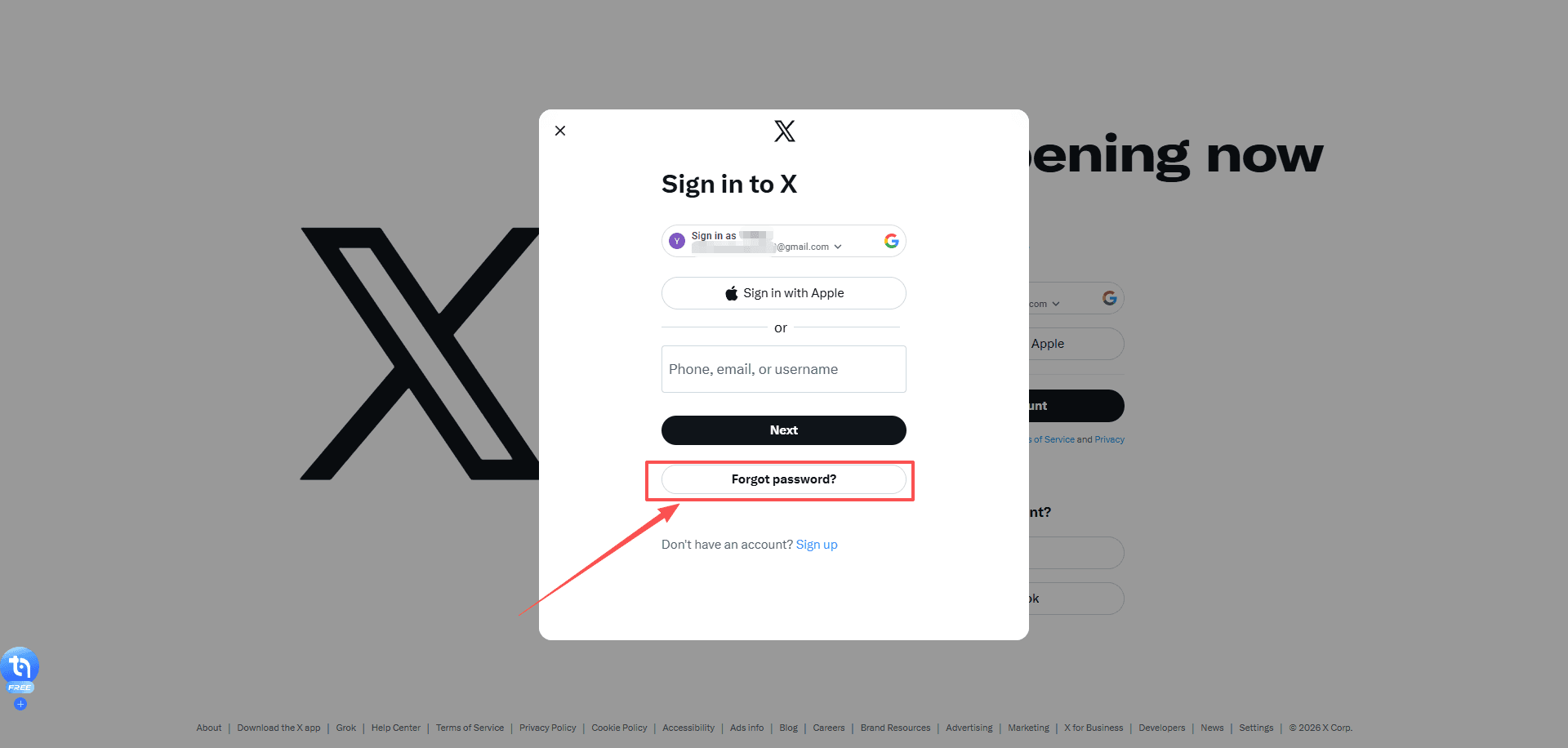
image.png


A few notes that matter:


· If you don’t get the reset email, check Spam, Promotions, and All Mail.


· If you used a phone number, you might get an SMS link instead.


· Open the reset link on the same device you plan to log in with.


When you create a new password:


· Make it unique.


· Don’t let your keyboard auto insert spaces.


· Save it in a password manager immediately.


Then try logging in again.


Step 8: Fix 2FA problems (this is usually the real issue)​

This is the part that makes people panic because you can have the correct password and still be locked out.


If 2FA is blocking you, fix 2FA:

Scenario A: Authenticator app codes don’t work​

Common causes:


· Your phone time is slightly off


· You switched phones and lost the authenticator seed


· You’re entering a code for the wrong account


Fixes:


· Turn on automatic time on your phone (date and time settings). This can often be resolved by checking your time settings for accuracy.


· In Google Authenticator, Microsoft Authenticator, Authy, etc. make sure you’re using the entry for the correct X account.


· Try 2 or 3 fresh codes, not the same one.


Scenario B: SMS codes never arrive​

Try:​


· Switch from Wi-Fi to mobile data.


· Restart your phone.


· Wait 2 minutes and request again. Don’t spam requests 10 times.


· Check if your carrier blocks short codes, or if you have SMS filtering apps enabled.


If SMS still fails and you don’t have backup codes, keep reading.


Scenario C: You lost your 2FA device and have no backup codes​

This is where X can take longer than 10 minutes, depending on what recovery options you set up. But you can still move fast.


First, check whether you have backup codes. These are one-time codes generated when you enable 2FA in the X iOS or Android app, or later on X.com. They’re meant for exactly this situation and are not the same as temporary passwords.


Your options:


· If you’re logged in on any other device, go there first. You can disable 2FA or generate new backup codes from Settings → Account → Security.


· If you’re not logged in anywhere, your only option is account recovery through X support.


Note: If SMS text message two-factor authentication is your only 2FA method and you’re still logged in, you can remove your phone number in Mobile settings on X.com. Click Delete my phone, and SMS-based 2FA will be automatically turned off.


Step 9: Check if your X account is locked, limited or compromised​

Sometimes you can’t log in because X detects suspicious activity on your account. Depending on the situation, your account might be locked, limited, or compromised.

Scenario A: Locked account

Common signs:


· Messages like “Locked out!


· Alerts about a “Suspicious login attempt” or “Unusual activity


· Prompts to verify your email or phone number


How to fix it:


· Follow the on-screen verification steps.


· Check your email for security alerts from X and approve any actions if required.


· If you used a VPN, turn it off and try logging in from a normal network.


If verification gets stuck or won’t complete, clear your cookies (Step 5) and try logging in from another device (Step 3).


Scenario B: Limited account

X may temporarily restrict certain actions if it detects suspicious or potentially rule-violating behavior.

Common Signs:​

You may be unable to tweet, follow new accounts, or perform other normal actions, and you might see alerts about account limits.


Fix:​

If your account is limited or suspended, you’ll usually see a message when logging in explaining the restriction. Follow the on-screen instructions to appeal or restore access.


Scenario C: Compromised account

If your account has been hacked or phished, X may proactively reset your password to block unauthorized access. In these cases, you’ll receive an email with instructions on how to reset your password. Follow the steps in that email to regain access if you can’t log in.

Common Signs:​


· Unexpected posts or messages sent from your account


· Actions you didn’t approve (following, unfollowing, blocking)


· Notifications that your account may be compromised


· Password no longer works or account info changed without your knowledge


Steps to secure your account:​


· Change your password immediately (Settings → Password or Forgot Password if logged out) and revoke app access on iOS/Android.


· Secure your email and reverse any unexpected changes from verify@x.com emails.


· Revoke unknown third-party app access. For X Pro Teams, check member lists for unfamiliar users.


· Update passwords in trusted third-party apps that use your X password.


· Extra precautions: Delete unwanted posts, scan for malware, install updates, enable 2FA, and don’t share credentials.


· Contact Support if you still can’t log in; include your username and last access date.


How accounts get compromised:​


· Weak or reused passwords


· Malicious third-party apps or websites


· Malware or viruses on your devices


· Accessing X on unsafe networks


Even if unusual activity is caused by app bugs, changing your password and revoking app access stops it. Act quickly to minimize risk.


Step 10: Do a “clean room” test​

This is the fastest way to prove whether it’s your device or your account.

Do this exactly:​


1. Use a device you rarely use (or a fresh browser profile).


2. Use Incognito/Private mode.


3. Turn off VPN.


4. Use mobile data if possible.


5. Go straight to https://x.com/login


6. Enter credentials carefully (copy paste from password manager if you have one)


Outcomes:​


· If it works here: your normal browser/app environment is the problem. Extensions, cookies, cached sessions. Fixable.


· If it fails everywhere: it’s either credentials, 2FA, or an account restriction.


At that point, stop trying random stuff. You’ll just trigger security checks.


The fastest “10 minute” order (if you want the short version)​

If you just want the speedrun, do this:


1. Check if X is down


2. Try login on another device/browser


3. Disable VPN and blockers


4. Clear x.com and twitter.com cookies


5. Update or reinstall the app


6. Reset password (don’t guess)


7. Fix 2FA (time sync, backup codes, recovery)


That flow solves most cases.


Common weird issues and what to do​

“Login successful” then instantly logs out​

Usually cookie/session corruption.


Fix:

· Clear cookies for x.com and twitter.com.


· Disable extensions.


· Try another browser profile.

“Something went wrong. Try again.”​

Could be:

· X outage


· Network filter


· DNS block


· Browser extension breaking scripts


Fix:

· Try mobile data


· Disable VPN


· Try a different browser

“Oops, something went wrong” only on Wi-Fi​

That’s your Wi-Fi, router, or ISP level filtering.


Fix:

· Restart router


· Switch DNS to automatic (temporarily)


· Try mobile data

You’re sure the password is right, but it won’t accept it​

Most likely:


· You’re on the wrong account identifier (email vs username)


· Your password manager is filling an old password


· Invisible whitespace got pasted


Fix:

· Manually type it once


· Or reset password and move on


How to Prevent Future X (Twitter) Login Issues?​

Most X login problems are not random. They are triggered when X’s security systems detect something that looks unstable, automated, or suspicious — even if you did nothing wrong.


If you want to avoid seeing “cannot log into X (Twitter)” again in the future, focus on keeping your login environment stable, consistent, and clean.


Here are the practices that matter most:

1. Keep a stable login environment​

Avoid constantly switching between devices, browsers, networks, and profiles when logging into X. Sudden changes in your device fingerprint, IP address, or location can trigger security checks or temporary blocks.


Pick one main environment for your primary account and use it consistently whenever possible.

2. Avoid aggressive VPN or IP rotation on login​

Cheap VPNs and constantly rotating IP addresses are one of the most common reasons accounts get flagged for “suspicious activity.”


If you need privacy or IP control, use a stable IP rather than one that changes every session — especially when logging in.

3. Separate multiple X accounts properly​

If you manage more than one X account (personal, business, client, or automation), never log them into the same browser profile.


Sharing cookies, storage, and fingerprints between accounts is a very common cause of:


· Login loops


· Unexpected logouts


· Security challenges


· Temporary restrictions


Each account should have its own isolated environment.

4. Keep sessions and cookies isolated​

Many login errors are caused by corrupted or overwritten cookies. This often happens when:


· You reuse the same browser profile for multiple accounts


· You log in and out of different accounts repeatedly


· Extensions interfere with session storage


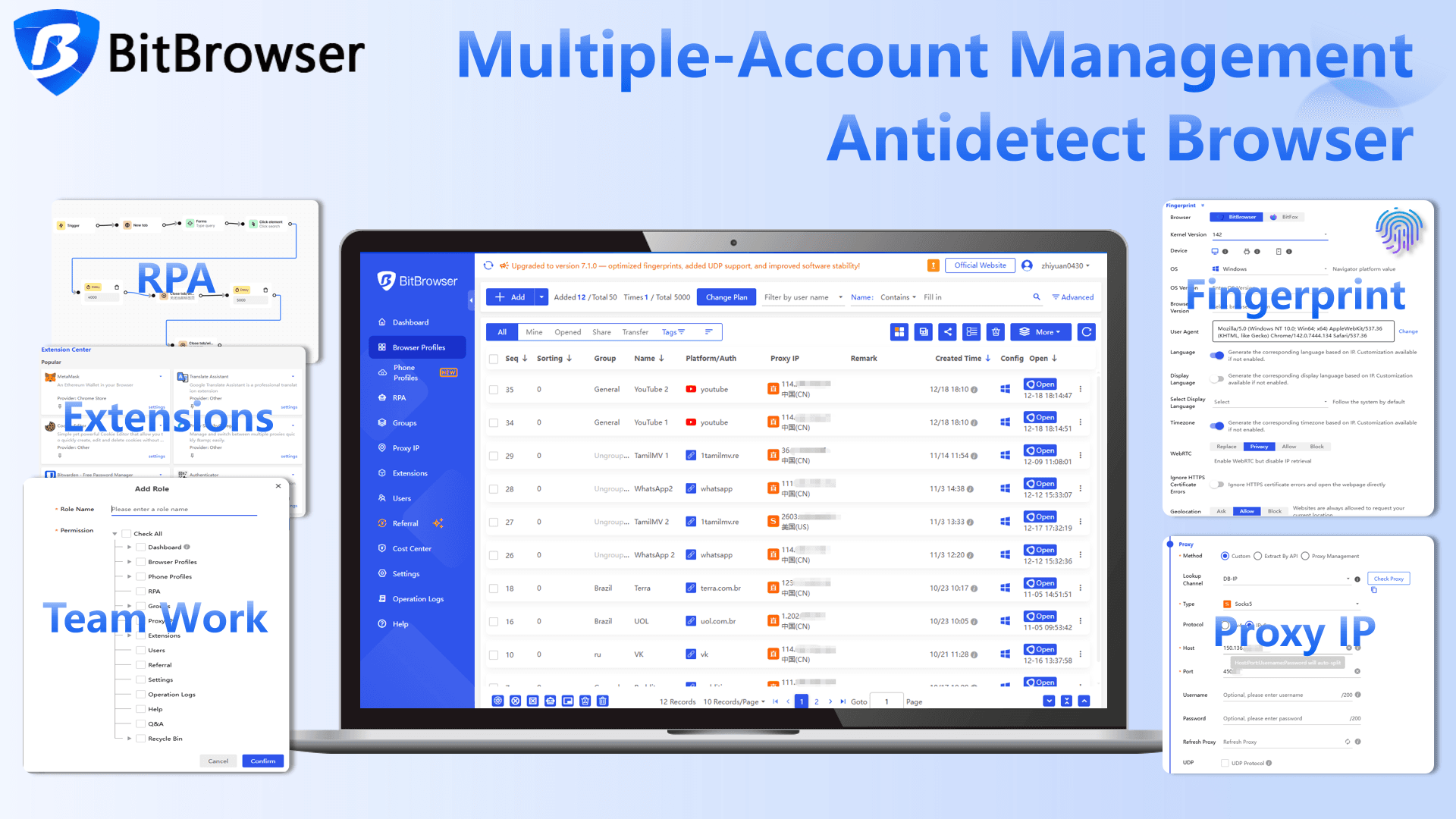
This is where using a professional anti-detect browser like BitBrowser becomes extremely useful.

BitBrowser

· Create isolated browser profiles with separate cookies, storage, and fingerprints


· Assign a consistent IP or proxy to each profile


· Prevent cross-account contamination


· Maintain a stable, trusted login environment for each account


· Manage multiple X accounts safely without causing login issues


This dramatically reduces login loops, security flags, and account locks, especially if you manage multiple accounts or log in from different locations.


In simple terms: if X always sees you as the same “device + browser + network profile,” it has far less reason to block or challenge your login.


Try it yourself: BitBrowser provides 10 permanently free browser profiles.


BitBrowser

Conclusion​

Most X (Twitter) login issues are caused by incorrect credentials, 2FA problems, corrupted sessions, unstable networks, or temporary account restrictions.


Following the checklist in this guide allows you to resolve most login problems.


If login issues keep returning, the cause is usually not your account but your environment. Keeping your setup stable and isolating accounts properly helps prevent repeated errors.


For users who manage multiple X accounts or work across different networks, using a tool like BitBrowser to isolate browser profiles and sessions can reduce login conflicts and security flags.


Fix the issue once, understand why it happened, and you are unlikely to face it again.


FAQ: X (Twitter) Login Issues​

Why can’t I log into X even with the correct password?​

Most commonly it’s 2FA failing, a cookie/session loop, or you’re logging into the wrong account (wrong email/username). Try logging in via a different device, then clear cookies for x.com and twitter.com, then verify 2FA.

What should I do if I’m stuck in a login loop?​

Clear cookies and site data for x.com and twitter.com, disable extensions, and try Incognito mode. Login loops are almost always broken cookies or a browser extension interfering.

I’m not receiving the SMS login code. What can I do?​

Switch to mobile data, restart your phone, wait a minute between requests, and make sure your carrier allows short code SMS. If possible, use backup codes or an authenticator app instead of SMS.

Can I log into X without 2FA if I lost my phone?​

Only if you have backup codes or you’re still logged in on another device where you can disable/reset 2FA. Otherwise you’ll need to use X’s account recovery prompts.

What if X says my account is locked?​

Follow the verification steps (email or phone). If it doesn’t work, try the process on a different network/device and make sure VPN is off. If you can’t complete verification, you may need to use X’s support and recovery flow.

How can I manage multiple X accounts safely without causing login issues?​

Managing multiple X accounts in the same browser or environment can lead to session conflicts and security checks. To avoid this, each account should run in a fully isolated environment.


BitBrowser allows you to:


· Create isolated browser profiles with separate cookies, storage, and fingerprints


· Assign a consistent IP or proxy to each profile


· Prevent cross-account contamination


· Maintain a stable and trusted login environment for each account


This approach reduces login conflicts and lowers the risk of account restrictions when managing multiple accounts.
 

How to create multiple social media accounts for a business?​

The stated rules of Facebook, Instagram, etc., don't allow for multiple accounts. These social media will suspend accounts from the same IP address as they consider suspicious. The key to having multiple accounts is keeping accounts separate and changing your digital fingerprint - the IP address, device, geo-location - with BitBrowser and then creating accounts with another email.

How to safely run multiple social media accounts from the same IP?​

To run multiple accounts for your business or different brands on the same platform, you can use an anti-detect browser like BitBrowser to keep accounts separate and safely manage TikTok, Instagram, and more from one location. With BitBrowser, you can create digital fingerprints and change IPs for each account. This will prevent IP associations which could lead to shadow bans from Facebook, Twitter, Instagram, etc.


What can you do to make running many accounts simple?​

Social media marketers and managers often feel overwhelmed with tons of tasks like content creation, post scheduling, and reporting for accounts on different social media platforms. It's recommended to use versatile anti-detect browsers for multiple accounts to run multiple accounts in one place simultaneously and to automate your social interactions along with social media management tools to track and report data with ease.
 
In 2026, Instagram users are increasingly curious about viewing other profiles anonymously. Whether it’s for competitor research, content inspiration, or simply satisfying curiosity, many turn to an Instagram profile viewer to browse public accounts without logging in. However, the landscape has changed. Instagram’s anti-cheat systems have become stronger, and third-party tools now carry higher risks.


The real question isn’t whether these tools work (many do), but whether they are safe, legal, and suitable for your goals. In this guide, we’ll break down the top free Instagram profile viewers available, discuss their risks and limitations, and introduce better, safer alternatives for 2026.


What Is an Instagram Profile Viewer?​

An Instagram profile viewer is a third-party tool or platform that lets you browse public Instagram profiles without logging into your own account (or without using Instagram’s official app). These tools usually fall into three categories:


1) Web-based platforms: You paste a username into a website and it shows profile info and public posts.


2) Mobile apps: Apps that claim to view profiles, stories, or highlights anonymously, often with extra features like downloads.


3) Browser extensions: Extensions that claim to add viewing or downloading features directly inside your browser.


In theory, the appeal is simple: view a public profile without leaving traces, without logging in, and sometimes download content.


In practice, most of the risk comes from how these tools get the data and what they ask from you in return.


Why People Use Instagram Profile Viewers?​

People use Instagram profile viewers for a variety of reasons:


1) Curiosity: Quickly check friends, celebrities, or public accounts without leaving a trace.


2) Competitor research: Marketers and creators monitor trends, hashtags, and top-performing posts.


3) Content inspiration: Save ideas, reels, or visual trends for campaigns or personal projects.

image.png

However, as more users rely on these viewers, Instagram’s detection mechanisms for suspicious activity have become more sophisticated. Using an anonymous Instagram viewer safe is not just about hiding your identity, it’s about avoiding account ban risk and staying compliant.


Top 10 Free Instagram Profile Viewers (And What to Watch Out For)​

In 2025, there are several free Instagram profile viewers that allow users to anonymously browse public accounts, download content, or gather insights. To make it easier to understand, we’ve categorized these tools into three types: Full Anonymous Browsing & Download Tools, Analysis-Focused Tools, and Lightweight Browsing Tools.

1. Full Anonymous Browsing & Download Tools​

This category is ideal for users who want to anonymously explore Instagram profiles or collect content without logging in. The following tools offer a combination of browsing and download capabilities:


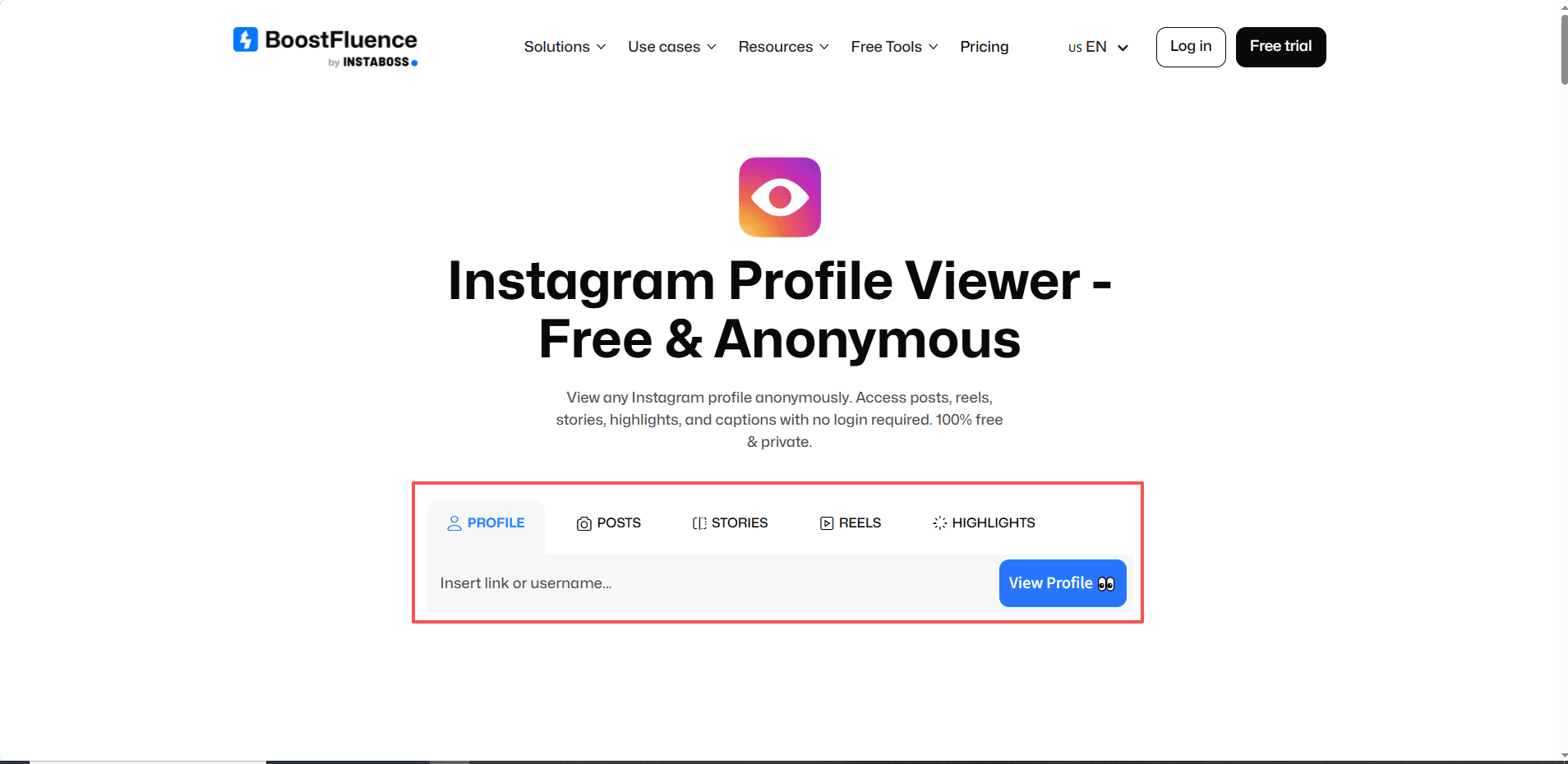
1)BoostFluence: Browse posts, Stories, Reels, and Highlights anonymously. Supports downloading photos and videos without watermarks, perfect for saving content. No login required and unlimited free usage.


Limitations: Free version may have occasional load issues; no advanced analytics


Website: Instagram Profile Viewer – Free & Anonymous


image.png


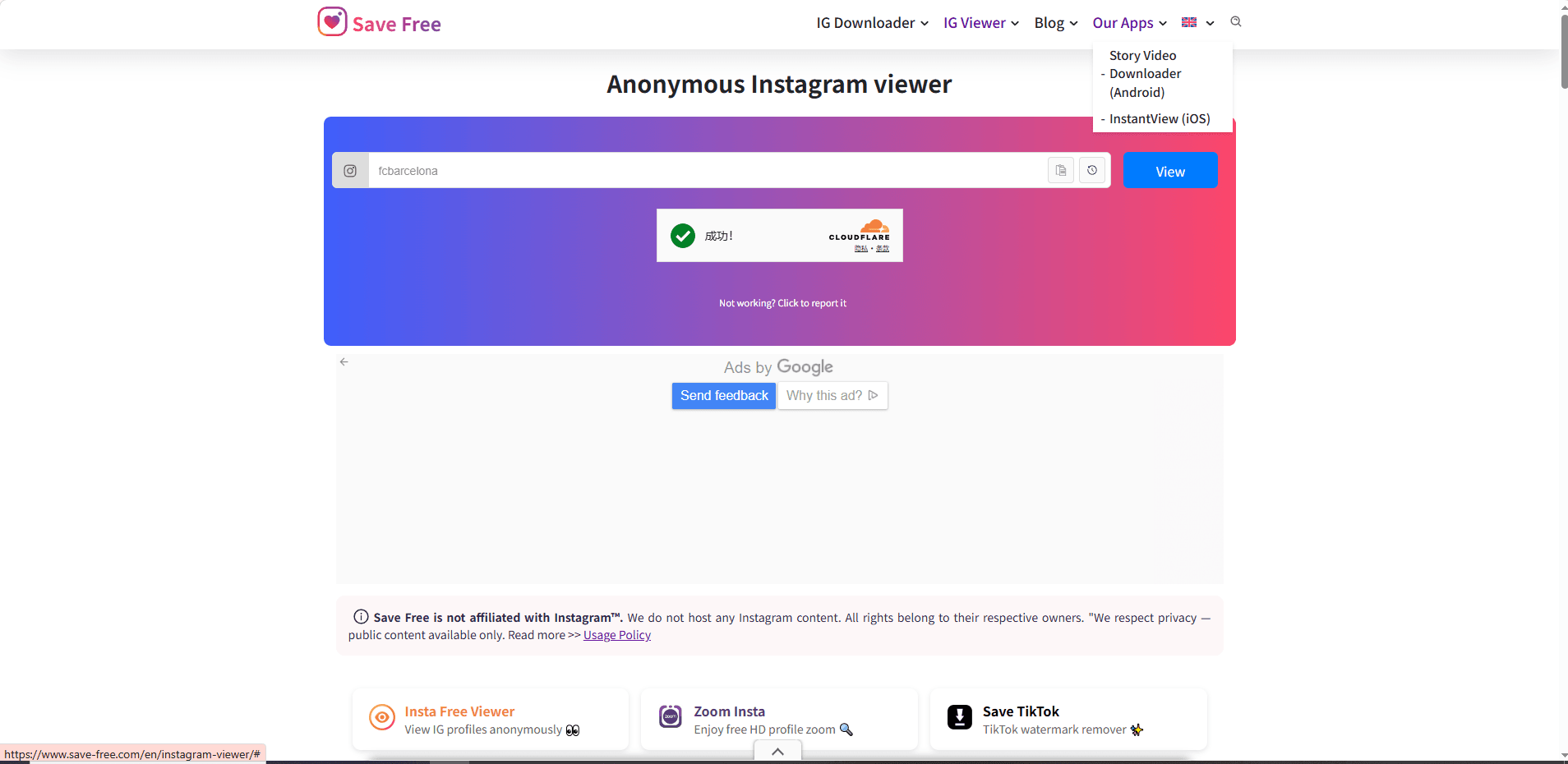
2)Save Free: View profiles and download Stories, Reels, posts, and profile pictures in HD. Available as an Android app for mobile users. No login required and unlimited free usage.


Limitations: Lacks analytics; only supports public profiles; Ads


Website: Instagram Viewer - View Instagram Story, post and Profile Picture


image.png


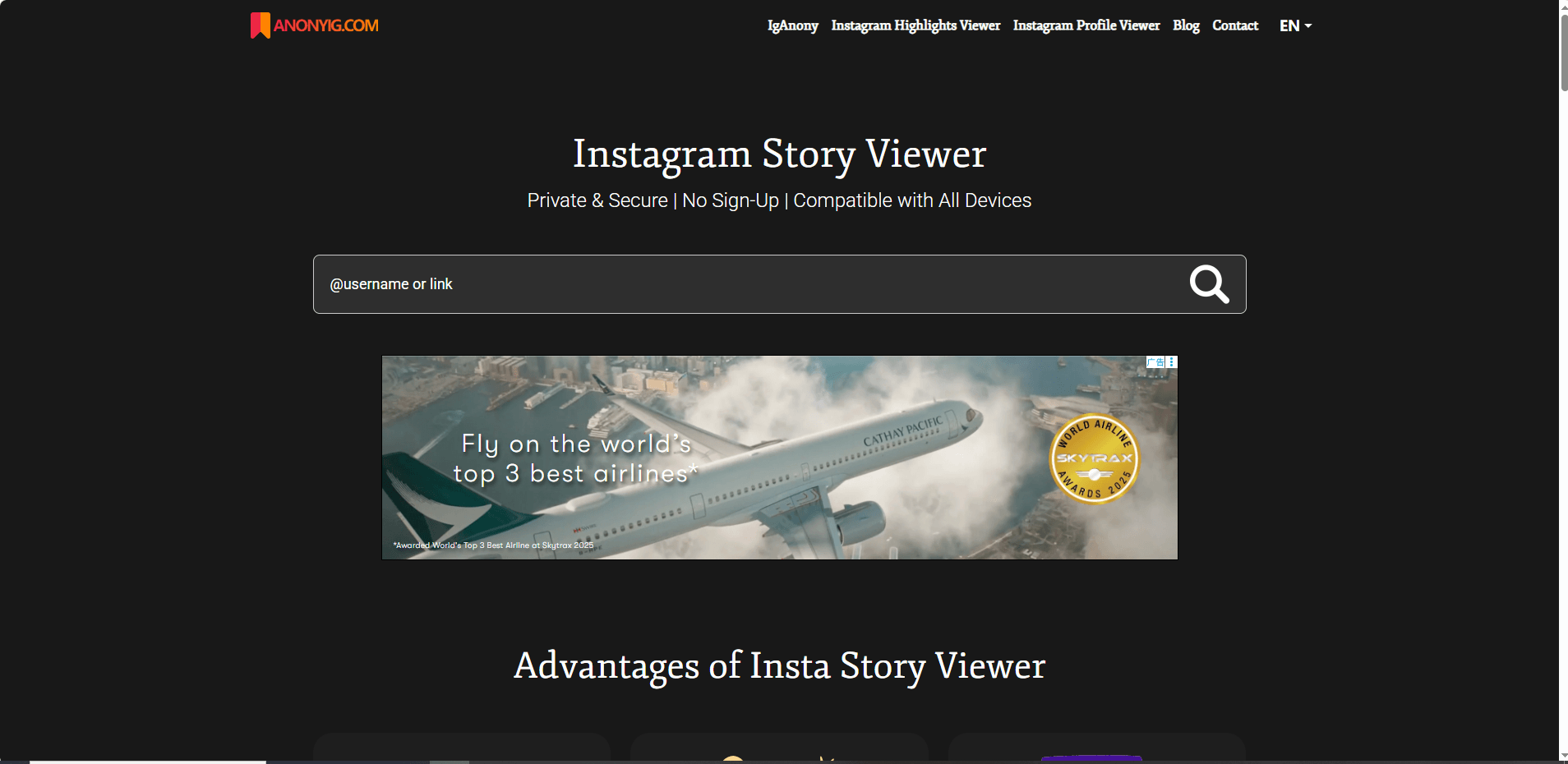
3)AnonyIG: Minimalist anonymous browsing of Stories, Reels, and Highlights. Access to story collections longer 24 hours. Allows downloading high-resolution photos and videos. No registration required and unlimited free usage.


Limitations: Minimal features; no engagement or trend data; Ads


Website: Anonymous Instagram Story Viewer - AnonyIG


image.png


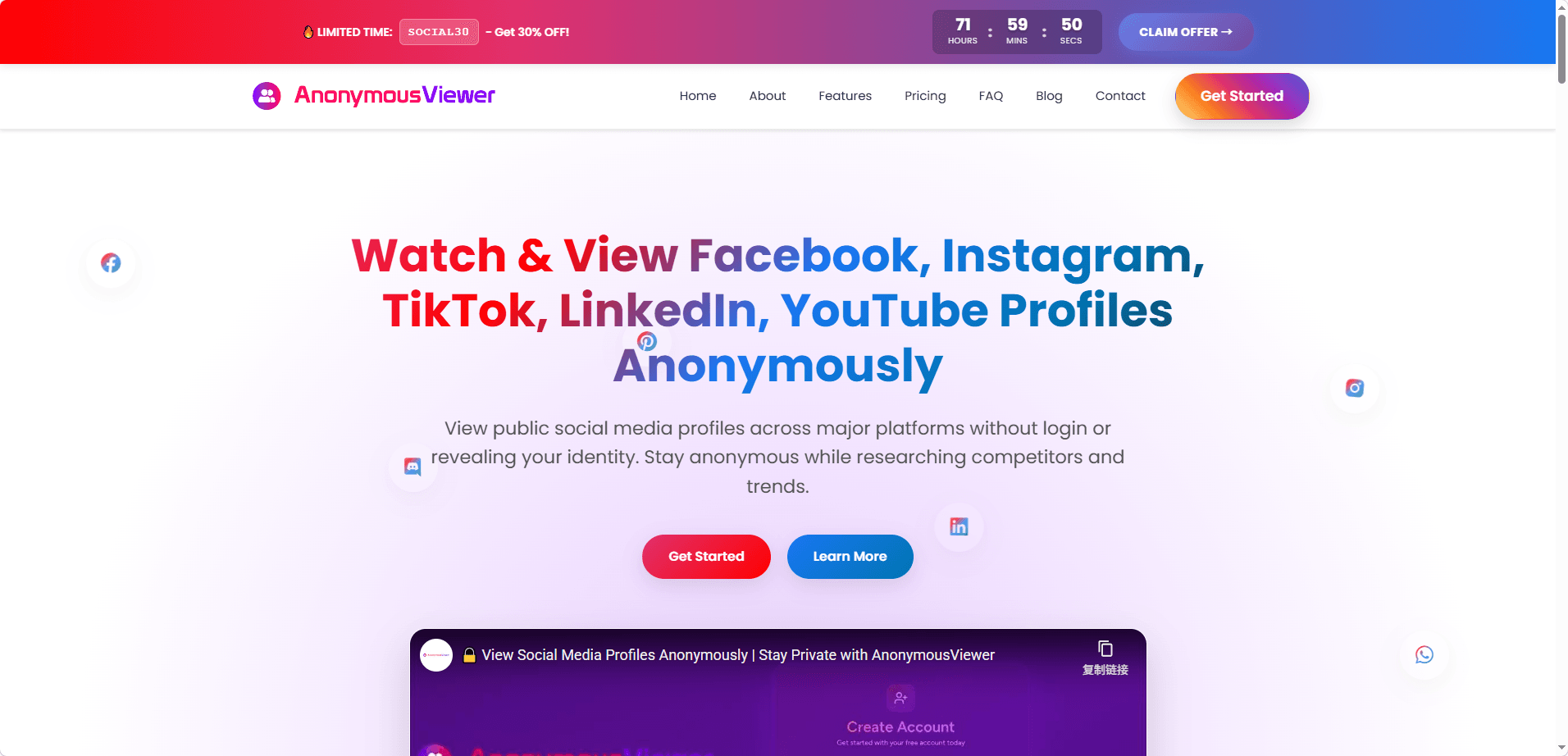
4)AnonymousViewer.io: Multi-platform support beyond Instagram. Allows anonymous browsing and downloading of posts, Stories, and photos, suitable for cross-platform research. No login required and unlimited free usage.


Limitations: No analytics; may have slower loading on multiple platforms


Website: Anonymous Viewer – View Social Media Profiles Privately


image.png


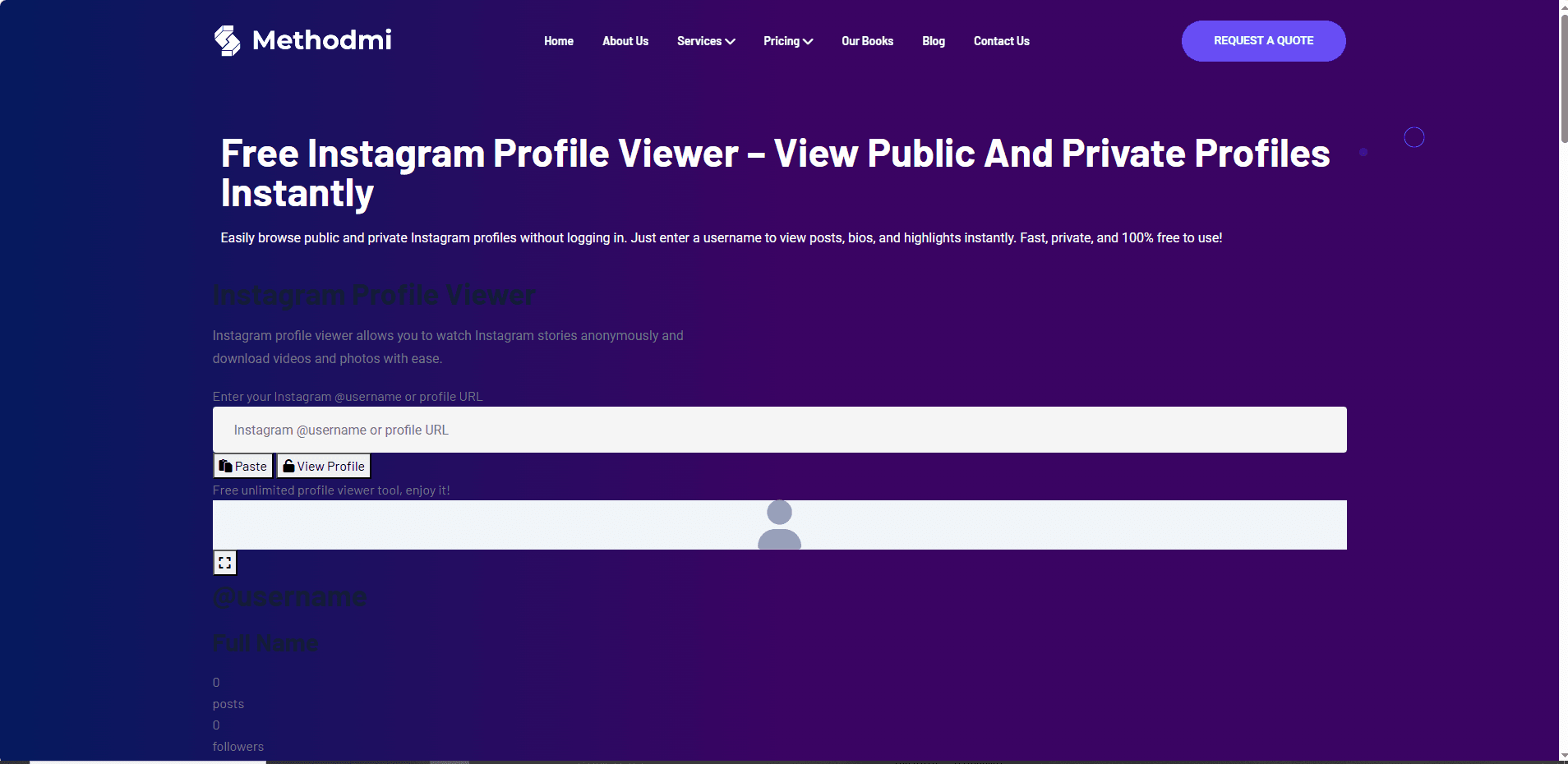
5)Methodmi Free Instagram Profile Viewer: Unlimited browsing of Stories, posts, and Highlights without logging in. Simple, clean interface; Ad-free


Limitations: No analytics support; May have slower loading


Website: Free Instagram Profile Viewer – Methodmi


image.png


⚠️ Risk Note: Although these tools claim to be anonymous, using download features or frequent visits may pose privacy risks. They only access public profiles and cannot view private accounts.
2. Analysis-Focused Tools

These tools are more suitable for creators, marketers, or anyone conducting competitive research. They provide additional analytics features beyond simple browsing:


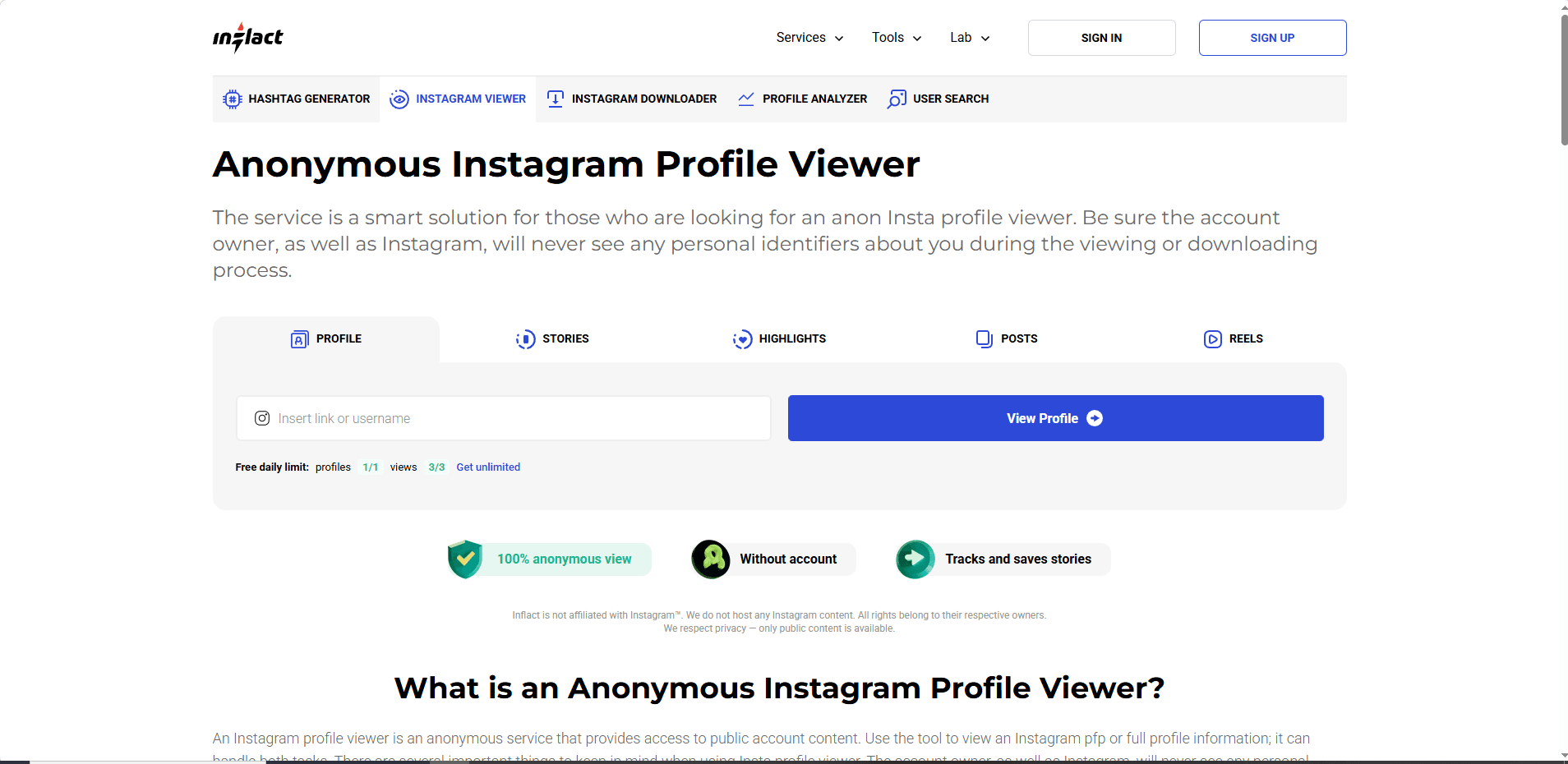
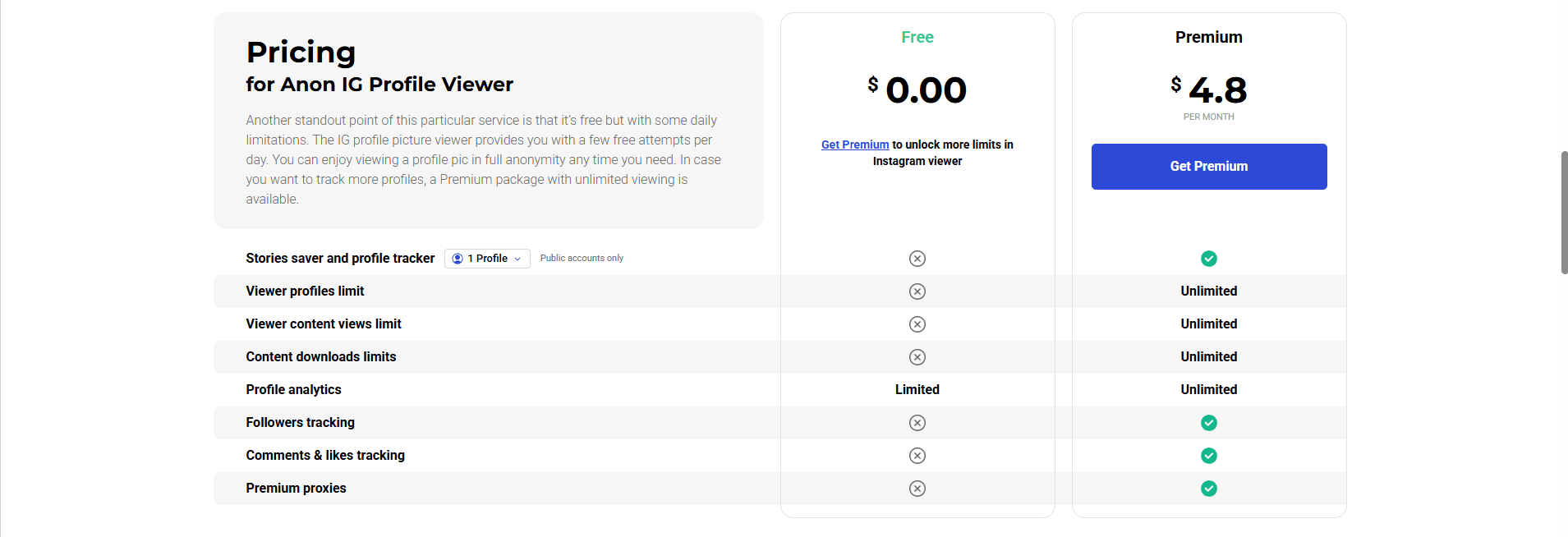
1)Inflact: View posts, Stories, Reels, and Highlights, with engagement rate tracking, top post analysis, and hashtag performance. Free version allows one profile per day.


Limitations: Free version very limited; cannot manage multiple accounts


Website: Instagram Profile Viewer ✧ Private

image.png
image.png


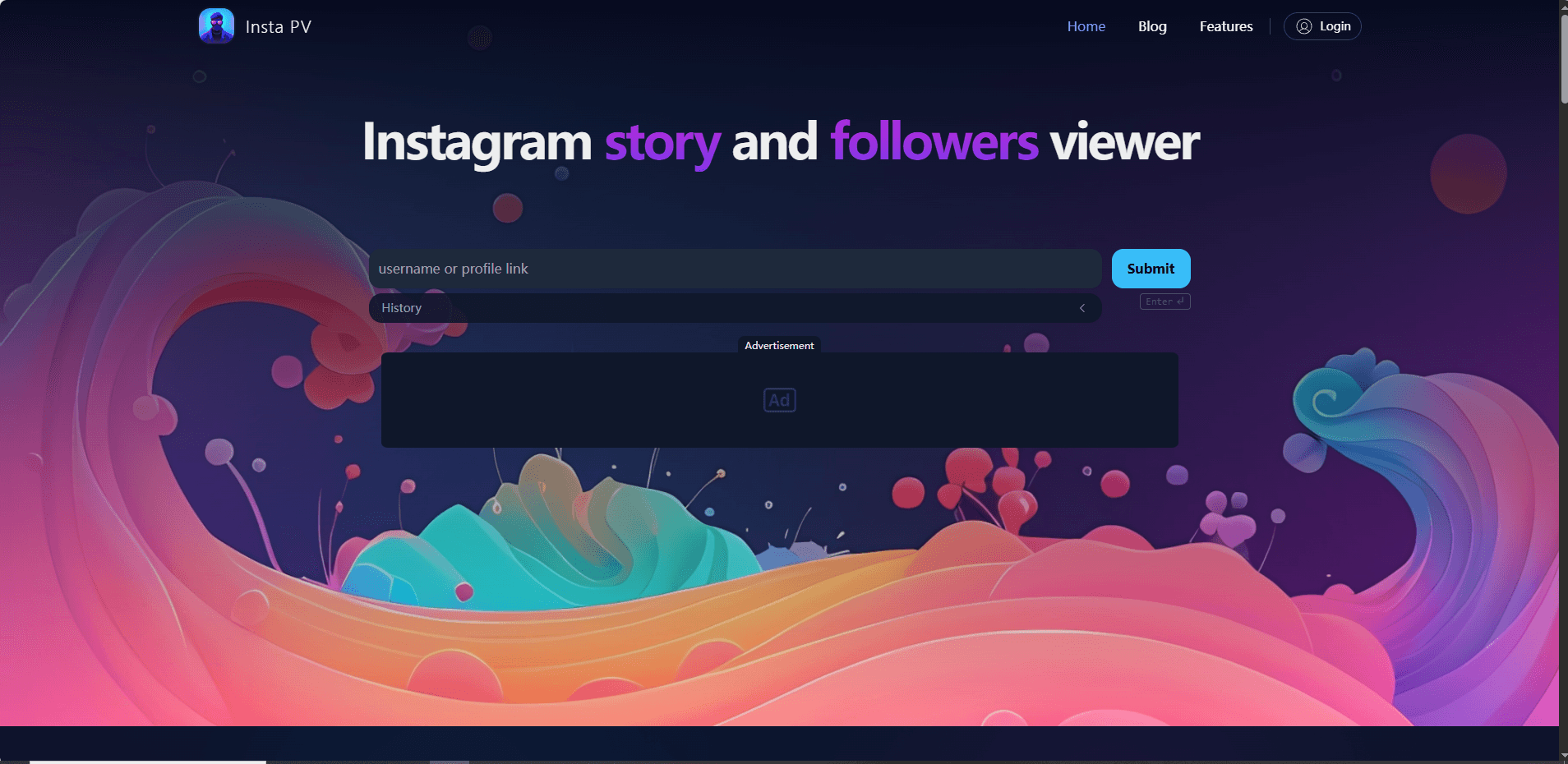
2)InstaPV: Chronologically track followers and following activity, browse Stories and Highlights, and download profile pictures; Access detailed post information and view recent post likes in chronological order.


Limitations: Only shows first 50 followers/following per account; cannot post or manage accounts; Ads.


Website: Instagram Story and Followers Viewer | InstaPV

image.png


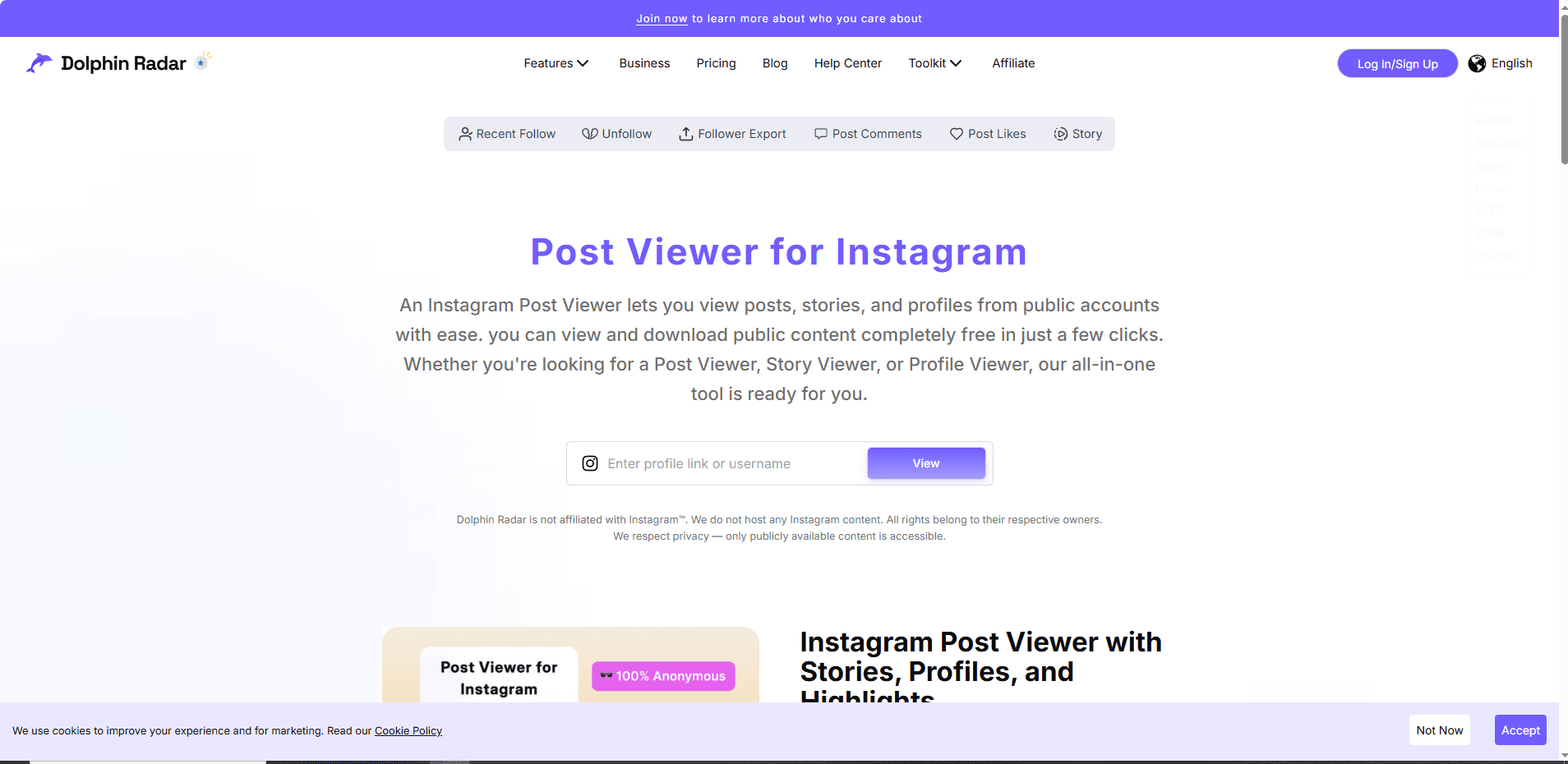
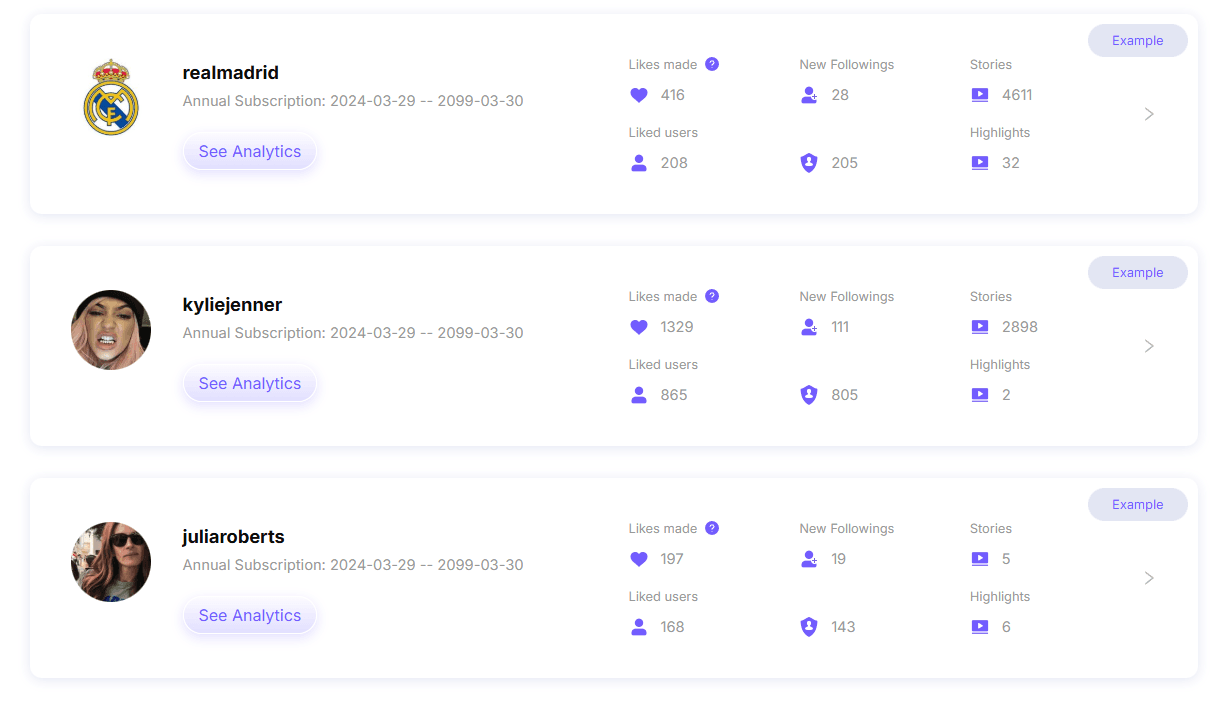
3)Dolphin Radar: View public posts, Stories, and profiles. Download contents in one click, and export the data to Excel for easy organization. Clear, actionable Instagram analytics including follower trends to engagement metrics.


Limitations: Limited daily searches; Download requires registration.


Website: Instagram Post Viewer – View IG Posts, Stories and Profiles

image.png
image.png

⚠️ Note: Even though these tools offer analytics, they are still read-only. You cannot post, comment, or manage multiple accounts with them. For commercial use or multi-account management, caution is advised due to potential Instagram profile viewer risks.

3. Lightweight Browsing Tools

Lightweight tools are designed for users who want fast, simple, and anonymous browsing of Instagram profiles without downloads or analytics.


1)Claptools IG Profile Viewer: Lightweight and fast tool for loading public posts. No login or plugin required.


Limitations: No download or analytics; read-only; cannot track engagement


Website: Instagram Profile Viewer | Anonymous IG Viewer with No Login

image.png


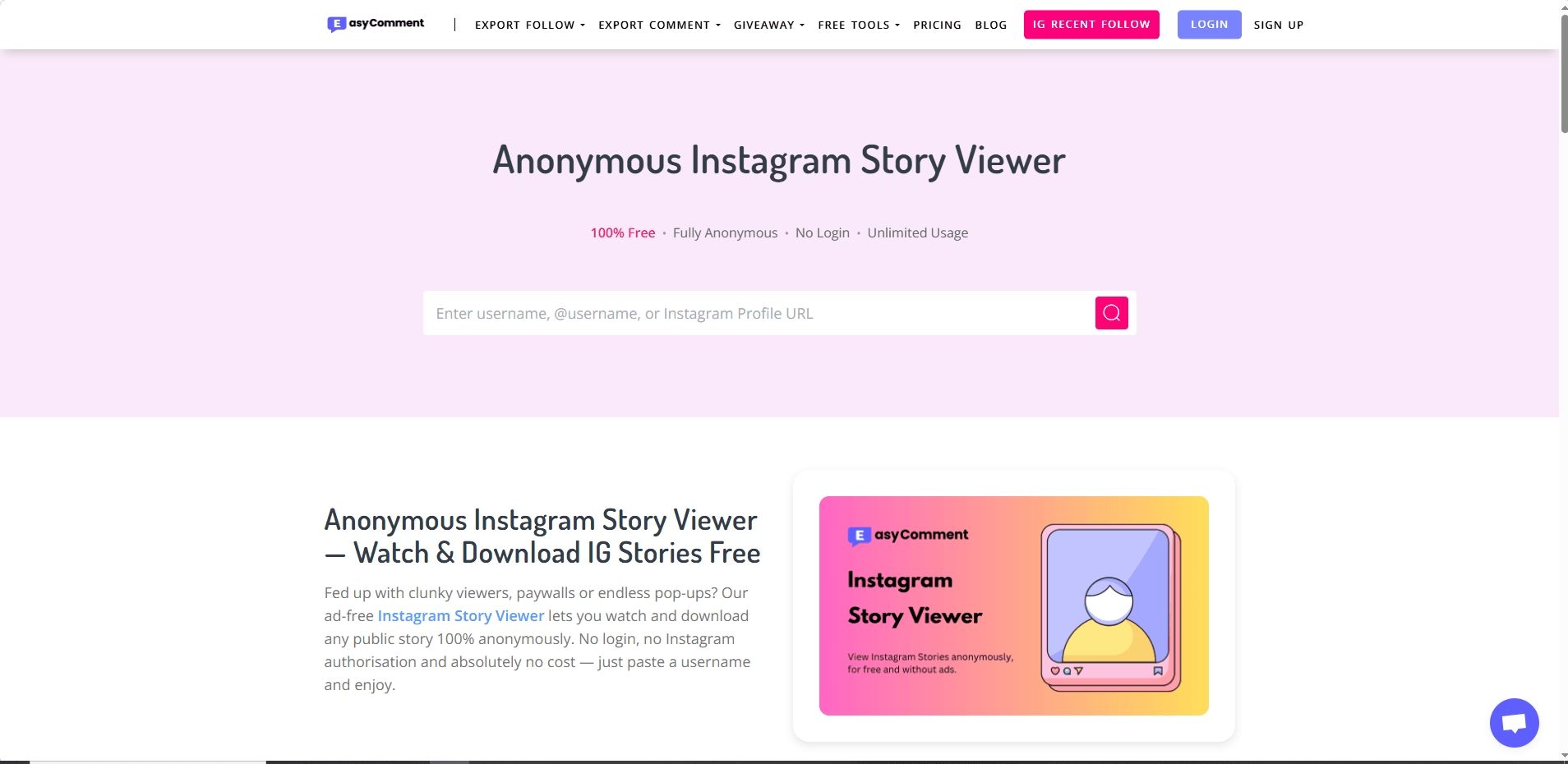
2)EasyComment IG Viewer: Quickly view public profiles, posts, and followers without logging in, with HD profile picture enlargement. No Ads or Pop-ups. No any daily limits on viewing or downloading.


Website: Anonymous Instagram Story Viewer — Watch IG Stories Free

image.png

⚠️ Summary: Lightweight viewers are perfect for users who need speed and simplicity but are not suitable for research, analytics, or multi-account operations.
 

Is Using an Instagram Profile Viewer Safe in 2026?​

Sometimes, but “safe” depends on which kind of viewer you use and what you do with it.


Here’s the simplest way to think about it: Risk increases with the level of access a tool demands. A website that merely fetches public data without requiring a login carries lower risk. The risk becomes higher with any tool asking for your Instagram credentials, and it is highest for apps or extensions that require permissions, install profiles, or push through additional “verification” steps.

image.png

Even with lower-risk tools, the bigger problem in 2026 is not just “can it steal my Instagram password.” It is:


· Tracking (your IP, browser fingerprint, device identifiers)

· Malware and malicious redirects

· Fake “download” buttons

· Captcha loops that lead to affiliate offers

· Credential phishing (especially if you ever log in)

· Account security issues if you reuse passwords

· Violations of Instagram’s Terms if the tool scrapes aggressively or uses automation


So yes, some people use viewers without immediate consequences. But the risk is not theoretical, and it has increased as Instagram has become better at detecting and limiting automated access.

Limitations of Instagram Profile Viewers

· Read-only tools: Cannot post, comment, or manage accounts.

· No scalability: Unsuitable for multi-account operations.

· Limited business utility: Cannot replace official tools or automation platforms.


Best Alternatives in 2026: Why Teams Use BitCloudPhone Instead​

Instagram profile viewers are useful for looking, but not for operating. They are read-only, cannot scale, and offer no protection once you start logging in, managing, or growing accounts.

That’s where BitCloudPhone comes in. Not as another viewer, but as a safe operating environment for Instagram.

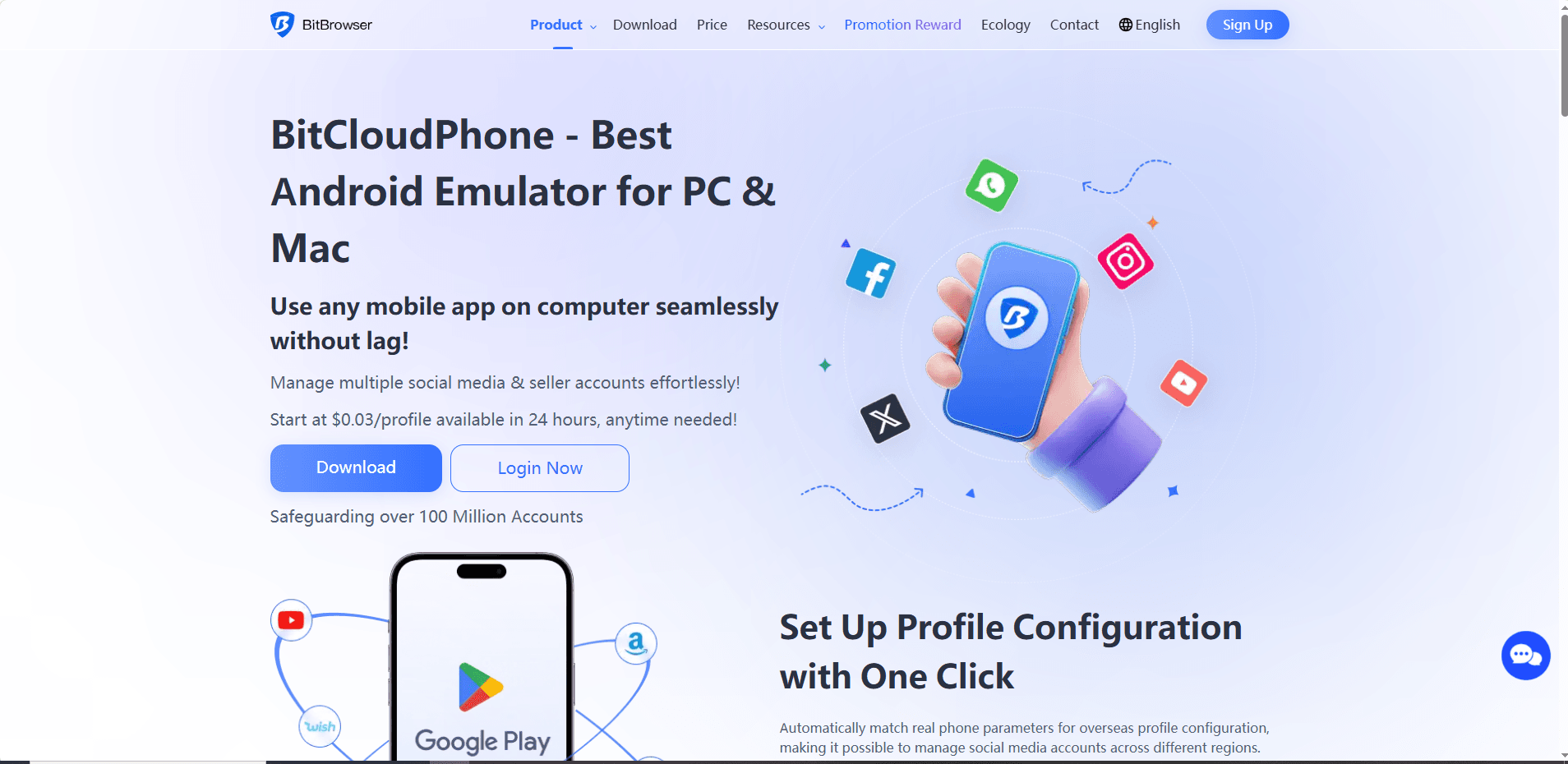
Instead of scraping data from the outside, BitCloudPhone gives you isolated cloud-based mobile devices where each Instagram account runs like it belongs to a real person, on a real phone, in a real location.


BitCloudPhone


BitCloudPhone

Key Advantages of BitCloudPhone​

1. Anti-detection by design​

Each account runs in its own isolated device with a unique fingerprint and IP. This prevents Instagram from linking your accounts and reduces the risk of shadowbans or suspensions.

2. Safe multi-account management​

You can manage dozens or hundreds of accounts without shared cookies, sessions, or device identities. One account getting flagged will not affect the others.

3. Built-in automation​

BitCloudPhone lets you automate warm-up, posting, messaging, and engagement safely inside isolated environments so actions look human, not robotic.

4. Long-term stability​

No scraping, no bypassing, no gray-area tricks. Just real devices, normal Instagram usage, and infrastructure built for scale.

Who Is It For?​

· Casual users can rely on profile viewers.

· Creators and marketers can use analytics tools.

· Agencies, growth teams, and businesses benefit most from BitCloudPhone.


Viewers answer “Can I see this?”


BitCloudPhone answers “How do I run this safely?”


If Instagram matters to your business, you need infrastructure, not shortcuts.


👉Create your cloud phone profile.


Conclusion​

Instagram profile viewers can be helpful for quick, anonymous browsing of public accounts. They are useful for curiosity, light research, or saving inspiration. However, in 2026, they also come with increasing risks, including privacy tracking, malware exposure, and account restrictions.


More importantly, profile viewers are read-only tools. They cannot help you manage, grow, or scale Instagram accounts safely. For anyone using Instagram professionally, relying on viewers alone is no longer enough.


If your goal is simply to look, a profile viewer may be fine with caution. If your goal is to operate, grow, or manage multiple accounts, you need a safer foundation. That is where infrastructure tools like BitCloudPhone become the better long-term choice.


Frequently Asked Questions (FAQ)​

1. Is using an Instagram profile viewer legal?​

In most cases, viewing publicly available content is legal. However, some profile viewers collect data in ways that may violate Instagram’s Terms of Service or local data protection laws. The legal risk depends on the tool, how it operates, and how you use it.

2. Can Instagram detect that I am using a profile viewer?​

Instagram cannot directly see which external website you visit. However, it can detect unusual traffic patterns, scraping behavior, or automated access to its platform. If a viewer logs into your account or uses aggressive automation, the risk of detection and restriction increases.

3. Are Instagram profile viewers safe to use?​

Some low-access viewers that only fetch public data are relatively low risk. However, many tools track users, show malicious ads, or attempt to collect login credentials. Frequent use, downloading content, or installing apps and extensions increases your exposure to privacy and security risks.
 
Managing multiple social media accounts is no small feat. One device change can trigger logouts, additional verifications, or account reviews, consuming hours of your week. The solution? Cloud phones — virtual Android devices that allow stable, persistent, and isolated account management without juggling physical hardware.


In this guide, we’ll compare the best cloud phones for social media marketing in 2026, highlighting features that matter most: persistent device identity, account isolation, team workflows, and cost efficiency. We’ll also provide a practical setup checklist to maintain account stability as your client list grows.


What “Best” Means for Social Media Teams

Not all cloud phones are created equal. Some are gaming-focused, others are virtual Android emulators, and a few are actual device-as-a-service platforms. For social media managers handling multiple accounts, the following characteristics are non-negotiable:


· Persistent Device Identity – The cloud phone should maintain the same device identity over weeks or months. Sudden changes trigger verification loops.


· Isolation per Workflow – Each client account or project should have a separate device environment. Switching between accounts should not share fingerprints.


· Reliable Location Control – IP addresses and geolocation signals must align. Mismatched locations can lead to platform verification alerts.


· Native App Support – Real Android apps, not just web views, ensuring platforms treat the device as authentic.


· Central Management – Easily start, stop, and organize multiple cloud phones from a single dashboard.


· Team Access – Multiple team members can access accounts without sharing physical devices.


· Cost Model that Scales – Pay for active usage, not idle devices.


Keep these criteria in mind as we review the top cloud phone platforms for social media marketing.


Top Cloud Phones for Social Media Marketing (2026)

1. BitCloudPhone — Best for Agencies and Multi-Client Operations

image.png


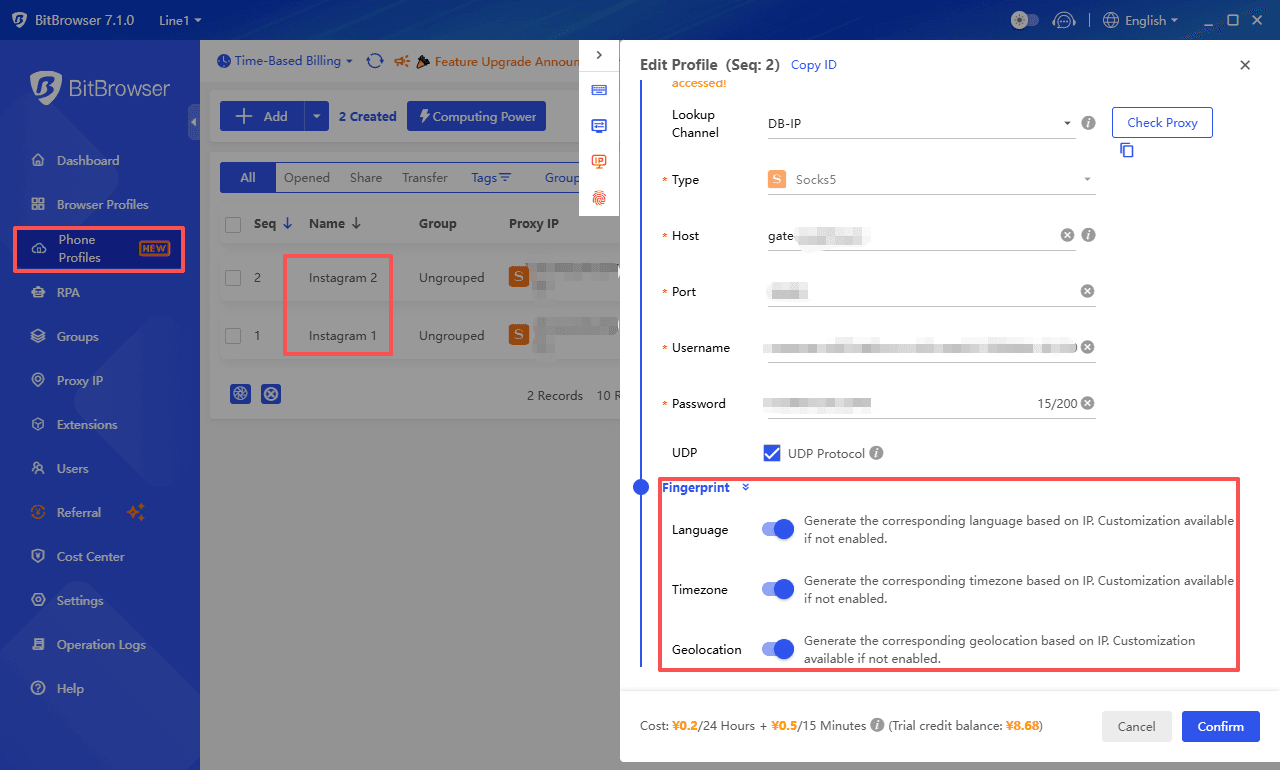
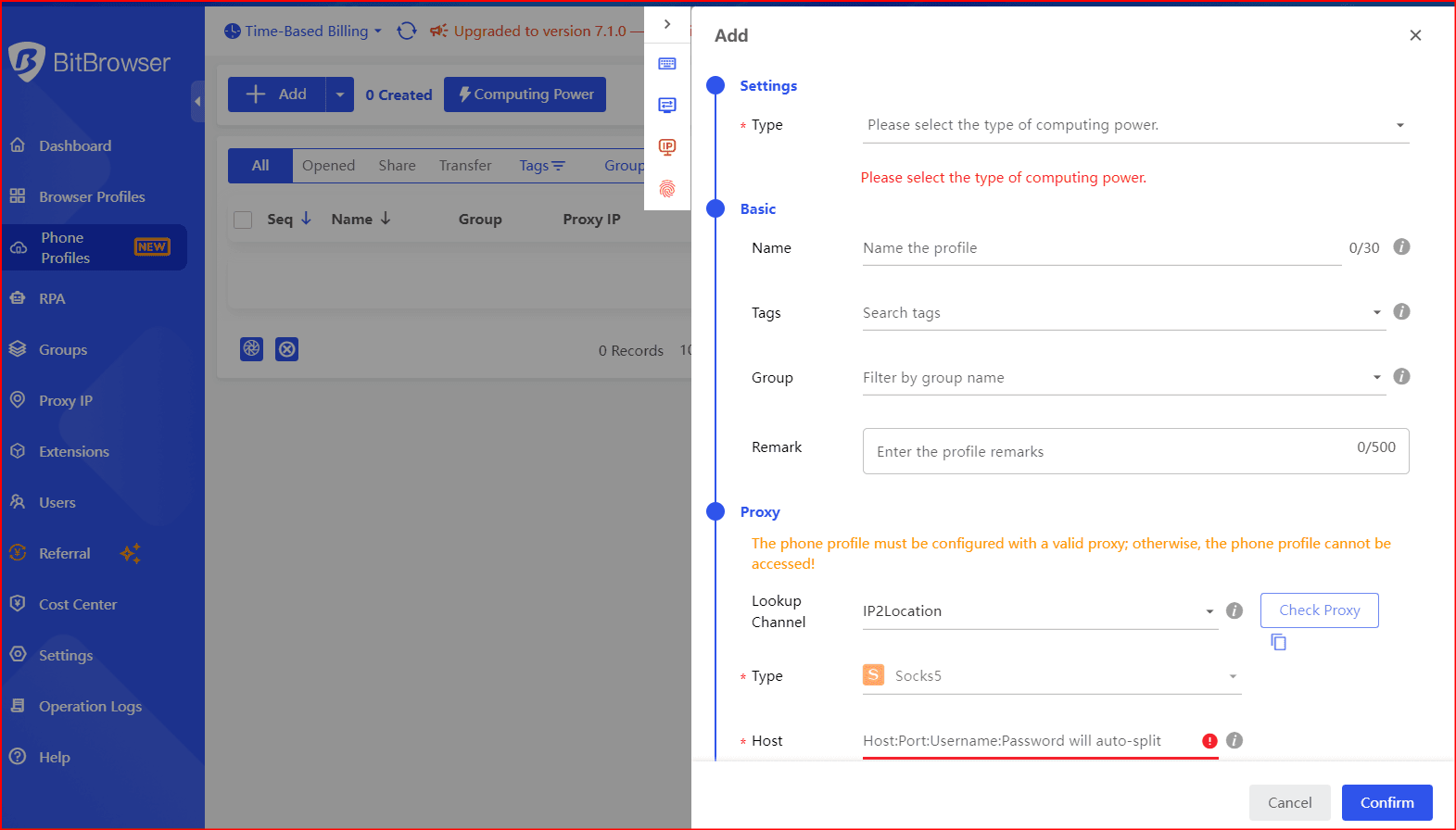
BitCloudPhone, from BitBrowser, is explicitly designed for managing multiple accounts and projects. It uses a profile-based system, where each profile represents a separate device, making it perfect for agency workflows.


Key Features:


· Unique device fingerprint per profile – Persistent across sessions.


· Native app support – Real Android apps in a virtualized environment.


· Time-based billing – Pay for active usage only.


· Multi-profile management – One profile per client or project, fully isolated.


· Centralized dashboard – Organize, start, and stop profiles without hardware juggling.


Best Use Case: Agencies managing multiple client accounts, requiring persistent device identities and organized multi-profile workflows.


What to Watch: Marketed as an emulator environment, so always pilot test with your apps to verify platform tolerance for virtualized signals.


image.png


Get more BitCloud Phone vouchers here: Get your free $5 and $10 vouchers


2. Multilogin Cloud Phone — Persistent & Reliable Device Identity

image.png

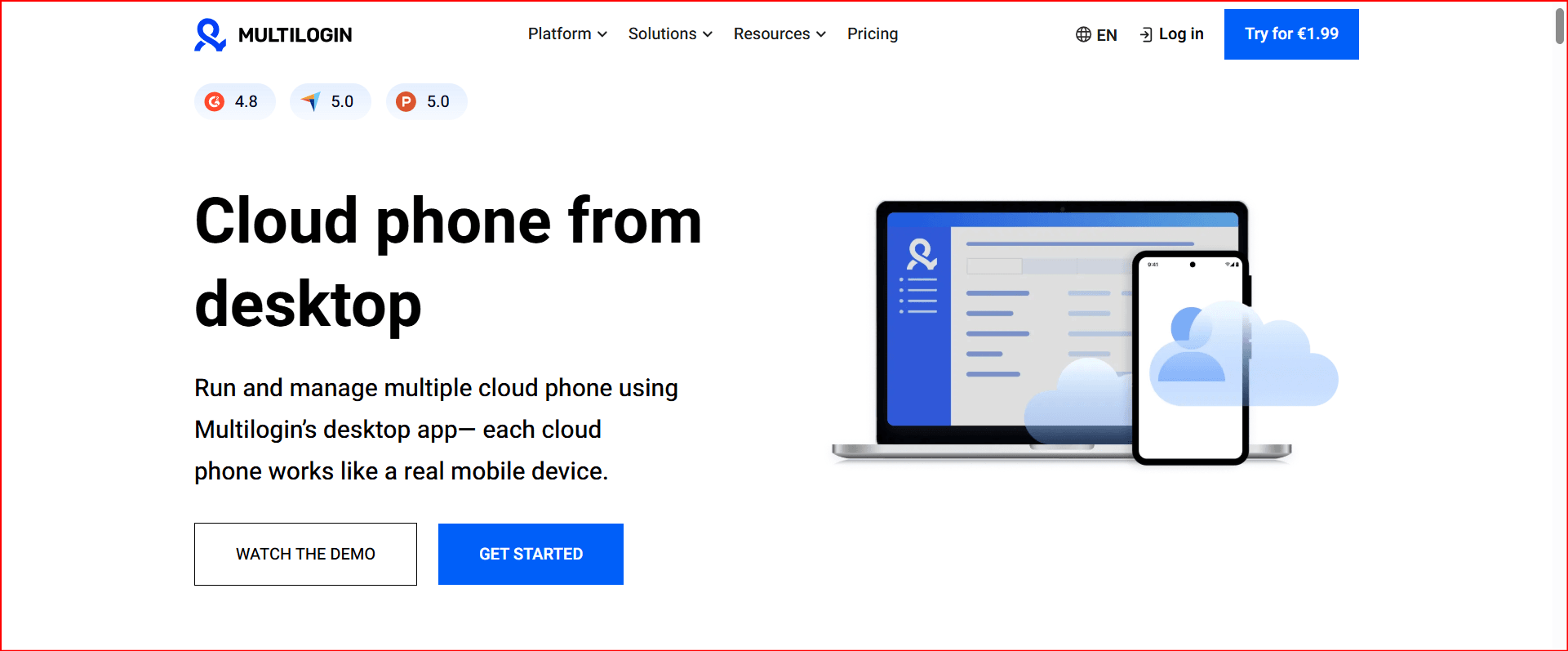
Multilogin offers true cloud-hosted Android phones controlled via their desktop app. Each cloud phone has its own device fingerprint and isolated environment.


Key Features:


· Built-in residential proxies with city-level targeting


· 55+ configurable parameters across device/OS/browser/network signals


· Pay-by-active-minute billing


· Desktop integration with browser profiles


Best Use Case: Agencies needing clean separation between multiple client accounts with stable workflows across months.


When It Excels: Persistent session management, Facebook/Instagram ad operations, TikTok campaigns, or other high-risk social media workflows.


3. VMOS Cloud — Multi-Instance Batch Operations

image.png


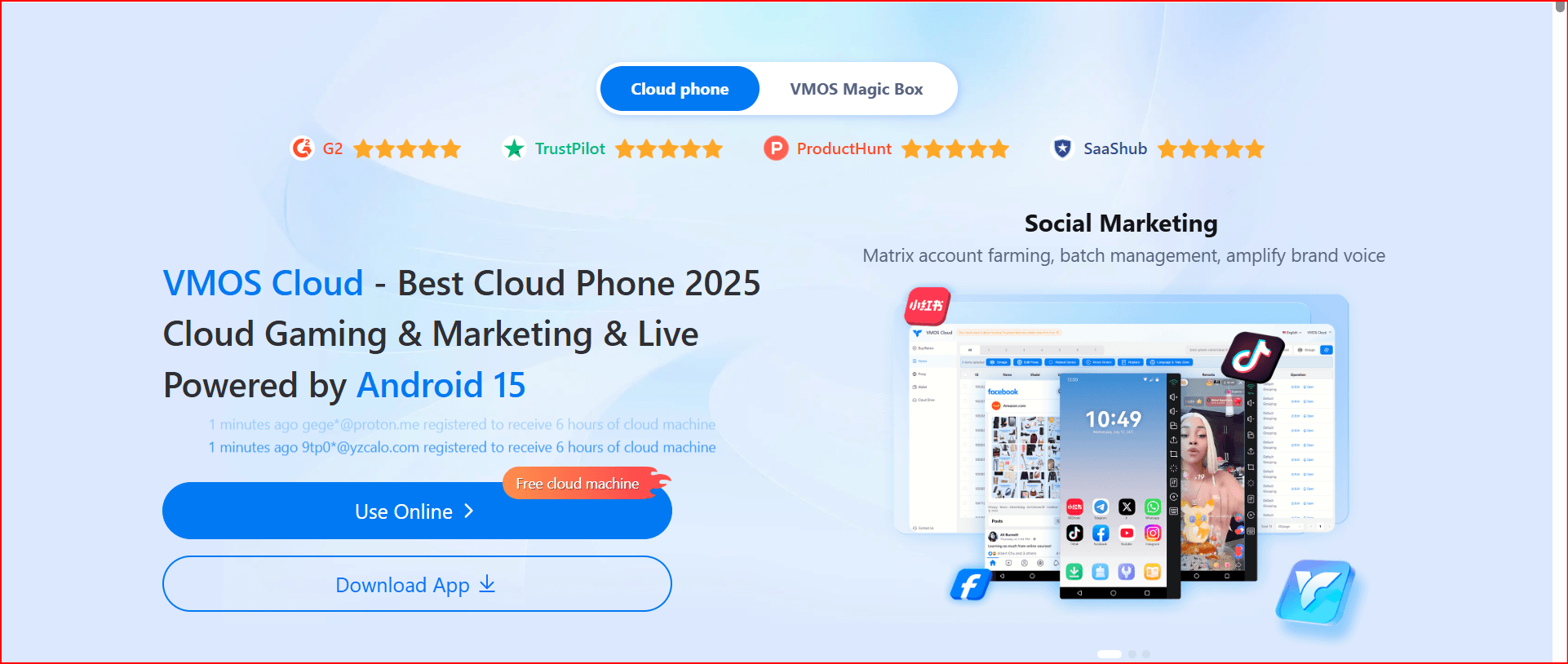
VMOS Cloud specializes in multi-instance Android environments, enabling one operator to run several accounts simultaneously.


Key Features:


· Multi-instance support for repetitive tasks


· Access via Google Play ecosystem


· Designed for batch posting, analytics, and engagement workflows


Caution: Virtualization signals may trigger extra verification on sensitive platforms. Test stability with your apps before scaling.


You may need to read:


VMOS Cloud Review: Is It a Viable Android Cloud Phone Alternative?


4. DuoPlus Cloud Phone — Real ARM Devices for Teams

image.png


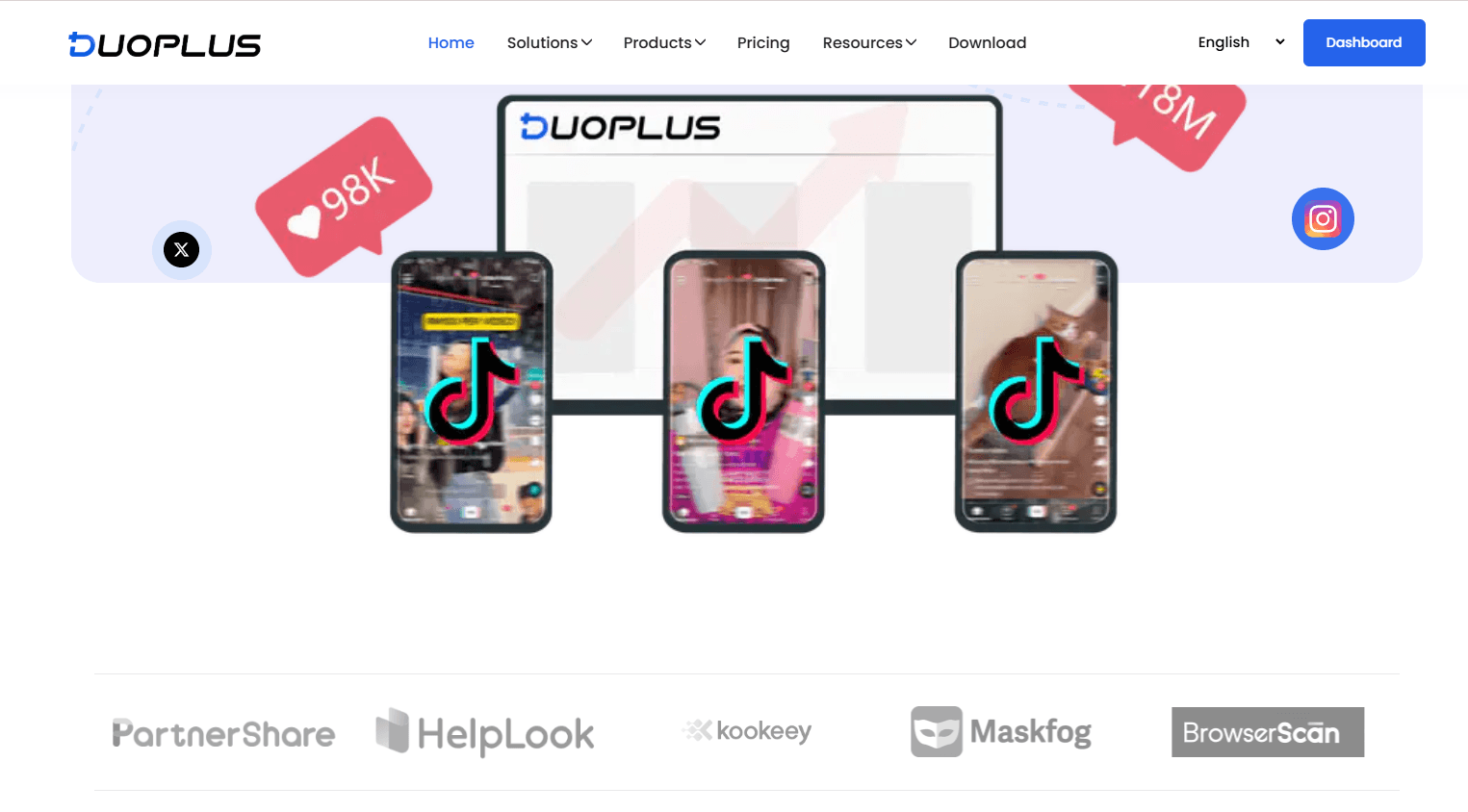
DuoPlus focuses on team workflows with native app support, emphasizing real ARM devices for social marketing operations.


Key Features:


· Centralized management of multiple devices


· Supports app installation via Google Play or app manager


· Native Android experience


Best Use Case: Teams needing multiple stable devices to run social media campaigns without browser-only limitations.


Caution: Confirm device authenticity claims (ARM vs virtual) with a small pilot.


You may need to read:


DuoPlus Cloud Phone Review and the Best Alternatives


5. Redfinger — Emulator-Style Cloud Android

image.png


Redfinger is a cloud Android emulator designed for quick access from anywhere.


Key Features:


· Simple setup and remote access


· Useful for small-scale operations or personal use


Caution: Emulator signals may trigger platform detection; best suited for less strict apps
 

6. LDCloud — Multi-Instance & Synchronized Operations

image.png


LDCloud enables synchronized actions across multiple cloud phones, ideal for batch posting or repetitive account management tasks.


Key Features:


· Multi-instance and synchronized operations


· Centralized management for productivity


· Suitable beyond gaming for social media teams


Caution: Always verify that device signals are “phone-like” to reduce verification frequenc


Choosing the Right Cloud Phone Quickly

Agency / Multi-client / Long-term: Start with BitCloudPhone or Multilogin for persistent device identity.


Batch multi-instance workflows: Consider VMOS Cloud or LDCloud.


Quick access or smaller operations: Redfinger or DuoPlus may suffice.


Cloud Phone Setup Checklist

1. One cloud phone per account cluster – Avoid sharing identities.


2. Maintain consistent location signals – IP region + device region + timezone should match.


3. Avoid rapid switching behavior – Logins should appear human-paced.


4. Clean team handoffs – No sharing credentials; use shared profiles.


5. Stay within platform rules – Use Business Pages, proper roles, and avoid violating account ownership policies.


Real-World Workflow Example

Before:


· One phone shared across the team


· Frequent logouts and verification loops


· Random account reviews


· 2–3 hours lost weekly managing devices


After (Cloud Phone):


· One profile per client


· Dedicated residential proxies for location consistency


· Shared team access without device changes


· Persistent login sessions


· Result: near-zero verification loops, ~10 hours saved per month


Conclusion

In 2026, social media teams need cloud phones that preserve device identity, isolate accounts, and scale efficiently.


Top Recommendations:


· Best for Agencies / Persistent Workflows: BitCloudPhone, Multilogin


· Best for Multi-Instance Operations: VMOS Cloud, LDCloud


· Best for Quick or Small-Scale Use: Redfinger, DuoPlus


Invest in the right cloud phone setup, follow best practices, and your workflow will stay stable, efficient, and verification-free.
 
Top