
You are using an out of date browser. It may not display this or other websites correctly.
You should upgrade or use an alternative browser.
You should upgrade or use an alternative browser.
Setting up Virtual machine
- Thread starter Big
- Start date
-
- Tags
- carding cc virtual machine vmware
Madmanlucifer
Lucifer
- Messages
- 18
- Reaction score
- 7
- Points
- 3
You can get it from verified vandor and from some shopI use TMAC + 911.re + VPN + CCleaner.
I have never used Virtual machine before but now i want to use it.
But I don't know much about it like how to get,how to setup, how it works.
I need a reflection towards using Virtual Machine.
but I will suggest u to do it by ur self .
. if u do it by ur self u can modified the necessary setting by ur self
This is the setup Gide
HOW TO CONNECT TO RDP
1. TO CONNECT TO AN RDP, FIRST CLICK ON THE START MENU or THE WINDOWS MENU (TIP: IT HAS THE WINDOWS LOGO ON IT)
2. SEARCH/TYPE FOR EITHER REMOTE DESKTOP or REMOTE DESKTOP CONNECTION
ANY OF THE ABOVE SEARCHES ON YOUR PC WILL SHOW THE RDP ICON , DOUBLE CLICK ON THAT.
3. ONCE THE RDP OPENS, YOU WILL BE ASKED TO INPUT THE COMPUTER IP. IT IS MOSTLY IN THIS FORMAT (12.34.56.789) AND IT IS PART OF RDP LOGINS INFO WHICH IS BOUGHT FROM VENDOR. AFTER WRITING THAT DOWN, CLICK ON CONNECT
4. AFTER IT CONNECT TO THE IP (If IP Is Dead, It Won’t Connect And This Page Won’t Appear), NOW INPUT THE USERNAME AND PASSWORD OF THE RDP LOGINS WHICH YOU HAVE BOUGHT FROM VENDOR
CLICK ON OK.
5. THIS WILL COME UP AUTOMATICALLY, JUST CLICK ON YES
6. YOU HAVE SUCCESSFULLY LOGGED IN YOUR RDP; YOU CAN USE INTERNET EXPLORER TO DOWNLOAD BROWSER OF YOUR CHOICE.
NOW RDP CAN BE BOUGHT FROM A VENDOR OR ONLINE SHOP.
U have to also learned about deleting rdp log from ur computer manually
Than
You said,if IP is Dead it won't connect.
About which IP you are talking about? Will I get that IP from the vendor?
And,can i delete RDP log with CCleaner?
Thanks for sharing it.I need to clarify one thing.You can get it from verified vandor and from some shop
but I will suggest u to do it by ur self .
. if u do it by ur self u can modified the necessary setting by ur self
This is the setup Gide
HOW TO CONNECT TO RDP
1. TO CONNECT TO AN RDP, FIRST CLICK ON THE START MENU or THE WINDOWS MENU (TIP: IT HAS THE WINDOWS LOGO ON IT)
2. SEARCH/TYPE FOR EITHER REMOTE DESKTOP or REMOTE DESKTOP CONNECTION
ANY OF THE ABOVE SEARCHES ON YOUR PC WILL SHOW THE RDP ICON , DOUBLE CLICK ON THAT.
3. ONCE THE RDP OPENS, YOU WILL BE ASKED TO INPUT THE COMPUTER IP. IT IS MOSTLY IN THIS FORMAT (12.34.56.789) AND IT IS PART OF RDP LOGINS INFO WHICH IS BOUGHT FROM VENDOR. AFTER WRITING THAT DOWN, CLICK ON CONNECT
4. AFTER IT CONNECT TO THE IP (If IP Is Dead, It Won’t Connect And This Page Won’t Appear), NOW INPUT THE USERNAME AND PASSWORD OF THE RDP LOGINS WHICH YOU HAVE BOUGHT FROM VENDOR
CLICK ON OK.
5. THIS WILL COME UP AUTOMATICALLY, JUST CLICK ON YES
6. YOU HAVE SUCCESSFULLY LOGGED IN YOUR RDP; YOU CAN USE INTERNET EXPLORER TO DOWNLOAD BROWSER OF YOUR CHOICE.
NOW RDP CAN BE BOUGHT FROM A VENDOR OR ONLINE SHOP.
U have to also learned about deleting rdp log from ur computer manually
You said,if IP is Dead it won't connect.
About which IP you are talking about? Will I get that IP from the vendor?
And,can i delete RDP log with CCleaner?
Madmanlucifer
Lucifer
- Messages
- 18
- Reaction score
- 7
- Points
- 3
To connect rdp u will need that rdp IP and port number . also username and passwordThan
Thanks for sharing it.I need to clarify one thing.
You said,if IP is Dead it won't connect.
About which IP you are talking about? Will I get that IP from the vendor?
And,can i delete RDP log with CCleaner?
(Will I get that IP from the vendor?)__yes
(And,can i delete RDP log with CCleaner?)
____no
CCleaner only delete ur browser data , catch , and Cooke's file from ur computer/hard disks

Hacker
Professional
- Messages
- 1,043
- Reaction score
- 844
- Points
- 113
VirtualBox Instruction Guide 2021
Table of contents
1. What is VirtualBox, how to install and use
1.1 What is virtualization and its usefulness
1.2 VirtualBox concepts
1.3 Installing VirtualBox on Windows
1.4 Installing VirtualBox on Linux
1.5 Installing VirtualBox extension packs
1.6 Launching VirtualBox
2. Creating and running a virtual machine
2.1 Creating your first virtual machine
2.2 Starting a virtual machine
2.3 Starting a new virtual machine for the first time
2.4 Grabbing and releasing the keyboard and mouse
2.5 Entering special characters
2.6 Changing removable media
2.7 Resizing the car window
2.8 Save Machine State
3. Using groups, snapshots, cloning, importing and exporting virtual machines
3.1 Using VM Groups
3.2 Snapshots
3.3 Taking, restoring and deleting snapshots
3.4 Snapshot content
3.5 Removing virtual machines
3.6 Cloning virtual machines
3.7 Import and export of virtual machines
3.8 Global settings
4. Setting up a virtual machine
4.1 General settings
4.1.1 General Tab
4.1.2 Advanced Tab
4.1.3 Description Tab
4.1.4 The "Encryption" Tab
4.2 System settings
4.2.1 Motherboard Tab
4.2.2 Processor Tab
4.2.3 The Acceleration Tab
4.3 Display (Display Settings)
4.3.1 The "Screen" Tab
4.3.2 "Remote Access" Tab
4.3.3 Video Capture Tab
4.4 Media Settings
4.5 Sound settings
4.6 Network settings
4.6.1 Introduction to online modes
4.6.2 Virtual machines on one network, isolated from other networks
4.6.3 How to isolate virtual machines from the local network while maintaining Internet access
4.7 COM Ports (Serial Ports)
4.8 USB Settings
4.9 Shared folders
4.10 User interface
5. VirtualBox Guest Additions
5.1 What are Guest OS Add-ons for
5.2 Installing and maintaining guest additions
5.2.1 Installing Guest Additions for Windows
5.2.2 Updating Windows Guest Additions
5.2.3 Installing Guest Additions for Linux
5.2.4 Updating Linux Guest Additions
5.3 Shared folders
5.3.1 How to set up a shared folder in VirtualBox
5.3.2 Automatic mounting of a shared folder
5.3.3 Manually Mounting a Shared Folder in VirtualBox
5.3.4 In Windows, the shared folder is not visible in the file manager / How to connect the VirtualBox virtual network folder in Windows
5.3.5 VirtualBox shared folder is read-only
5.3.6 Error "/sbin/mount.vboxsf: mounting failed with the error: No such file or directory"
5.4 Drag and Drop into VirtualBox
5.4.1 Known Limitations
6. Hints, tips and additional materials for using VirtualBox
6.1 Hints and tips for using VirtualBox
6.1.1 Configuring network access to and from virtual machines
6.1.2 How to make it so that when you turn on the computer, it immediately boots into the virtual computer
6.1.3 How to View the Contents of VDIs and VMDKs (VirtualBox Image Images)
6.1.4 Why does the virtual machine not see the USB device?
6.1.5 How to connect a USB device
6.1.6 Video card in virtual machine
6.1.7 How to make a static IP address for a virtual machine
6.1.8 Updating VirtualBox
6.1.9 How to change the used network interface of the host machine for a virtual machine (how to choose a different Internet connection for the guest OS)
6.1.10 How to disconnect a VirtualBox virtual machine from the network
6.1.11 How to add another disk to a virtual machine
6.1.12 How to copy files from a virtual machine disk image
6.1.13 64-bit versions are missing in the "Specify system name and type" window when creating a virtual machine
6.1.14 Awful VirtualBox Disk Performance
6.1.15 How to boot into VirtualBox from USB
6.1.16 How to open disks of virtual machines and download and upload files to them
6.2 VirtualBox Additional Resources
VirtualBox Guide (Part 1): What is VirtualBox, How to Install and Use
VirtualBox is an intuitive program to use. If you are not interested in theory and want to start practicing right away, then refer to the instructions for using VirtualBox to install and run operating systems in a virtual computer:
What is virtualization and its usefulness
VirtualBox is a program that allows multiple operating systems to run simultaneously on one computer. These operating systems can include Linux, Windows, Mac and others. VirtualBox itself runs on various systems as well (it is cross-platform).
This means that with the help of VirtualBox, being, for example, in Windows, you can boot into Linux, work with any Linux applications as if you have a Linux operating system installed without restarting your computer or even installing another OS on a real computer. You can, for example, run other versions of Windows to check settings and programs that you do not want to run on your primary operating system.
Virtualization (running operating systems inside virtual computers using VirtualBox) has a number of useful features:
VirtualBox concepts
When it comes to virtualization (as well as to understand further information), it is useful to get acquainted with the terminology, especially often we will come across the following terms:
Host operating system (host system)
This is the operating system of the physical computer on which VirtualBox was installed. There are versions of VirtualBox for Windows, Mac OS X, Linux, and Solaris.
Guest operating system (guest OS)
It is an operating system that runs inside a virtual machine. In theory, VirtualBox can run any x86 operating system (DOS, Windows, OS / 2, FreeBSD, OpenBSD).
Virtual Machine (VM)
This is a special environment that VirtualBox creates for your guest operating system while it is running. In other words, you are running the guest operating system "in" a virtual machine. Typically, the VM will appear as a window on your computer's desktop, but depending on which of the various VirtualBox interfaces you are using, it may appear full screen or remotely on another computer.
More abstractly, internally VirtualBox thinks of a VM as a set of parameters that determine its behavior. These include hardware settings (how much memory a virtual machine should have, which hard disks VirtualBox should virtualize through, which container files, which disks are mounted, etc.), as well as state information (these may include: a virtual machine in currently launched, saved, about her pictures, etc.). These options are reflected in the VirtualBox Manager window as well as in the VBoxManage command line utility. In other words, the virtual machine is also what you can see in the settings dialog.
Guest additions
This refers to the special software packages that come with VirtualBox but are designed to be installed inside a virtual machine to improve the performance of the guest OS and add additional functionality.
Installing VirtualBox on Windows
To download VirtualBox go to the official website https://www.virtualbox.org/wiki/Downloads. Click on the "Windows hosts" link to start downloading the installation file. Run the file with a double click - the installation process is similar to any other program in Windows.
You can choose which components to install, it is recommended to install all VirtualBox components to fully support all options:
Messages about the installation of unsigned drivers may appear - agree to install them. For the program to work correctly, agree to all requests from the installer.
The next warning tells you that the network connections will be dropped for a short time, i.e. you will be temporarily disconnected from the network. We agree that the Internet connection will automatically resume in just a second.
Installing VirtualBox on Linux
On Linux, VirtualBox can be installed in several ways:
Installing VirtualBox on Debian and derivatives (Ubuntu, Linux Mint, Kali Linux)
For Debian and derivatives (Ubuntu, Linux Mint, Kali Linux), you can install VirtualBox from the standard repositories:
Installing VirtualBox on Arch Linux and derivatives (BlackArch and others)
For on Arch Linux and derivatives (BlackArch and others), you can install VirtualBox from the standard repositories:
For installation information on other distributions, as well as additional details, see the corresponding page: https://www.virtualbox.org/wiki/Linux_Downloads
Installing the VirtualBox extension packs
Additional extension packs can be downloaded to extend the functionality of the basic VirtualBox package. Oracle currently provides one extension pack.
The VirtualBox Extension Pack adds the following functionality
VirtualBox extension packages have a .vbox-extpack extension in their filenames. To install an extension, simply double-click on the package file and a wizard will appear that guides you through the installation steps.
To view the currently installed extension packs, open the main VirtualBox Manager (main program window), from the File menu, select Preferences. In the window that opens, go to the "Plugins" tab, there you will see the currently installed extensions and you can remove the package or add a new one:
You can find the extension pack for the latest version on the download page.
If you are using not the latest version of VirtualBox, then you can find the extension pack by the link - select the folder with your version number and download, then double-click the file with the .vbox-extpack extension.
Launching VirtualBox
In Windows, VirtualBox can be launched from the menu or from a shortcut on the desktop.
On Linux, you will also find VirtualBox in the menu, or you can type the command in the terminal:
A window similar to the following will open.
Or, if you have already created virtual machines.
VirtualBox Guide (Part 2): Creating and Running a Virtual Machine
Creating your first virtual machine
Click the Create button in the upper corner of VirtualBox.
An assistant window will appear that guides you through setting up a new virtual machine (VM).
On the following pages, the wizard will ask you for the minimum information required to create a virtual machine, in particular:
Remember: Choose this option carefully! The memory that you transfer to the virtual machine will not be available to the OS on your physical computer while the virtual machine is running, so do not specify more than you have free. For example, if your host computer has 8 GB of RAM and you enter 4000 MB as the amount of RAM for a specific virtual machine while that virtual machine is running, you only have 4000 MB for all other software on your host. If you run two virtual machines at the same time, even more memory will be allocated for the second virtual machine (which may not even start if that memory is not available). On the other hand, you have to specify as much as your guest OS (and your applications) will require to function properly.
A Windows XP guest will require a minimum of several hundred MB of RAM to function properly, and Windows Vista will even refuse to install if less than 512 MB is available. Of course, if you want to run graphics intensive applications in your virtual machine, you may need even more RAM.
For modern versions of Windows (both the host and the guest OS), it is desirable to have at least 4 GB of RAM for comfortable work. For Linux with a graphical interface, it is desirable to have 2 GB for comfortable work. For Linux with a command line interface, at least 100 MB is enough for the OS itself + memory for running applications.
Do not leave your host (OS on the physical computer) less memory than it needs to run, otherwise it will start to intensively use the paging file, which will lead to a significant slowdown in both the host and the virtual machines.
As with the other settings, you can change this setting later, after you have created the virtual machine.
Then you must specify the virtual hard disk for your virtual machine.
There are many, including potentially complex, ways in which VirtualBox can provide hard disk space for a virtual machine, but the most common way is to use a large image file on your "real" hard drive, whose contents VirtualBox presents to your virtual machine. as if it were her hard drive. This file represents the entire hard drive, so you can even copy it over to another host and use it with a different VirtualBox installation.
The wizard will show you the following window.
To create a new empty VHD, click the Create button.
You can select an existing disk image file - if you have already used virtual disks before, you will see them in the drop-down list, you can also click the folder image and select an arbitrary location where the virtual disk is located.
If this is your first time using VirtualBox, you will need to create a new disk image. Hence, click the Create button .
This will bring up another window - "Create virtual hard disk", which will help you create a new disk image in the folder of the new virtual machine.
The Master tells us:
“Please specify the file type that determines the format you want to use when creating a new hard disk. If you do not need to use the disk with other software virtualization products, you can leave this parameter unchanged.
VirtualBox supports two types of image files:
Running a virtual machine
To start a virtual machine, you have several options:
In general, you can use a virtual machine just as if you were using a real computer. However, there are a few points worth mentioning.
Starting a new virtual machine for the first time
When the virtual machine is launched for the first time, another wizard will appear - "Startup Wizard" - you can select the installation media. Since the virtual machine is created empty, it will behave exactly like a real computer without an operating system installed: it will do nothing and display an error message that no bootable operating system was found.
For this reason, the wizard helps you choose the environment for installing the operating system.
Capturing and releasing the keyboard and mouse
Starting with version 3.2, VirtualBox provides a USB virtual tablet device for new virtual machines through which mouse events are passed to the guest operating system. As a result, if you are using a modern guest operating system that can handle such devices, mouse support can work out of the box without grabbing the mouse, as described below.
Otherwise, if only the standard PS / 2 mouse and keyboard devices are visible in the virtual machine, then since the operating system in the virtual machine does not "know" that it is not running on a real computer, it expects exclusive control over your keyboard and mouse. This is not the case, however, because unless you are using a virtual machine in full screen mode, your virtual machine needs to share keyboard and mouse with other applications and possibly other virtual machines on your host.
As a result, first after installing the guest operating system and before installing the Guest Additions (we'll explain this in a minute), only one of the two — your virtual machine or the rest of your computer - can own the keyboard and mouse. You will see a second mouse pointer that will always be constrained to the outside of the VM window. Typically, you activate the virtual machine by clicking inside it.
To return ownership of the keyboard and mouse to your host operating system, VirtualBox reserves a special key on your keyboard for you: the " host key ". By default, this is the right CTRL key on your keyboard. You can change this default in the global settings of VirtualBox. In any case, the current setting for the host key is always displayed in the lower right corner of your VM window in case you forget it:
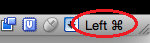
In detail, all this means the following:
Note that while the virtual machine owns the keyboard, some key combinations (like Alt-Tab) will no longer be visible to the host, but will instead go to the guest OS. After you press the host key to re-enable the keyboard on the host, all keystrokes will go to the host again. For technical reasons, the VM will not be able to receive all the keyboard input, even if it owns the keyboard at the time. Examples of such combinations are Ctrl-Alt-Del on Windows hosts or single keys captured by other applications on X11 hosts.
To release the mouse from ownership of the virtual machine, also press the Host key.
Because this behavior can be inconvenient, VirtualBox provides a set of guest tools and device drivers, called “VirtualBox Guest Additions”, that make the virtual machine's keyboard and mouse experience smoother. Most importantly, Guest Additions get rid of the second, "guest" mouse pointer and make your host mouse pointer in the guest OS.
This will be described later.
Entering special characters
Operating systems from certain key combinations initiate certain procedures. Some of these key combinations can be difficult to pass to the guest OS, as there are three candidates who receive keyboard input: the host operating system, VirtualBox, or the guest operating system. Which of the three gets the keystrokes depends on a number of factors, including the combination itself.
Host operating systems reserve certain key combinations for themselves. For example, it is impossible to enter the Ctrl + Alt + Delete combination if you want to reboot the guest operating system in your virtual machine, since this key combination is usually hard-wired to the main OS (it is intercepted by both Windows and Linux), and pressing this key combination will result to reboot your host.
Also, on Linux and Solaris hosts that use the X Window System, the Ctrl + Alt + Backspace key combination will usually reset the X server (to reload the entire GUI). Since the X server intercepts this combination, clicking on it will usually restart your host's graphical user interface (and kill all running programs, including a running VirtualBox).
Third, on Linux hosts that support virtual terminals, the Ctrl + Alt + Fx combination (where Fx is one of the function keys F1 through F12) usually allows you to switch between virtual terminals. As with Ctrl + Alt + Delete, these combinations are intercepted by the host operating system and therefore always switch terminals on the host.
If you instead want to send these keyboard shortcuts to the guest operating system in the virtual machine, you will need to use one of the following methods:
Change removable media
While the virtual machine is running, you can change the removable media in the Devices menu of the virtual machine window.
The settings are the same as for the virtual machine in the Preferences dialog box of the main VirtualBox window, but since this dialog box is disabled when the virtual machine is in a “running” or “saved” state, this additional menu allows you to work with removable virtual media. cars at any time.
Therefore, from the Devices menu, VirtualBox allows you to attach a host disk to a guest, or select a floppy disk or DVD image using Disk Image Manager, as described in the “Configuring a Virtual Machine” section.
Resizing the car window
You can resize the virtual machine window when it starts up. In this case, one of three things will happen:
The aspect ratio of the guest screen is preserved when the window is resized. To ignore the aspect ratio, press Shift during the resize operation.
Save machine state
When you click the Close button of your virtual machine window (in the upper right corner of the window, as you close any other window on your system), VirtualBox asks you if you want to Save Machine State, Send Shutdown Signal, or Turn off the machine". (You can also use the keyboard shortcut for this action: press the "Host" key together with "Q".)
The difference between these three parameters is critical. They mean:
When you start the virtual machine again, you will find that the virtual machine continues from where it was stopped. All of your programs will still be open and your computer will resume working. Thus, saving the state of a virtual machine is similar to suspending a laptop (for example, closing its lid).
This shutdown option should be used in exceptional cases, it can be used to close a frozen virtual machine, or if you have Snapshots that you want to return to and do not want to save the new data recorded after the Snapshot was taken.
The option “Shut down” in the “Machine” menu performs the same function as the option “Send a signal to complete work”, it has the same effect and all of the above applies to it.
VirtualBox Guide (Part 3): Using Groups, Snapshots, Cloning, Importing and Exporting Virtual Machines
Using VM Groups
VM groups allow the user to create special groups of virtual machines for collective management of them.
Create a group using the GUI:
1) Drag one virtual machine on top of another virtual machine.
2) Select multiple virtual machines and select "Group" from the right-click menu, as shown below:
You can create nested groups.
Group operations allow you to do the usual actions for virtual machines for all members of the group at once.
Pictures
With snapshots, you can save a specific state of the virtual machine for later use. At any later time, you can revert to this state, even if you may have changed the VM significantly since then. Thus, a snapshot of a virtual machine is similar to a machine in a "saved" state, as described above, but there can be many, and these saved states are persistent.
You can see snapshots of the virtual machine by first selecting the machine in VirtualBox Manager and then clicking on the Snapshots button in the upper right corner. Until you take a snapshot of the machine, the snapshot list will be empty, except for the Current State item , which represents the Now point in the life of the virtual machine.
Create, restore and delete snapshots
There are three operations associated with snapshots:
In any case, a window will appear asking for the name of the snapshot. This name is for reference purposes only, to help you remember the state of the snapshot. For example, a useful name would be "Fresh Install from Scratch, No Guest Additions" or "Service Pack 3 Only". You can also add longer text in the Description field if you like.
Then your new snapshot will appear in the snapshot list. Below the new snapshot, you will see an item titled "Current State" meaning that the current state of your virtual machine is an option based on the snapshot you used earlier. If you take another snapshot later, you will see that they will be displayed sequentially, and each subsequent snapshot will be taken from the earlier one:
VirtualBox does not impose any limit on the number of snapshots you can take. The only practical limitation is disk space on your host: each snapshot saves the state of the virtual machine and thus takes up some disk space.
To avoid losing the current state when restoring a snapshot, you can create a new snapshot before restoring.

By restoring an earlier snapshot and taking more snapshots, you can create something like an alternate reality and switch between these different stories of the virtual machine. This can lead to the creation of a snapshot tree of the virtual machine, as shown in the screenshot above.
There are some situations that cannot be handled while the virtual machine is running, and you will receive a corresponding message that the deletion of this snapshot must be done when the virtual machine is turned off.
Picture content
Think of a snapshot as the time you've saved. More formally, a snapshot consists of three things:
The creation of the differential image as such does not initially take up much space on the host disk, since the differential image will initially be empty (and later dynamically grow with each write to disk). However, the longer you use the machine after taking a snapshot, the more the different image will grow in size.
Finally, if you took a snapshot while the machine was running, the device's memory state is also saved in the snapshot (just as memory can be saved when the VM window is closed). When you restore such a snapshot, execution resumes exactly at the moment the snapshot was taken.
The memory state file can be the same size as the virtual machine memory and therefore take up quite a lot of disk space.
Removing virtual machines
To delete a virtual machine that you no longer need, right-click it in the list of the VM manager, select "Delete" from the appeared context menu .
A confirmation window appears, allowing you to choose whether to delete the machine only from the list of machines, or to delete the associated files as well.
The "Delete" menu item is disabled while the machine is running.
Cloning virtual machines
To experiment with virtual machine configuration, test different levels of guest OS, or simply back up a virtual machine, VirtualBox can create a complete or linked copy of an existing virtual machine.
The wizard will guide you through the cloning process:
This wizard can be invoked from the context menu of the VM manager list (select "Clone") for the selected virtual machine. First choose a new name for the clone. You can select the option to generate MAC addresses for all network cards, then each network card in the clone will receive a new MAC address. This is useful when both the original VM and the cloned VM must be running on the same network. If you leave this unchanged, all NICs will have the same MAC address as the one in the original VM. Depending on how you invoke the master, you have different options for the clone operation.
First you need to decide if the clone should be linked to the original VM or a completely independent clone:
Full cloning: In this mode, all disk image dependencies are copied to a new VM folder. The clone can completely work without the original virtual machine.
Linked cloning: This mode creates new distinctive disk images where the parent disk images are images of the original disk. If you selected the current state of the original VM as the clone point, a new snapshot will be created implicitly.
After choosing the clone mode, you need to decide what exactly to clone. You can always create a clone of just the current state or the whole. When you select everything, the current state and in addition, all snapshots are cloned. If you started with a snapshot with additional children, you can also clone the current state and all children. This creates a clone starting with this snapshot and including all child snapshots.
The cloning operation itself can be lengthy depending on the size and number of attached disk images. Also keep in mind that each snapshot has different disk images that need to be cloned as well.
The "Clone" menu item is disabled while the machine is running.
Import and export of virtual machines
VirtualBox can import and export virtual machines in the standard Open Virtualization Format (OVF).
OVF is a cross-platform standard supported by many virtualization products that allows you to create off-the-shelf virtual machines that can then be imported into a virtualizer like VirtualBox. Importing and exporting to VirtualBox in OVF format is very simple and is carried out from the Manager window as well as the command line interface. This allows you to package so-called virtual devices: disk images along with configuration settings that can be easily deployed. Thus, you can offer complete, ready-to-use software packages (operating systems with applications) that do not need to be configured or installed other than being imported into VirtualBox.
Note: The OVF standard is complex and support in VirtualBox is an ongoing process. In particular, VirtualBox is not guaranteed to support all devices created by other virtualization software.
Devices in OVF format can be displayed in two versions:
If VirtualBox can process this file, a dialog box similar to the following will appear:
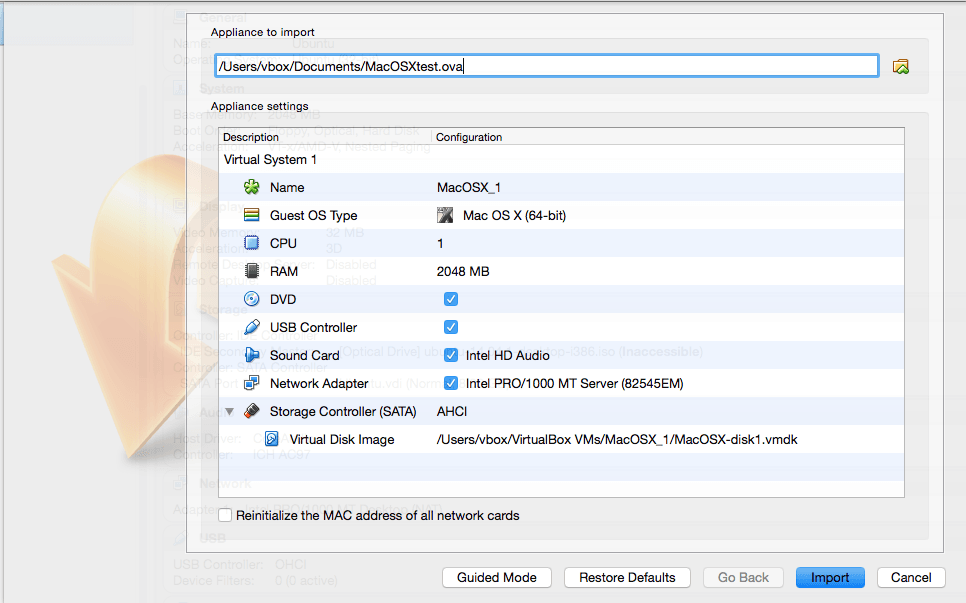
It represents the virtual machines described in the OVF file and allows you to change the virtual machine settings by double-clicking the description items. As soon as you click Import, VirtualBox will copy the disk images and create local virtual machines with the settings described in the dialog box. Then they will appear in the list of virtual machines in the Manager.
Please note that because disk images tend to be large and the VMDK images that come with virtual devices are usually shipped in a special compressed format that is not usable by virtual machines directly, the images will first need to be unpacked and copied, which can take several minutes ...
Conversely, to export virtual machines that you already have in VirtualBox, select File → Export Configurations. Another dialog will appear that allows you to merge multiple virtual machines into an OVF appliance. Then select the location where the target files are to be saved and the conversion process will begin. This may take some time.
Note: OVF cannot describe the snapshots that were taken for the virtual machine. As a result, when exporting a virtual machine with snapshots, only the current state of the machine will be exported, and the disk images in the export will have a flattened state identical to the current state of the virtual machine.
Global settings
The global settings dialog can be found in the "File" menu by selecting the "Settings ..." item. It offers a set of settings that apply to all virtual machines of the current user or, in the case of extensions, to the entire system:
VirtualBox Guide (Part 4): Setting Up a Virtual Machine
When you select a virtual machine from the list in the Manager window, you will see a summary of the settings for this virtual machine.
By clicking the "Settings" button on the toolbar at the top, you will see a detailed window in which you can configure many of the properties of the selected virtual machine. But be careful: although you can change all of the virtual machine settings after installing the guest operating system, some changes can prevent the guest operating system from working properly if done after installation.
Note: The Settings button is disabled when the virtual machine is in a "running" or "saved" state. This is simply because in the settings dialog you can change the basic characteristics of the virtual computer created for your guest operating system, and this operating system may not do very well when, for example, half of its memory is gone from under its feet. As a result, if the Settings button is disabled, first turn off the current virtual machine and then you can make the desired settings.
VirtualBox provides many parameters that can be changed for a virtual machine. Even more options are available with the VirtualBox command line interface.
General settings
In the Settings window under General, you can configure the most fundamental aspects of a virtual machine, such as memory and required hardware. There are four tabs: Basic, Advanced, Description, and Encryption.
General tab
In the "Basic" category "General" you can find the following settings:
Name
This is the name with which the virtual machine appears in the list of virtual machines in the main window. VirtualBox also stores virtual machine configuration files under this name. By changing the name, VirtualBox renames these files as well. As a result, you can only use characters that are allowed in the filenames of your host operating system.
Note: That internally VirtualBox uses unique identifiers (UUIDs) to identify virtual machines. You can display them using VBoxManage.
Operating system / version
The type of guest operating system that is (or will be) installed in the virtual machine. This is the same parameter that was specified in the "New Virtual Machine" wizard as described in the "Create your first virtual machine" section.
While in the New Virtual Machine Wizard, the default settings for a newly created virtual machine depend on the selected operating system type, further changing the type does not affect the virtual machine settings; this is the meaning that the settings in this panel are purely informational and decorative.
Advanced Tab
Folder for pictures
By default, VirtualBox saves snapshot data along with other VirtualBox configuration data. With this parameter, you can specify any other folder for each virtual machine.
Shared clipboard
Here you can choose whether to share the buffer of the guest operating system with your host. If you choose Bidirectional , VirtualBox will always make sure that both clipboards contain the same data. If you select From Primary to Guest OS or From Guest to Primary OS, then VirtualBox will copy the clipboard data in one direction only.
To share the clipboard, you need to install the VirtualBox Guest Additions. Otherwise, this setting has no effect.
The shared clipboard is disabled by default. This setting can be changed at any time using the Shared Clipboard menu item in the Devices menu of the virtual machine.
Drag and Drop function
This option allows you to enable drag and drop support: select an object (such as a file) from the host or guest and directly copy or open it on the guest or host machine. Multiple drag-and-drop modes for each virtual machine allow you to restrict access in any direction.
For drag and drop to work, Guest Additions must be installed on the guest computer.
Note: Dragging is disabled by default. This parameter can be changed at any time using the "Drag and Drop" menu item in the "Devices" menu of the virtual machine.
Description tab
Here you can, if you like, enter any description for your virtual machine. This does not affect the functionality of the computer, but you may find this space useful to note things like the configuration of the virtual machine and the software that has been installed in it.
To insert a line break in the description text box, press Shift + Enter.
Encryption tab
If checked, this virtual machine will be encrypted. You need to select the algorithm with which the virtual machine disks will be encrypted, as well as enter and then confirm the encryption password.
System settings
The System group brings together various parameters related to the main hardware that is presented to the virtual machine.
Note: Because the Microsoft Windows activation mechanism is sensitive to changes in hardware, if you change the hardware settings for a Windows guest, some of these changes may trigger an activation request from Microsoft.
Motherboard tab
On the Motherboard tab, you can influence the virtual hardware that is usually found on the motherboard of a real computer.
Main memory
This option sets the amount of RAM that is allocated and transferred to the virtual machine when it starts up. The specified amount of memory while the virtual machine is running will be taken from the physical computer and transferred to the virtual one. Consequently, at the time the virtual machine is running, your main computer will decrease the amount of RAM by this amount. This is the same parameter that was specified in the "New Virtual Machine" wizard as described above in the " Create your first virtual machine" section.
Changing memory shouldn't cause problems in the guest machine, of course, unless you set the value too low so that it won't boot.
Boot order
This parameter determines the order in which the guest operating system will attempt to boot from various virtual boot devices. Similar to the BIOS setting of a real PC, VirtualBox can tell the guest OS that it starts from a virtual floppy disk, virtual CD / DVD drive, virtual hard disk (each determined by different VM settings), network, or none of them.
If you choose Network, the virtual machine will try to boot from the network through the PXE mechanism, which must be configured.
Chipset
Here you can choose which chipset will be presented to the virtual machine. Prior to VirtualBox 4.0, PIIX3 was the only option available. For modern guest operating systems such as Mac OS X, this old chipset is no longer supported. As a result, VirtualBox 4.0 introduced emulation of the more modern ICH9 chipset, which supports PCI Express, three PCI buses, PCI-to-PCI bridges, and messages with signals interrupt (MSI). This allows modern operating systems to address more PCI devices and no longer requires IRQ swapping. Using the ICH9 chipset, up to 36 NICs can also be configured (up to 8 NICs with PIIX3). Please note that ICH9 support is experimental and not recommended for guest operating systems that do not require it.
Cursor manipulator
The default virtual pointing devices for ancient guests is a traditional PS / 2 mouse. When this option is set on a USB tablet, VirtualBox tells the virtual machine that a USB tablet device is present and sends mouse events to the virtual machine using that device. The third setting is a USB Multi-Touch tablet, which is suitable for the latest Windows guests.
Using a virtual USB tablet has the advantage that movements are reported in absolute coordinates (instead of relative changes in position), which allows VirtualBox to broadcast mouse events over the VM window to tablet events without the need to "capture" the mouse in the guest as described in Capturing and releasing the keyboard and mouse”. This makes using the VM less tedious even if the Guest Additions are not installed.
Enable APIC I / O APIC
Advanced Programmable Interrupt Controllers (APICs) are the latest x86 hardware feature that has replaced the old-style Programmable Interrupt Controllers (PICs) in recent years. With I / O APICs, operating systems can use more than 16 interrupt requests (IRQs) and therefore avoid exchanging IRQs to improve reliability.
Note: Enabling I / O APIC is required for 64-bit guest operating systems, especially Windows Vista; this is also necessary if you want to use more than one virtual processor in a virtual machine.
However, software support for APIC I / O was unreliable with some non-Windows operating systems. In addition, using APIC I / O slightly increases the virtualization overhead and therefore slows down the guest OS slightly.
Warning: All Windows operating systems since Windows 2000 install different kernels depending on whether APIC I / O is available. As with ACPI, APIC I / O APEC should not be disabled after installing the Windows guest OS. Enabling it after installation will have no effect.
Enable EFI
This allows the Extensible Firmware Interface (EFI) to be used, which replaces the legacy BIOS and may be useful for some advanced use cases.
UTC clock
If checked, your host's clock will display UTC time, otherwise the host's local time will be displayed. Unix-like systems generally adhere to the UTC system.
If checked, VirtualBox will tell the guest the system time in UTC instead of the local (host) time. This affects the virtual real time clock (RTC) and can be useful for Unix-like guest operating systems that typically expect the hardware clock to be set to UTC.
Alternatively, you can disable the Advanced Configuration and Power Interface (ACPI), which VirtualBox presents to the guest operating system by default. ACPI is the current industry standard for allowing operating systems to recognize hardware, configure and manage motherboards and other devices. Since all modern PCs contain this feature, and Windows and Linux have supported it for many years, it is also enabled by default in VirtualBox. It can only be disabled on the command line.
Warning: All Windows operating systems since Windows 2000 install different kernels depending on whether ACPI is available, so ACPI cannot be disabled after the Windows guest is installed. Enabling it after installation will have no effect.
Processor Tab
On the Processor tab, you can specify how many virtual processor cores guest operating systems should see. Starting with version 3.0, VirtualBox supports symmetric multiprocessing (SMP) and can represent up to 32 virtual processor cores for each virtual machine.
However, you should not configure virtual machines to use more processor cores than you physically have (real cores, no hyperthreads).
On this tab you can also set the "CPU utilization limit". This parameter limits the time that the host processor spends to emulate a virtual processor. The default value is 100%, which means there is no limit. The 50% setting implies that one virtual processor can use up to 50% of one central processor. Please note that limiting the execution time of virtual processors can cause problems with guests.
In addition, the Enable PAE / NX option determines whether the PAE and NX capabilities of the CPU reside in the virtual machine. PAE stands for Physical Address Extension. Usually, if enabled and supported by the operating system, then even a 32-bit x86 processor can access more than 4GB of RAM. This is made possible by adding 4 more bits to the memory addresses, so that with 36 bits you can use up to 64 GB. Some operating systems (for example, Ubuntu Server) require PAE support from the CPU and cannot work in a virtual machine without it.
If you are using a 32-bit Kali Linux image, enable PAE / NX or the Kali image will not boot because the default kernel used by Kali for i386 (“686-pae”) is compiled in a way that requires support for “physical address expansion” (PAE) in the CPU.
With virtual machines running on modern server operating systems, VirtualBox also supports CPU hot plugging.
Acceleration Tab
On this page, you can determine if VirtualBox should use virtualization hardware extensions that your host processor can support. This applies to most processors built after 2006.
You can choose for each virtual machine individually whether VirtualBox should use software or hardware virtualization.
In most cases, the default settings will be fine; VirtualBox will choose reasonable defaults based on the operating system you chose when you created the virtual machine. However, in some situations, you can change these preconfigured defaults.
If your host processor supports nested paging (AMD-V) or EPT (Intel VT-x) features, you can expect significant performance gains by enabling nested paging in addition to hardware virtualization.
Starting with version 5.0, VirtualBox provides paravirtualization interfaces to improve the accuracy and performance of guest operating systems.
Display (Display Settings)
Display Tab
Video memory size
This sets the size of the memory provided by the virtual graphics card available to the guest, in MB. As with main memory, the specified amount will be allocated from the host's resident memory. Higher resolutions and color depths may be available based on the amount of video memory.
The GUI will show a warning if the video memory is too small to switch the virtual machine to full screen mode. The minimum value depends on the number of virtual monitors, the screen resolution and color depth of the host display, and the activation of 3D acceleration and 2D video acceleration. Rough estimate: (color depth / 8) x vertical pixels x horizontal pixels x number of screens = number of bytes . As stated above, additional memory may be required for any display acceleration setting enabled.
Number of monitors
With this parameter, VirtualBox can provide more than one virtual monitor to a virtual machine. If the guest operating system (such as Windows) supports multiple connected monitors, VirtualBox can pretend that multiple virtual monitors are present. Up to 8 of these virtual monitors are supported.
Multiple monitor output will be displayed on the host in multiple VM windows that run side-by-side.
However, in full screen and display integration mode, the available physical monitors connected to the host will be used. As a result, you need at least as many physical monitors as you have configured virtual monitors to run in full screen and multi-monitor integration mode, or VirtualBox will report an error. You can set up communication between guest and host monitors using the view menu by pressing Host + HOME when you are in full screen or screen integration mode.
Enable 3D acceleration
If the VM has Guest Additions installed, you can select here if the guest should support accelerated 3D graphics.
Enable 2D video acceleration
If Guest Additions are installed on the Microsoft Windows VM, you can select here if the guest should support accelerated 2D graphics.
Remote Access Tab
Remote display
On the Remote Access tab, if the VirtualBox Virtual Display Extension (VRDE) is installed, you can enable the VRDP server built into VirtualBox. This allows you to remotely connect to the virtual machine console using any standard RDP viewer such as mstsc.exe that ships with Microsoft Windows. On Linux and Solaris systems, you can use the standard open source rdesktop program.
Video Capture Tab
On the Video Capture tab, you can enable video capture for this virtual machine. Please note that this feature can also be enabled / disabled while the virtual machine is running.
Media Settings
The Media category in the virtual machine settings allows you to connect a virtual hard disk, CD / DVD, floppy disk, and disks to the virtual machine.
On a real PC, so-called "storage controllers" connect physical disks to the rest of the computer. Likewise, VirtualBox provides virtual machine controllers to virtual machine. Under each controller, the virtual devices (hard disks, CD / DVD, or floppy drives) connected to the controller are displayed.
Note: If you have used the Create Virtual Machine wizard to create a machine, you will usually see something like the following:
Depending on the type of guest operating system that you chose when you created the virtual machine, a typical layout of storage devices in a new virtual machine looks like this:
VirtualBox also provides a flexible controller, which is special: you cannot add devices other than floppy drives to it. Virtual floppy drives, such as virtual CD / DVD drives, can be connected to either floppy drives (if available) or a disk image, which in this case must be in RAW format.
You are free to modify these attachments. For example, if you want to copy some files from another created virtual disk, you can connect that disk as a second hard disk. You can also add a second virtual CD / DVD drive or change where these items are attached. The following options are available:
On the right side of the window, you can set the following:
The following additional options are available for virtual CD / DVD drives:
If you want to burn (burn) CDs or DVDs using the master drive, you also need to enable the Passthrough option .
Sound settings
The "Audio" section in the "Settings" window of the virtual machine determines whether the virtual machine will see the connected sound card and whether the audio input should be heard on the host system.
If audio is enabled for the guest, you can choose to emulate an Intel AC'97 controller, an Intel HD Audio controller, or a SoundBlaster 16 card. In either case, you can choose which VirtualBox audio driver will be used on the host.
On a Linux host, depending on your host configuration, you can also choose between OSS, ALSA, or the PulseAudio subsystem. On newer Linux distributions, the PulseAudio subsystem is preferred.
Since only OSS is supported on Solaris hosts in VirtualBox 5.0, Solaris Audio is no longer supported by Solaris hosts.
Network settings
The Networking section of the Virtual Machine Settings window allows you to configure how VirtualBox presents the virtual network cards for your virtual machine and how they work.
When you first create a virtual machine, VirtualBox enables one virtual NIC by default and selects Network Address Translation (NAT) for it. Thus, the guest can connect to the outside world using the host's network, and the outside world can connect to services on the guest computer, which you have made visible outside the virtual machine.
This default setting is good for probably 95% of VirtualBox users. However, VirtualBox is extremely flexible in how it can virtualize the network. It supports many virtual network cards per virtual machine, the first four of which can be configured in detail in the Manager window. Additional NICs can be configured on the command line using VBoxManage.
An introduction to online modes
Each of the eight network adapters can be configured separately to operate in one of the following modes:
Not connected
In this mode, VirtualBox informs the guest that a network card is present, but no connection - as if there is no Ethernet cable plugged into the card. In this way, the virtual Ethernet cable can be pulled out and the connection is disrupted, which can be useful for informing the guest operating system that it cannot connect to the network and ensure reconfiguration.
Network Address Translation (NAT)
If you only want to browse the web, download files, and view emails inside the guest, then this default mode is enough for you and you can safely skip the rest of this section. Please note that there are certain restrictions when using Windows file sharing.
NAT network
NAT is a new NAT variant introduced in VirtualBox 4.3. Network Address Translation (NAT) works similarly to a home router, grouping the systems using it on a network and prevents systems outside of that network from directly accessing systems within it, but allows systems on the inside to communicate with each other and with systems outside using TCP and UDP over IPv4 and IPv6.
Network bridge
This is for more complex networking tasks like network modeling and running servers in the guest. When enabled, VirtualBox connects to one of the installed network cards and exchanges network packets directly, bypassing your operating system's network stack.
Internal network
This can be used to create another software-based network that is visible to selected virtual machines, but not to applications running on the host or in the outside world.
Virtual host adapter
This can be used to create a network containing a host and a set of virtual machines, without the need for a physical host network interface. Instead, a virtual network interface (similar to the loopback interface) is created on the host to allow communication between the virtual machines and the host.
Universal driver
Rarely used modes share the same common network interface, allowing the user to choose a driver that can be included in VirtualBox or distributed in an add-on pack.
At the moment, there are potentially two sub-modes available:
UDP tunnel
This can be used to directly, easily and transparently interact between virtual machines running on different computers with the existing network infrastructure.
VDE (Virtual Distributed Ethernet) Network
This parameter can be used to connect to a Virtual Distributed Ethernet switch on Linux or FreeBSD host. At the moment this requires compiling VirtualBox from sources as Oracle packages do not include it.
The following table provides a quick overview of the most important network modes:
4.6.2 Virtual machines on one network, isolated from other networks
How to isolate virtual machines from external networks, but at the same time preserve the ability for virtual machines to be on the same network and communicate over local IP? Let's consider how to create a local network of virtual machines without Internet access.
Task: create a local network between virtual machines, in which they can contact each other by IP addresses, but so that there is no access from the real local network to these machines, and there is no access from virtual machines to the real local network. It is necessary that virtual machines do NOT have access to the Internet.
The sequence of actions is as follows:
With this setting, a new virtual network interface will be created in the HOST. On Linux, this interface can be seen with the command:
The default name for this interface is vboxnet0. This is a system setting and if you run multiple instances of VirtualBox (virtual machines) from different users, then all of them can connect to this virtual adapter.
4.6.3 How to isolate virtual machines from the local network while maintaining Internet access
A similar task: create a local network between virtual machines in which they can contact each other by IP addresses, but so that there is no access from the real local network to these machines, and there is no access from virtual machines to the real local network. You need virtual machines to HAVE Internet access.
The sequence of actions is as follows:
COM ports (serial ports)
VirtualBox fully supports virtual serial ports in a virtual machine in a simple way.
USB settings
USB support
The USB section in the Settings window of the virtual machine allows you to configure the sophisticated USB support for VirtualBox.
VirtualBox allows virtual machines to directly access USB devices on your host. For this, VirtualBox introduces a guest operating system with a virtual USB controller. Once the guest starts using the USB device, it will not be available on the host.
Note:
In the Settings dialog, you can first configure if USB is available in the guest and then select the USB support level: OHCI for USB 1.1, EHCI (which will also enable OHCI) for USB 2.0, or xHCI for all USB speeds.
Note: The xHCI and EHCI controllers are shipped as a VirtualBox expansion pack, which must be installed separately. See Installing VirtualBox and Extension Packs for more information.
When USB support is enabled for a virtual machine, you can define in detail which devices will be automatically connected to the guest. To do this, you can create so-called "filters" by specifying certain properties of the USB device. USB devices with the appropriate filter will be automatically passed to the guest after they are attached to the host. USB devices without an appropriate filter can be transferred manually to the guest, for example using the Devices / USB devices menu .
Clicking the + button to the right of the USB Device Filters window creates a new filter. You can give the filter a name (to refer to it later) and specify the filter criteria. The more criteria you specify, the more accurately the devices will be selected. For example, if you only provide Vendor ID 046d, all devices created by Logitech will be available to the guest. On the other hand, if you fill in all the fields, the filter will only apply to a specific device model from a specific vendor, and not to other devices of the same type with a different version and serial number.
The following criteria are available in the USB filter properties:
To list all USB devices connected to your machine with matching vendor and product IDs, you can use the following command:
On Windows, you can also see all USB devices connected to your system in Device Manager. On Linux, you can use the lsusb command .
For example, you can create a new USB filter and specify Vendor ID 046d (Logitech, Inc), Vendor Index 1 and Not Deleted. Then any guest USB devices created by Logitech, Inc with a manufacturer index of 1 will be visible to the guest.
Multiple filters can select a single device - for example, a filter that selects all Logitech devices and one that selects a specific webcam.
You can deactivate filters without removing them by clicking the check box next to the filter name.
Shared folders
Shared folders make it easy to exchange data between a virtual machine and your host. This feature requires VirtualBox Guest Additions to be installed on the virtual machine. It will be described in more detail in the Guest Additions part in the Shared Folders section.
User interface
The "User Interface" section allows you to change some aspects of the user interface of this virtual machine.
Menu bar
This widget allows you to disable certain menus (click on a menu item to release it), some menu entries (uncheck an item to disable it), and the entire menu bar (uncheck the box on the right).
Mini toolbar
In full screen or screen integration mode, VirtualBox can display a small toolbar containing some of the items that are usually available on the virtual machine's menu bar. This toolbar is reduced to a small gray line until you click on it with your mouse. Using the toolbar, you can return from full screen or screen integration mode, control the machine, or turn on certain devices. If you don't want to see the toolbar, disable this option.
The second setting allows the toolbar to be displayed at the top of the screen rather than showing it at the bottom.
Status bar
This widget allows you to disable certain icons in the status bar (uncheck the icon to disable it), to swap the icons (drag the icon to do this) and disable the status bar completely (uncheck the box on the left).
VirtualBox Guide (Part 5): VirtualBox Guest Additions
What are Guest OS Add-ons for?
As mentioned in the VirtualBox Concepts section, Guest Additions (or Guest OS Addons) are designed to be installed inside a virtual machine after the guest operating system has been installed. They consist of device drivers and system applications that optimize the guest operating system for performance and usability.
VirtualBox Client Additions for all supported guest operating systems are provided as a single CD-ROM image file called VBoxGuestAdditions.iso. This image file is located in the VirtualBox installation directory. To install Guest Additions for a specific virtual machine, you mount that ISO file in your virtual machine as a virtual CD and install from there.
Guest Additions offer the following features:
Integration of mouse pointers
To overcome the limitations for mouse support described in the Capturing and Releasing the Keyboard and Mouse section, this add-on provides you with hassle-free mouse support. You will only have one mouse pointer, and you no longer need to press the Host key to “release” the mouse from being captured by the guest OS. To do this work, a special mouse driver is installed in the guest system that interacts with the "real" mouse driver on your host and moves the mouse pointer accordingly.
Shared folders
They provide an easy way to share files between host and guest, just like normal Windows network resources. You can tell VirtualBox to treat a specific host directory as a shared folder, and VirtualBox will make it available to the guest operating system as a network share, regardless of whether or not the guest OS has a network. See the Shared Folders section for more details.
Improved video support
While the virtual graphics card that VirtualBox emulates for any guest operating system provides all the basic functionality, the custom video drivers that come installed with the Guest Additions provide you with ultra-high and non-standard video modes, as well as accelerated video performance.
Also, with Windows, Linux and Solaris guests, if the Guest Additions are installed, you can resize the virtual machine window. The video resolution in the guest will be automatically adjusted (as if you had manually entered an arbitrary resolution in the guest display settings). See also the section on Resizing the Machine Window .
Finally, if Guest Additions are installed, 3D graphics and 2D video for guest applications can be accelerated.
Screen Integration Mode
With this feature, individual windows displayed on the virtual machine desktop can be displayed on the host desktop as if the main application were actually running on the host.
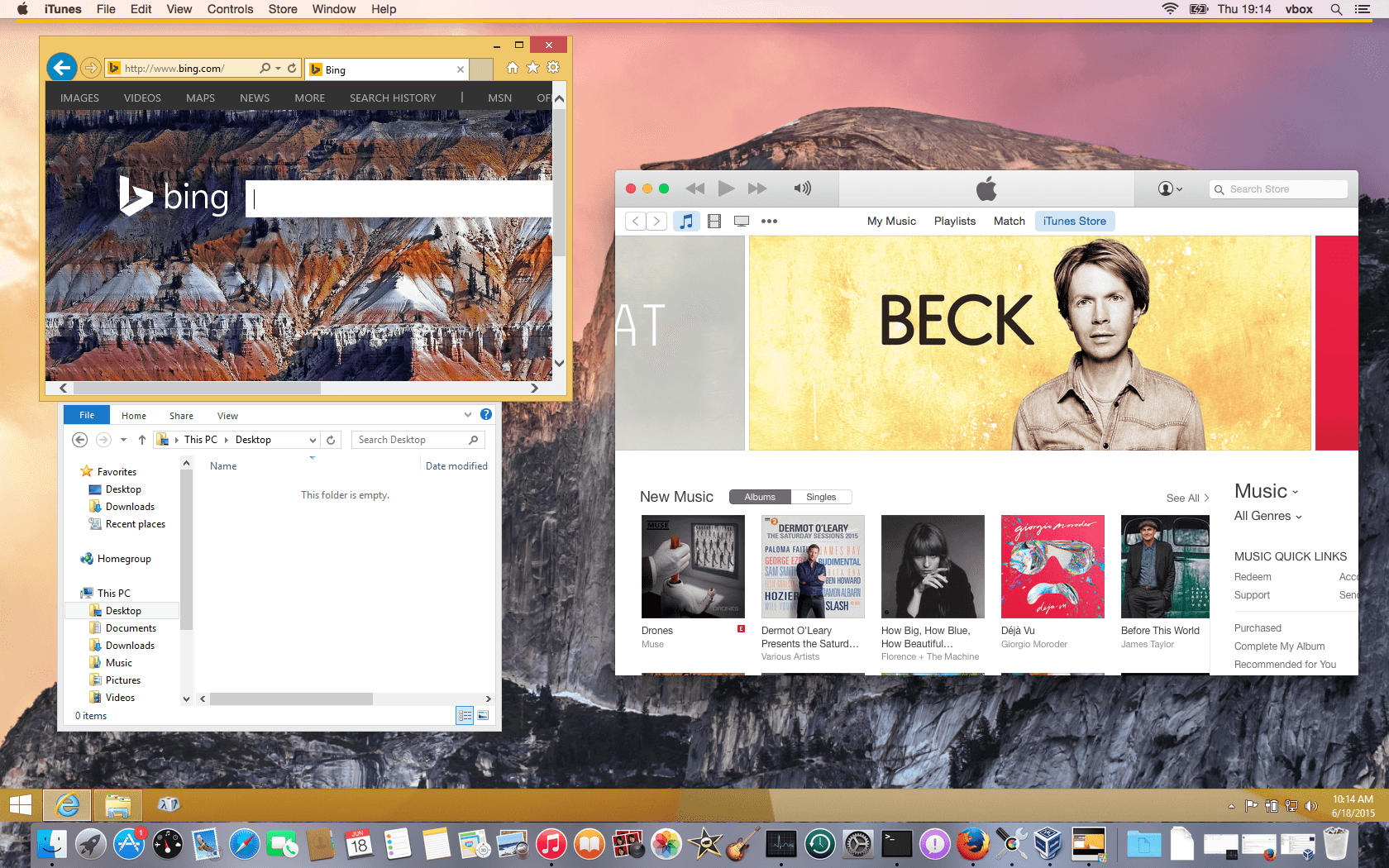
With VirtualBox's seamless windows feature, you can see the windows displayed in the virtual machine appear next to your host windows. This feature is supported for the following guest operating systems (assuming Guest Additions are installed):
To enable seamless mode, after starting the virtual machine, press the "Host" key (usually the right CTRL key) along with "L". This will increase the virtual machine display size to match your host screen and mask the background of the guest operating system. To return to the "normal" VM display (ie disable screen integration mode), press the "Host" and "L" key again .
Shared host / guest communication channels
Guest Additions allow you to control and monitor guest performance in ways other than those listed above. The so-called "guest properties" provide a general string mechanism for exchanging bits of data between the guest and the host, some of which have special meanings for controlling and monitoring the guest.
In addition, applications can be launched in the guest system from the host ("Guest Control").
Time synchronization
With Guest Additions installed, VirtualBox can ensure that the guest's system time is better in sync with the host.
For various reasons, away time may work a little differently than host time. The host may receive updates via NTP, and its own timing may not be linear. The VM can also be suspended, which stops the flow of time away from guests for a shorter or longer period of time. When the wall clock time between the guest and the host differs only slightly, the time synchronization service tries to gradually and smoothly adjust the guest time in small increments to either "catch up" or "lose" time. When the difference is too large (for example, the virtual machine is paused for several hours or restored from a saved state), the guest time changes immediately without incremental adjustment.
Guest Additions will sync the time regularly.
Shared clipboard
With Guest Additions installed, the guest operating system clipboard can be shared with your host operating system; see the General Settings section.
Automatic Login (Passing Credentials)
VirtualBox Guest Additions allow you to configure automatic login to Windows, Linux and Solaris guest systems.
When the guest operating system is running in a virtual machine, it may be necessary to perform coordinated and automatic logins using the login credentials from the host system. (By "credentials" we mean login information, consisting of a username, password, and domain name, where each value can be empty.)
Each version of VirtualBox, even minor versions, comes with its own version of Guest Additions. While the interfaces through which the VirtualBox kernel communicates with Guest Additions are kept stable so that Guest Additions already installed in the VM should continue to work, for best results, it is recommended that you update Guest Additions to the same version every time VirtualBox is updated. on the host,.
Therefore, starting with VirtualBox 3.1, Windows and Linux Guest Additions automatically check if they need to be updated. If the host is running a newer version of VirtualBox than Guest Additions, a notification is displayed to the guest with further instructions.
Installing and maintaining guest additions
Client add-ons are available for virtual machines running Windows, Linux, Solaris, or OS / 2.
Installing Guest Additions for Windows
In the VirtualBox menu of the virtual machine, under Devices, there is a convenient menu item named "Mount Guest Additions Disk Image ..." that mounts the Guest Additions ISO file inside your virtual machine. The Windows guest should then automatically launch the Guest Additions Installer, which installs the Guest Additions in the Windows guest. On other guest operating systems (or if automatic launch of the software on the CD is disabled), you must manually run the installer.
Note: For basic Direct3D acceleration to work in a Windows guest, you need to install the WDDM video driver for Windows Vista or higher. For Windows 8 and above, only the WDDM Direct3D video driver is available. For basic Direct3D acceleration to run on Windows XP guests, you need to install the Guest Additions in "Safe Mode".
If you prefer to manually mount add-ons, you can follow these steps:
The installer will add several device drivers to the Windows Driver Database and then invoke the Hardware Discovery Wizard.
Depending on your configuration, it may display warnings that the drivers are not digitally signed. Agree to install them for the Add-ons to work correctly.
After installation, reboot the guest operating system to activate the add-ons.
Updating Windows Guest Additions
Windows Guest Additions can be updated by running the installer again as described above. This will replace the previous add-on drivers with the newer versions.
Alternatively, you can also open Windows Device Manager and select Update Driver ... for two devices:
Installing Guest Additions for Linux
Similar to Windows Guest Additions, VirtualBox Guest Additions for Linux are a collection of device drivers and system applications that can be installed on a guest operating system.
There is a list of officially supported Linux distributions, but many other distributions are also known to work with guest additions.
Please note that some Linux distributions already come with all guest OS add-ons. You can keep the Guest Additions version of the distribution, but they are often out of date and limited in functionality, so we recommend replacing them with the Guest Additions that come with VirtualBox. The VirtualBox Linux Guest Additions installer tries to detect existing installations and replace them, but depending on how the distribution integrates Guest Additions, this may require some manual interaction. It is highly recommended that you take a snapshot of the virtual machine before replacing the pre-installed Guest Additions.
The VirtualBox Linux applications are provided in the same virtual CD-ROM file as the Windows Guest Additions described above. They also come with an installer that walks you through the setup process, although due to significant differences between Linux distributions, installation can be a little more complicated.
If you need to manually install the Guest Additions, then install the kernel headers and the dkms package , in Debian and derivatives this can be done with the command:
Then insert the VBoxGuestAdditions.iso CD file into your Linux guest's virtual CD-ROM drive exactly as described for the Windows guest.
Change to the directory where your CD-ROM is mounted and execute as root:
Some distributions contain an up-to-date version of Guest OS Add-ons in their standard repositories, which can be installed directly from the repository. These systems include Kali Linux and Arch Linux. For them, it is enough to install the virtualbox-guest-dkms package . In Kali Linux, instead of installing the virtualbox-guest-dkms package, it is recommended to install the virtualbox-guest-x11 package , which will also install virtualbox-guest-dkms and additional VirtualBox utilities (among them, for example, an informant about the need to update guest additions). To install guest OS add-ons in Kali Linux, run the commands:
This is recommended after a complete system update and reboot , since otherwise the Add-ons may not work due to the difference in versions with the kernel. A full system update can be done by running the command:
To install additions to the guest OS in Arch Linux and derivatives of this OS (for example, BlackArch).
In Linux Mint is already installed Guest Additions are "out of the box" work well, so they do not need to be replaced.
For details on how to install the Guest OS Add-on on various Linux distributions, see the VirtualBox Additional Resources section .
Updating Linux Guest Additions
The update is performed in the same way as installing the Add-ons:
Shared folders
With VirtualBox's Shared Folders feature, you can access your host's files from the guest system. This is similar to how you would use network shares on Windows networks - except that shared folders do not require networking, only guest additions are required. Shared folders are supported with Windows (2000 or later), Linux guests, and Solaris.
Shared folders must be physically located on the host and must be shared with the guest, which uses a special file system driver in the guest addon to talk to the host. For Windows guests, shared folders are implemented as a pseudo-network redirector; for Linux and Solaris users, Guest Additions provide a virtual file system.
How to set up a shared folder in VirtualBox
On the host, create a folder that will be shared between the host and the guest OS. It is not required to make this folder networked or to give it any special permissions.
Go to the settings of the virtual machine on the "Shared folders" tab. Click the image of a small folder with a green cross, specify the path to the folder:
If you check the "Read only" checkbox, the virtual machine (ie the guest OS) will only be able to read files, but will not be able to write anything to the shared folder.
The Auto Connect checkbox means that VirtualBox will automatically mount the folder in the virtual machine (it does not work on all Linux distributions).
Automatically mount a shared folder
Since version 4.0, VirtualBox can automatically mount shared folders of your choice. If auto-connect is enabled for a specific shared folder, Guest Additions will automatically mount that folder as soon as the user logs into the guest OS. The details depend on the type of guest OS:
To add the current user to the vboxsf group, run the command:
Your username will be shown, then run the command
In a username replace it with a name obtained by the previous command.
A reboot of the guest OS may be required for the changes to take effect.
If automatic mounting does not occur, then add a line like this to the / etc / fstab file:
Where:
The rest of the entries do not need to be changed.
Example line for a folder named Share and mount point / media / share:
The shared folder will be automatically mounted every time you turn on your computer.
In the event of an unsuccessful mount (this can happen if you made an incorrect entry in the / etc / fstab file, or (very rarely) when updating the guest additions), the system will not be able to boot, it will go into emergency mode and the following message will be displayed.
You are in emergency mode. After logging in, type "journalctl -xb" to view system logs, "systemctl reboot" to reboot, "systemctl default" or "exit" to boot into default mode.
Give root password for maintenance (or press Control-D to continue).
To fix the problem, enter the root password and open the / etc / fstab file for editing:
Comment out or delete the problematic line. Save the file (Ctrl + o), close it (Ctrl + x) and reboot:
Manually mounting a shared folder in VirtualBox
To manually mount a shared folder, use the following command:
For a folder named Files to mount it in ~ / sf_Files, the command would look like this:
In Windows, the shared folder is not visible in the file manager / How to mount a VirtualBox virtual network folder in Windows
When you enable a shared folder in Windows, a situation may arise that the folder is visible, for example, in the properties of the computer among other disks, but not in other file managers, for example, in Double Commander.
To fix this, in the standard Windows Explorer, find the Network item , expand it and find the VBOXSVR item, expand it and find the VirtualBox shared folder. Right-click on it and select Map network drive in the context menu.
Select any unallocated drive letter for the drive, select the Reconnect at login checkbox and click Finish.
After that, the shared folder will be available in any Windows file manager.
VirtualBox shared folder is read-only
By default, the contents of the Shared Folder are owned by the root user. Therefore, the files in the shared folder are read-only for regular users. The following shows how to make the VirtualBox shared folder read / write accessible to regular users.
1. Install VirtualBox Guest Additions.
Shared folders will not work properly without Guest Additions.
2. Add a Shared Folder if you haven't already.
3. Make sure the "Read only" checkbox is unchecked in the Shared Folder settings .
4. Add your user to the vboxsf group:
Restart your computer for the changes to be added to the group to take effect.
In theory, this should be enough for the shared folder to become writable. That is, the point is that the folder is mounted so that the group it belongs to is vboxsf . Users belonging to this group can edit the contents of the folder.
But on some distributions the folder is mounted as owned by the root user and owned by the root group. In this case, regular users have read rights to the contents of the shared folder, but they cannot edit files in it, create new files, or delete existing ones.
The vboxsf filesystem has uid = and gid = mount options, you can try them with commands like:
Or add a line like this to the / etc / fstab file:
But both of these methods did not work in my case.
I tried to change the owner of the folder and its contents using chown:
But this did not work either - the owner of this folder was still root.
The only thing that helped to make the folder readable was changing the access rights to it with chmod.
This command will create and modify new files and directories in the shared folder:
This command will allow you to modify existing files and directories in the shared folder:
Please note that changing file permissions changes them not only for the virtual computer, but for the real one too! Therefore, the method described above cannot be considered ideal.
Error "/sbin/mount.vboxsf: mounting failed with the error: No such file or directory"
The shared folder can be automatically mounted - if the appropriate setting is specified in the VirtualBox GUI. The shared folder can also be automatically mounted using the / etc / fstab file by adding the following entry:
You can also mount the shared folder manually using mount with a command like:
An error may occur during mount:
First, make sure that the mount point is correct, and that you are using the correct name for the Shared Folder (you must use the name, not the path to it).
If everything is correct, but the error persists, then make sure that the name sf_folder used in the command does not exist as a real folder:
The previous command will fail with the specified error if a real sf_folder exists. The fact is that if the name of the shared folder coincides with the name of the real directory in the current folder, then the mount.vboxsf program (the mount helper, which actually mounts) for some reason tries to mount the real folder, which ultimately leads to an error "Mounting failed with the error: No such file or directory".
Also, some users claim that the names sf_folder and folder MUST be different names. But, in fact, most likely this is due to the described mechanism of the problem.
Look at the output of the following commands - an attempt is made to mount a shared folder named Share. Although the mount is in the share folder (a different name), an error occurs due to the fact that the current working directory contains a folder named Share. After deleting the Share directory, a shared folder named Share is successfully mounted to share.

Drag and drop into VirtualBox
Since version 5.0, VirtualBox supports drag and drop content from host to guest and vice versa. To do this, the guest must have the latest Guest Additions installed.
For security reasons, drag and drop can be configured at runtime on a per virtual machine basis, either through the Drag and Drop menu item in the virtual machine 's Devices menu or in VBoxManage. The following four modes are available:
Known Limitations
The following limitations are known:
VirtualBox Guide (Part 6): Tips, Tips, and More on Using VirtualBox
VirtualBox tips and tricks
Configuring network access to and from virtual machines
By default, "Network Address Translation (NAT)" is set for virtual machines in the network settings. With this configuration (as mentioned earlier), the networked machine has access to the Internet connection. In order to have access from the Internet to this virtual computer, you need to configure port forwarding. At the same time, access from the host to a virtual machine, as well as access from one virtual machine to another, is not possible.
If you need to configure a network of virtual computers so that a physical computer can access the network services of a virtual computer, or so that a virtual computer can access the network services of a physical computer, and also so that virtual computers can connect to each other's network services, you need to configure the adapter select the "Network Bridge" connection.
This setting will allow:
The easiest option is to install Kali Linux in a virtual computer and configure the network to be able to access from the virtual machine to the real one.
As already mentioned, we need to configure a network bridge connection. To do this, go to the settings of the virtual machine, then to the " Network " section and select "Network Bridge" as the "Connection Type".
Now you will be able to access the network services of this virtual computer via a local IP, and this virtual computer will be able to access the network services of a physical machine using its local IP.
To find out the local IP in Linux, run the command in the console:
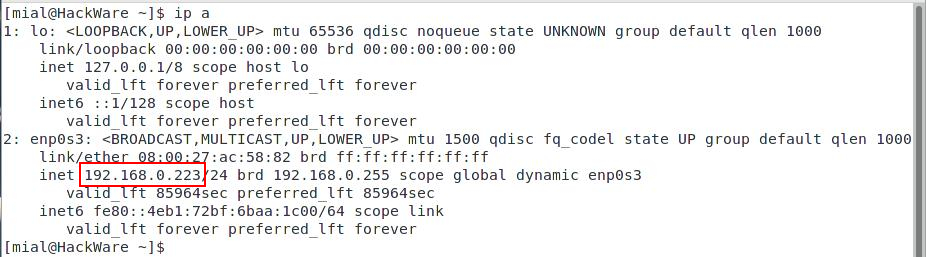
To find out the local IP in Windows open a command prompt (Win + x, select "Command Prompt") run the command:
Now, by entering this IP, for example, into the browser line, you can access the web server of the corresponding machine.
Remember that the web browser must be configured to listen for connections from the appropriate subnet. Also, connections can be prevented by firewall rules.
How to make it boot into the virtual computer when you turn on your computer
Let's say you've tried a new operating system in VirtualBox. You liked it, but you still do not dare to switch to it. Nevertheless, you would like to try to "live" inside this new operating system, completely immerse yourself in it.
The most popular option is to install it as a second OS on a different hard drive and select the one in which you want to work at the moment at boot. Not a bad option, but a separate hard disk is required, which will be cleaned during installation, this solution is not to everyone's liking from a technical point of view, because after removing one of the OSs, you will need to edit the boot menu - and this is not something everyone can do, and for some there remains a list of two (sometimes more) OS in the boot menu. In addition, if you want to switch from one OS to another, then this cannot be done quickly - you need to reboot.
You can achieve the effect of booting a computer into a virtual computer. Let's say you have Windows on your real computer, you've tested a new OS in VirtualBox, like the latest Linux Mint. And now you want to make your computer boot straight into Linux Mint, but you don't want to uninstall Windows and put Linux Mint as the second system.
This can be done quite simply:
1) Boot into the virtual machine, expand the window to the maximum. This is done by pressing Host the F +. The right Ctrl is used as the Host key, if you have not changed the settings .
2) Turn off the virtual machine in the usual way, through the menu of the operating system.
3) Open VirtualBox, right-click on the name of your virtual machine and select "Create shortcut on the desktop" there:
4) Make sure the shortcut is created:
5) Copy this shortcut to the startup directory. If you do not know where this directory is, then look in the user folder at AppData \ Roaming \ Microsoft \ Windows \ Start Menu \ Programs \ Startup \
For example, in my case (I have Windows 10, this directory is located here: C: \ Users \ Alex \ AppData \ Roaming \ Microsoft \ Windows \ Start Menu \ Programs \ Startup \
That's it, we reboot and see what happened.
And although immediately after turning on the computer, we manage to enjoy the Windows desktop for a few seconds, without user actions, we end up loading in full screen, without the possibility of closing it via Alt + Tab, into a virtual computer, in my case in Linux Mint.
For earlier versions of Windows, for example, for 8 and 8.1, additional configuration may be required, since by default the computer boots into "tiles" and in order to immediately see the desktop of the virtual computer, you need to disable these tiles.
How to view the contents of VDI and VMDK virtual disks (VirtualBox image images)
If you want to extract files from virtual disks VMDK, VDI, or view their contents, then you can use the 7-Zip program, which is capable of extracting GPT images and individual files from VMDK and VDI images. For details about this program, see the article "Free Alternative to WinRAR".
To view the contents of a virtual disk, open 7-Zip and find the desired virtual disk in the file system in the program window. Double click on it, if the disk contains several partitions, then they will be shown as files 0.img, 1.img, 2.img, etc.:
To view the contents of any section, double-click on it.
You can extract the file you are interested in, to do this, select it and press F5.
Why the virtual machine does not see the USB device
By default, USB devices on a physical computer are isolated from the virtual machine, i.e. she does not see such devices and cannot interact with them.
You can connect any USB device to the virtual machine (flash drive, hard disk, modem, Wi-Fi card, webcam, etc.) and in this case the virtual machine will be able to work with the USB device as if it were plugged in into a real USB socket. At the same time, this device becomes inaccessible to a physical computer - it seems to be disconnected from it.
There are two ways to connect USB devices to a virtual machine in VirtualBox - more about them later.
How to connect a USB device
1) In the USB settings, you can create a filter, for example, based on the currently connected device. As a result, every time the virtual computer is turned on, it will immediately intercept this device, i.e. connect to your operating system and remove from the physical computer.
2) You can also connect and disconnect USB devices in the tool bar. To do this, right-click on the USB connector icon:

And select the device you want to connect or disconnect.
Video card in a virtual machine
The virtual machine cannot work directly with the video card of your physical computer. For a virtual operating system, a virtual video card is emulated. This means that in a virtual OS, you do not need to install drivers for the graphics card of your physical computer (for example, for AMD or NVidia cards).
It also means that the virtual computer cannot fully use the resources of the video card (for example, to iterate over hashes on the GPU).
How to make a static IP address for a virtual machine
The static IP address is configured within the virtual operating system, just as if you were configuring a static IP address for a physical computer.
In Windows, for this, go to "Network Connections", for this you can run in the command line
Right-click on the network connection for which you want to set a static IP address, then select "IP version 4 (TCP / IPv4)", put the radio button on "Use the following IP address" and enter the required data:
For Linux, see How to Configure Linux to Use a Static IP Address.
Updating VirtualBox
Stop running virtual machines before updating VirtualBox.
Further, the upgrade process differs depending on how you install VirtualBox.
Updating VirtualBox on Windows
The new version of VirtualBox can be installed directly on top of the old one - the old one will be deleted automatically, all virtual machines and their settings will be in place.
If you have VirtualBox extension packs installed, after the first launch of a new version of VirtualBox, a message will appear prompting you to update it. After updating the expansion pack, you will be prompted to remove the old version - remove it.
Updating VirtualBox on Linux
If you installed VirtualBox from binaries downloaded from the official site, then when new versions are released, you need to similarly install new files directly over the old version.
When installed from the repositories, VirtualBox will be updated along with other packages as new versions are released.
If you have installed the VirtualBox extension packs, after the first launch of the new version of VirtualBox, a message will appear prompting you to update it - update it and remove the old versions of the extension pack.
In all systems
After updating VirtualBox in the host operating system, you will need to update the Guest Additions, respectively, in the guest OS.
The update is performed in the same way as the installation of the Guest Additions was done. Updates can be done right on top of older versions of the guest OS add-ons.
How to change the used network interface of the host machine for a virtual machine (how to choose a different Internet connection for the guest OS)
If "Network Bridge" is used as a connection , then it is possible to select a network interface that will be a network card for a virtual machine (guest operating system), ie. through which all connections will be made, including access to the Internet and a local network. In the Name column, select the host network adapter through which the traffic of this virtual network adapter will go.
For example, instead of a wired adapter, you can choose one of the Wi-Fi cards, including USB, or choose the desired one from several wired adapters.
This setting does not affect the type of virtual network adapter that will be seen by the guest OS as an available physical adapter for the wired connection.
Changing this setting (selecting different host network adapters) allows the virtual OS to use different Internet connections.
How to disconnect a VirtualBox virtual machine from the network
Since operating systems behave in their normal way, it may be necessary to disconnect the virtual computer from the Internet. For example, you need to conserve traffic, and the Windows virtual machine downloads automatic updates.
Or you want to open a file that can be dangerous and you want the virtual OS to be completely offline.
You can temporarily or permanently disconnect the virtual computer from the network.
How to disconnect a running virtual machine from the network
Let's take a look at how to disconnect a running virtual computer from the network.
In the lower right corner, find the icon for network settings.
Click the "Connect network cable" option - if it was connected, the network will be disconnected. And vice versa, after disconnecting the cable, clicking on the same option will restore the connection to the network.
How to disconnect a powered off virtual machine from the network
Go to the settings of the virtual machine that you want to leave without a network.
Go to the "Network" tab and select "Not Connected" as the "Connection Type":
If you want to return the network, then again go to the settings, the "Network" tab and select "NAT" or "Network Bridge" as the "Connection Type".
How to add another disk in a virtual machine
When creating a VirtualBox virtual machine, it is proposed to create or connect one virtual disk. For this disk, you can set any size and make it dynamic so that it does not take up much space while there is little data recorded on it.
If this disk has run out of space or you want to connect a second disk to organize the stored data, then this guide will help you! It's pretty simple. Moreover, using this method, you can connect a disk from another virtual machine, or create a new one.
Select the virtual machine for which you want to add another virtual disk and click the "Settings" button or the keyboard shortcut Ctrl + s.
Click on the "Media" tab.
Click on "Controller: SATA" and then on the "Add hard drive" icon.
You can connect an existing hard drive from the list.
If you transferred a virtual disk from another computer and it is not in this list, but already exists, then click the "Add" button and specify the path to it in the file system.
If you want to create a new disk, then click the "Create" button.
The virtual disk creation wizard, familiar from installing virtual machines, will open. You can leave nothing in the first window:
Select "Dynamic virtual hard disk" to take up less space.
Specify the folder where the new virtual hard disk will be stored, give it a name and size. When everything is ready, click the "Create" button.
Find the new drive in the list and click the Select button.
The new disk has been added, now click OK and boot into the virtual machine.
In a virtual machine, the disk will be empty and no file system - exactly as if you connected a new disk from a store to your real computer. In Windows, you need to initialize the disk - during this operation it will be formatted and assigned a letter in the system. On Linux, you need to format the disk and configure it to mount automatically.
How to copy files from a virtual machine disk image
The 7-Zip program supports working with virtual machine image files (VDI, VHD, VMDK), it allows you to view virtual hard disks, extract their partitions and view these partitions. For details, see the article " How to open VDI, VHD, VMDK files (virtual machine disk images)".
64-bit versions are missing in the "Specify system name and type" window when creating a virtual machine
First, make sure you have a 64-bit processor and 64-bit Windows. Host 32-bit OSs cannot virtualize 64-bit guest OSs. If so, there may be several reasons why VirtualBox installed on 64-bit Windows does not allow creating 64-bit virtual machines.
Possible causes of the problem:
1. Disabled virtualization in BIOS settings. Go to BIOS and enable Intel Virtualization Technology. This item can be called simply Virtualization.
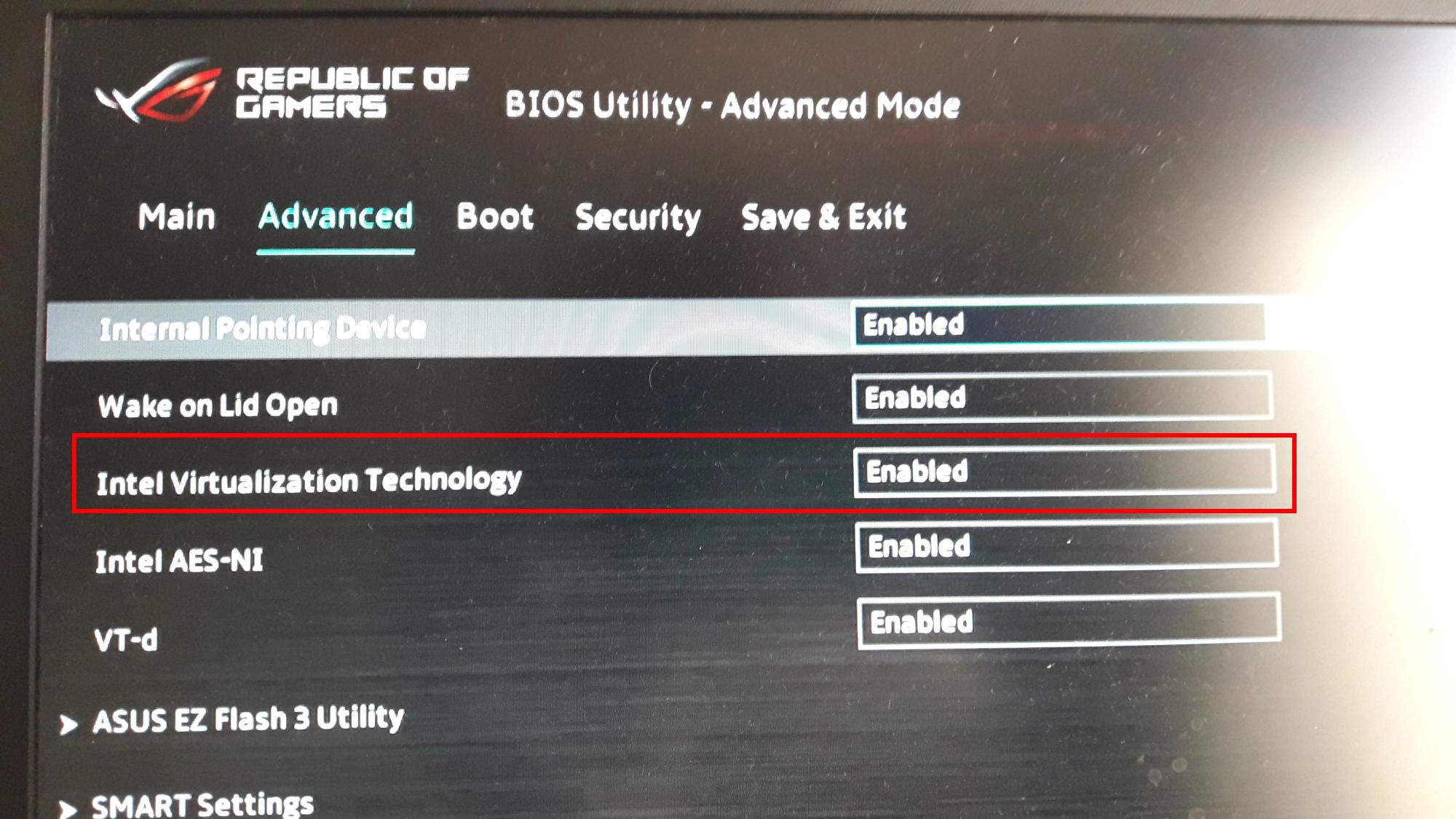
2. Disable Hyper-V.
has its own Microsoft Hyper-V hypervisor, but it is disabled by default. If you enable it, VirtualBox will not work properly because the two software products conflict with each other. It is very easy to check if Hyper-V is enabled in the system. Use the optionalfeatures command to open the Windows Components snap-in and see if the Hyper-V Platform and Hyper-V Management Tools checkboxes are checked. If so, be sure to uncheck them, save your settings and restart your computer.
3. Disable Device Guard.
In corporate editions of Windows 10, the problem can be caused by Device Guard, a special technology that allows you to run only those applications that meet certain security requirements. On Dell computers, this option may be enabled by default. Disable it and test VirtualBox.
Opening the local group policy editor with the gpedit.msc command, go to Computer Configuration → Administrative Templates → System → Device Guard, on the right, double-click the “Enable security-based virtualization” policy and set it to “Disabled”.
Restart your computer for the settings to take effect. If you do not have the specified policy, just skip this step.
4. Disable kernel isolation.
To provide additional security in Windows, a special kernel isolation technology has been developed that allows processes to run in a fenced memory space. Closely related to virtualization, kernel isolation enabled can lead to conflicts and malfunctions in third-party hypervisors. Try turning it off. To do this, set the Enabled parameter to 0 in the HKLM / SYSTEM / CurrentControlSet / Control / DeviceGuard / Scenarios / HypervisorEnforcedCodeIntegrity registry key.
Alternatively, you can disable Secure Boot in the BIOS, this will make it impossible to use the kernel isolation technology.
5. Remove other third-party hypervisors.
Finally, a conflict between VirtualBox and other third-party hypervisors, if installed on the computer, can be the source of the problem. The likelihood of such a scenario is small, but in order not to torment oneself with doubts, it is worth excluding it.
Terrible VirtualBox Disk Performance
The performance of a virtual machine depends on the resources allocated to it (the number of CPU cores, the amount of RAM) and the number of programs running in the virtual machine and their resource requirements. This is logical and works roughly as intuitively expected.
But with heavy disk usage in a virtual machine, its performance drops disproportionately dramatically. For example, installing a package containing a large number of files on a Linux guest can take hours! This is despite the fact that a similar package is installed on a real computer in minutes. Updating Windows can slow down a virtual machine to a complete inoperability.
All of this slows down and ruins the virtual machine experience.
This problem can be corrected by enabling I / O Caching for the virtual disk.
To enable I / O Caching:
You can also check any other controllers and / or drives to see if this option is there.
Save the settings and start the virtual machine and you will see a big performance improvement under heavy disk usage.
There is an explanation why this desired option is disabled by default - it has some disadvantages. In short, the VirtualBox authors are guided by the concept of "security is more important than performance". Let's take a closer look at the consequences of enabling this option:
1. Lazy writes through the host OS cache are less secure. When the guest OS writes data, it considers the data as written, even if it hasn't actually arrived on the physical disk yet. If for some reason the write fails (power failure, host failure), the chance of data loss increases.
2. Disk image files are usually very large. Caching them can therefore quickly consume the entire host OS cache. Depending on the caching efficiency of the host OS, this can greatly slow down the host, especially if multiple virtual machines are running concurrently. For example, on Linux hosts, host caching can cause Linux to postpone all writes until the host cache is almost full, and then all these changes are written at one time, this can stop the execution of the virtual machine for several minutes. This, in turn, can lead to an I / O error in the guest system, since the I / O requests have timed out.
3. Physical memory is wasted because guest operating systems usually have their own I / O caches, which can lead to double caching (in both the guest and the host) without much benefit.
Even if you disable host I / O caching for the above reasons, VirtualBox uses its own small cache to buffer writes, but not read caching, since this is usually already done by the guest OS. In addition, VirtualBox fully supports asynchronous I / O for its SATA, SCSI and SAS virtual controllers across multiple I / O streams.
In fact, practice shows that data is not lost, and enabling this setting has a great effect on performance.
In addition to the described method, there is another option for advanced users. The bottom line is that a real USB disk is used as a virtual machine disk. From such a disk, you can boot both in VirtualBox and on a physical computer. At the same time, the performance is close to the work of a real computer - no delays, updates and installation of large packages occur at the same speed as on a real computer. For information on how to do this, see the section “How to Boot into VirtualBox from USB” below.
How to boot into VirtualBox from USB
In this section, I'll show you how to connect a USB drive to a virtual machine so that the guest system treats it like a regular hard drive.
This trick will allow you not only to boot from the installation USB - which, in my opinion, is rather pointless, since an .ISO image is written to the USB flash drive, which is much easier to connect to a virtual computer in VirtualBox. If you connect a USB disk or flash drive to the guest system as a regular disk, then you can do such interesting things as:
Regarding the second point - installing Windows on a USB drive - if you want to install Linux on a USB flash drive (not to write a Live image, but to install a full-fledged system), then you do not have to do the trick shown here to install it - since Linux is perfectly installed on a portable media. But in Windows there is a prohibition for installation on USB disks and flash drives.
I will show you how to boot from USB on Windows and Linux. The principle is the same in both of these operating systems, but the commands differ slightly due to the specifics of the OS.
How to Boot into VirtualBox from USB on Windows
Connect a USB flash drive or disk to your computer. Then press Win + r and execute diskmgmt.msc.
Find your USB flash drive and remember the disk number:
For example, in my screenshot, the flash drive has the number 2.
Close all VirtualBox windows if they are open.
Next, we need to open a command prompt as administrator. To do this, press Win + x and select "Windows PowerShell (administrator)".
In the window that opens, enter:
Now go to the folder where you have VirtualBox installed. If this program is installed in the default directory, then the command to go:
If you chose a different location for VirtualBox, then edit the previous command accordingly.
Now, in the command line, paste the following command, in which replace # with the disk number that we looked at just above, then press Enter:
For example, I have this second disk, then the command looks like this:
If everything went well, the following message should appear:
Note that you can replace C: \ usb.vmdk with any file location you want.
This command creates a virtual machine disk file (VMDK) pointing to the physical disk you selected. When you load a VMDK file as a disk in VirtualBox, VirtualBox will actually have access to the physical disk.
Now open VirtualBox as administrator - this is a must, otherwise it will not work as it should. To do this, click the Start button, type in VirtualBox and select "Run as administrator".
VirtualBox can only access raw disk devices with administrator privileges.
Now in VirtualBox create a new virtual machine, select the appropriate operating system and when it comes to choosing a hard disk, instead of creating a new one, select Use an existing virtual hard disk.
Now open the file C: \ usb.vmdk (or another one if you saved it in a different location or under a different name).
Boot your virtual machine, now it should see your USB flash drive as an ordinary hard drive. That is, if it is a correctly written boot disk or USB flash drive, then the system will boot from it.
Please note that the USB device must be the first hard drive in your VirtualBox virtual machine, otherwise it will not boot. If you are connecting a new USB disk to an existing machine, then try changing the order of the media in the settings of this machine, or select the appropriate disk at the beginning of the boot.
How to Boot into VirtualBox from USB in Linux
To understand the principle, read the previous section on Windows. On Linux, to find out the name of the USB drive, run the command:
In my case, the disk name is / dev / sdb.
To create a virtual disk file pointing to a real disk, run a command like this:
Where, instead of #, write the letter of the corresponding drive. An example for my conditions:

In this command, you can replace /root/usb.vmdk with a different location of your choice.
To run VirtualBox as administrator, run the command:
Everything else - creating a virtual machine and choosing an existing virtual disk as a hard disk - just like in Windows.
How to open disks of virtual machines and download and upload files to them
To work with images of virtual machines, the libguestfs package is required.
To install on Debian, Kali Linux, Linux Minut, Ubuntu and their derivatives, run:
To install on Arch Linux, Manjaro, BlackArch and their derivatives, run:
A typical command to mount a virtual disk:
After the -a option, you need to specify a virtual disk to mount.
Other options:
The -i (--inspector) option means use virt-inspector code to scan disks looking for an operating system and mount filesystems as if they were mounted on a real virtual machine.
The --live option allows you to connect to a running virtual machine, this option is experimental.
The -r (--ro) option adds the device and mounts everything read-only. Also disables writing and makes the disk read-only for FUSE. This is highly recommended unless you intend to edit the guest drive. If the guest is running and this option is not specified, there is a high risk of disk corruption in the guest.
The -w (--rw) option changes the -a, -d, and -m options so that disks are added and mount is read-write.
So, let's mount the disk of the Windows Server 2019.vdi virtual machine.
Let's create a mount point:
Mount the disk / mnt / disk_d / Virtual machines / Windows Server 2019.vdi to the / tmp / guest folder:
We look at the contents of the mounted disk:
Now let's see the contents of the C: / Users / Administrator / Downloads / folder:
To unmount, use a command of the form:
For example:
For details on libguestfs and other usage examples, see How to open virtual machine disks and download and upload files to them (SOLVED).
Table of contents
1. What is VirtualBox, how to install and use
1.1 What is virtualization and its usefulness
1.2 VirtualBox concepts
1.3 Installing VirtualBox on Windows
1.4 Installing VirtualBox on Linux
1.5 Installing VirtualBox extension packs
1.6 Launching VirtualBox
2. Creating and running a virtual machine
2.1 Creating your first virtual machine
2.2 Starting a virtual machine
2.3 Starting a new virtual machine for the first time
2.4 Grabbing and releasing the keyboard and mouse
2.5 Entering special characters
2.6 Changing removable media
2.7 Resizing the car window
2.8 Save Machine State
3. Using groups, snapshots, cloning, importing and exporting virtual machines
3.1 Using VM Groups
3.2 Snapshots
3.3 Taking, restoring and deleting snapshots
3.4 Snapshot content
3.5 Removing virtual machines
3.6 Cloning virtual machines
3.7 Import and export of virtual machines
3.8 Global settings
4. Setting up a virtual machine
4.1 General settings
4.1.1 General Tab
4.1.2 Advanced Tab
4.1.3 Description Tab
4.1.4 The "Encryption" Tab
4.2 System settings
4.2.1 Motherboard Tab
4.2.2 Processor Tab
4.2.3 The Acceleration Tab
4.3 Display (Display Settings)
4.3.1 The "Screen" Tab
4.3.2 "Remote Access" Tab
4.3.3 Video Capture Tab
4.4 Media Settings
4.5 Sound settings
4.6 Network settings
4.6.1 Introduction to online modes
4.6.2 Virtual machines on one network, isolated from other networks
4.6.3 How to isolate virtual machines from the local network while maintaining Internet access
4.7 COM Ports (Serial Ports)
4.8 USB Settings
4.9 Shared folders
4.10 User interface
5. VirtualBox Guest Additions
5.1 What are Guest OS Add-ons for
5.2 Installing and maintaining guest additions
5.2.1 Installing Guest Additions for Windows
5.2.2 Updating Windows Guest Additions
5.2.3 Installing Guest Additions for Linux
5.2.4 Updating Linux Guest Additions
5.3 Shared folders
5.3.1 How to set up a shared folder in VirtualBox
5.3.2 Automatic mounting of a shared folder
5.3.3 Manually Mounting a Shared Folder in VirtualBox
5.3.4 In Windows, the shared folder is not visible in the file manager / How to connect the VirtualBox virtual network folder in Windows
5.3.5 VirtualBox shared folder is read-only
5.3.6 Error "/sbin/mount.vboxsf: mounting failed with the error: No such file or directory"
5.4 Drag and Drop into VirtualBox
5.4.1 Known Limitations
6. Hints, tips and additional materials for using VirtualBox
6.1 Hints and tips for using VirtualBox
6.1.1 Configuring network access to and from virtual machines
6.1.2 How to make it so that when you turn on the computer, it immediately boots into the virtual computer
6.1.3 How to View the Contents of VDIs and VMDKs (VirtualBox Image Images)
6.1.4 Why does the virtual machine not see the USB device?
6.1.5 How to connect a USB device
6.1.6 Video card in virtual machine
6.1.7 How to make a static IP address for a virtual machine
6.1.8 Updating VirtualBox
6.1.9 How to change the used network interface of the host machine for a virtual machine (how to choose a different Internet connection for the guest OS)
6.1.10 How to disconnect a VirtualBox virtual machine from the network
6.1.11 How to add another disk to a virtual machine
6.1.12 How to copy files from a virtual machine disk image
6.1.13 64-bit versions are missing in the "Specify system name and type" window when creating a virtual machine
6.1.14 Awful VirtualBox Disk Performance
6.1.15 How to boot into VirtualBox from USB
6.1.16 How to open disks of virtual machines and download and upload files to them
6.2 VirtualBox Additional Resources
VirtualBox Guide (Part 1): What is VirtualBox, How to Install and Use
VirtualBox is an intuitive program to use. If you are not interested in theory and want to start practicing right away, then refer to the instructions for using VirtualBox to install and run operating systems in a virtual computer:
- Installing Linux on a virtual computer (for example, Linux Mint)
- Installing Kali Linux in VirtualBox
What is virtualization and its usefulness
VirtualBox is a program that allows multiple operating systems to run simultaneously on one computer. These operating systems can include Linux, Windows, Mac and others. VirtualBox itself runs on various systems as well (it is cross-platform).
This means that with the help of VirtualBox, being, for example, in Windows, you can boot into Linux, work with any Linux applications as if you have a Linux operating system installed without restarting your computer or even installing another OS on a real computer. You can, for example, run other versions of Windows to check settings and programs that you do not want to run on your primary operating system.
Virtualization (running operating systems inside virtual computers using VirtualBox) has a number of useful features:
- simultaneous launch of several operating systems - you can get acquainted with new operating systems without shutting down your main system;
- separation of real and virtual computers - when working in a virtual OS, you do not need to be afraid to erase the bootloader, lose files or in any way harm your main operating system, since the virtual system is completely separated from your main system. Whatever mistakes you make in the virtual computer, your main OS will always remain intact. For this reason, the virtual computer is suitable for conducting various tests, including those capable of damaging the OS; for example, in a virtual computer, you can analyze malware (viruses) without fear for the main system;
- ease of software installation - if you are in Windows and you need to work with a program that runs only in Linux, then instead of tedious tasks in trying to run a program on a foreign OS, you can very easily deploy a Linux virtual machine and work with the desired program from there. Alternatively, while on Linux, you can create a Windows virtual machine to run Windows programs without having to try to run them on Linux;
- the ability to roll back the changes made - you do not need to be afraid to do something wrong in the virtual computer, since you can take any number of “snapshots” of the system at any time and, if you wish, return to any of them;
- infrastructure consolidation - virtualization can significantly reduce hardware and power costs; today, most of the time, computers during their work use only a fraction of their potential and, on average, the load on system resources is low. A large amount of hardware resources as well as electricity is wasted. Therefore, instead of running a large number of physical computers that are only partially used, you can pack many virtual machines into several powerful hosts and balance the loads between them.
VirtualBox concepts
When it comes to virtualization (as well as to understand further information), it is useful to get acquainted with the terminology, especially often we will come across the following terms:
Host operating system (host system)
This is the operating system of the physical computer on which VirtualBox was installed. There are versions of VirtualBox for Windows, Mac OS X, Linux, and Solaris.
Guest operating system (guest OS)
It is an operating system that runs inside a virtual machine. In theory, VirtualBox can run any x86 operating system (DOS, Windows, OS / 2, FreeBSD, OpenBSD).
Virtual Machine (VM)
This is a special environment that VirtualBox creates for your guest operating system while it is running. In other words, you are running the guest operating system "in" a virtual machine. Typically, the VM will appear as a window on your computer's desktop, but depending on which of the various VirtualBox interfaces you are using, it may appear full screen or remotely on another computer.
More abstractly, internally VirtualBox thinks of a VM as a set of parameters that determine its behavior. These include hardware settings (how much memory a virtual machine should have, which hard disks VirtualBox should virtualize through, which container files, which disks are mounted, etc.), as well as state information (these may include: a virtual machine in currently launched, saved, about her pictures, etc.). These options are reflected in the VirtualBox Manager window as well as in the VBoxManage command line utility. In other words, the virtual machine is also what you can see in the settings dialog.
Guest additions
This refers to the special software packages that come with VirtualBox but are designed to be installed inside a virtual machine to improve the performance of the guest OS and add additional functionality.
Installing VirtualBox on Windows
To download VirtualBox go to the official website https://www.virtualbox.org/wiki/Downloads. Click on the "Windows hosts" link to start downloading the installation file. Run the file with a double click - the installation process is similar to any other program in Windows.
You can choose which components to install, it is recommended to install all VirtualBox components to fully support all options:
Messages about the installation of unsigned drivers may appear - agree to install them. For the program to work correctly, agree to all requests from the installer.
The next warning tells you that the network connections will be dropped for a short time, i.e. you will be temporarily disconnected from the network. We agree that the Internet connection will automatically resume in just a second.
Installing VirtualBox on Linux
On Linux, VirtualBox can be installed in several ways:
- from the standard repository
- binary file downloaded from the official site
- from the VirtualBox repository added to application sources (only for Debian based distributions)
Installing VirtualBox on Debian and derivatives (Ubuntu, Linux Mint, Kali Linux)
For Debian and derivatives (Ubuntu, Linux Mint, Kali Linux), you can install VirtualBox from the standard repositories:
Code:
sudo apt install virtualbox virtualbox-qt linux-headers-"$(uname -r)" dkms vde2 virtualbox-guest-additions-iso vde2-cryptcabInstalling VirtualBox on Arch Linux and derivatives (BlackArch and others)
For on Arch Linux and derivatives (BlackArch and others), you can install VirtualBox from the standard repositories:
Code:
sudo pacman -S virtualbox linux-headers virtualbox-host-dkms virtualbox-guest-isoFor installation information on other distributions, as well as additional details, see the corresponding page: https://www.virtualbox.org/wiki/Linux_Downloads
Installing the VirtualBox extension packs
Additional extension packs can be downloaded to extend the functionality of the basic VirtualBox package. Oracle currently provides one extension pack.
The VirtualBox Extension Pack adds the following functionality
- USB 2.0 Virtual Device (EHCI)
- USB 3.0 Virtual Device (xHCI)
- VirtualBox Remote Desktop Protocol (VRDP) support
- Host webcam transfer
- Intel PXE boot ROM
- Experimental PCI transfer support on Linux hosts
- AES encryption of a disk image
VirtualBox extension packages have a .vbox-extpack extension in their filenames. To install an extension, simply double-click on the package file and a wizard will appear that guides you through the installation steps.
To view the currently installed extension packs, open the main VirtualBox Manager (main program window), from the File menu, select Preferences. In the window that opens, go to the "Plugins" tab, there you will see the currently installed extensions and you can remove the package or add a new one:
You can find the extension pack for the latest version on the download page.
If you are using not the latest version of VirtualBox, then you can find the extension pack by the link - select the folder with your version number and download, then double-click the file with the .vbox-extpack extension.
Launching VirtualBox
In Windows, VirtualBox can be launched from the menu or from a shortcut on the desktop.
On Linux, you will also find VirtualBox in the menu, or you can type the command in the terminal:
Code:
virtualboxA window similar to the following will open.
Or, if you have already created virtual machines.
VirtualBox Guide (Part 2): Creating and Running a Virtual Machine
Creating your first virtual machine
Click the Create button in the upper corner of VirtualBox.
An assistant window will appear that guides you through setting up a new virtual machine (VM).
On the following pages, the wizard will ask you for the minimum information required to create a virtual machine, in particular:
- The name of the virtual machine, which will later be shown in the list of virtual machines in the VirtualBox Manager window, and will be used for the VM files on the disk. While any name can be used, keep in mind that once you have created multiple virtual machines, you will appreciate if you have given your virtual machines fairly descriptive names; My Virtual Machine would be less useful than Windows XP SP2 with OpenOffice.
- In the Operating System Type section , select the operating system that you want to install later. Supported operating systems are grouped; if you want to install something very unusual, which is not in the list, select "Other". Depending on your choice, VirtualBox will enable or disable some of the virtual machine options that your guest operating system may need. This is especially important for 64-bit guest OSes. Therefore, it is recommended to always set the type to the correct value.
Remember: Choose this option carefully! The memory that you transfer to the virtual machine will not be available to the OS on your physical computer while the virtual machine is running, so do not specify more than you have free. For example, if your host computer has 8 GB of RAM and you enter 4000 MB as the amount of RAM for a specific virtual machine while that virtual machine is running, you only have 4000 MB for all other software on your host. If you run two virtual machines at the same time, even more memory will be allocated for the second virtual machine (which may not even start if that memory is not available). On the other hand, you have to specify as much as your guest OS (and your applications) will require to function properly.
A Windows XP guest will require a minimum of several hundred MB of RAM to function properly, and Windows Vista will even refuse to install if less than 512 MB is available. Of course, if you want to run graphics intensive applications in your virtual machine, you may need even more RAM.
For modern versions of Windows (both the host and the guest OS), it is desirable to have at least 4 GB of RAM for comfortable work. For Linux with a graphical interface, it is desirable to have 2 GB for comfortable work. For Linux with a command line interface, at least 100 MB is enough for the OS itself + memory for running applications.
Do not leave your host (OS on the physical computer) less memory than it needs to run, otherwise it will start to intensively use the paging file, which will lead to a significant slowdown in both the host and the virtual machines.
As with the other settings, you can change this setting later, after you have created the virtual machine.
Then you must specify the virtual hard disk for your virtual machine.
There are many, including potentially complex, ways in which VirtualBox can provide hard disk space for a virtual machine, but the most common way is to use a large image file on your "real" hard drive, whose contents VirtualBox presents to your virtual machine. as if it were her hard drive. This file represents the entire hard drive, so you can even copy it over to another host and use it with a different VirtualBox installation.
The wizard will show you the following window.
To create a new empty VHD, click the Create button.
You can select an existing disk image file - if you have already used virtual disks before, you will see them in the drop-down list, you can also click the folder image and select an arbitrary location where the virtual disk is located.
If this is your first time using VirtualBox, you will need to create a new disk image. Hence, click the Create button .
This will bring up another window - "Create virtual hard disk", which will help you create a new disk image in the folder of the new virtual machine.
The Master tells us:
“Please specify the file type that determines the format you want to use when creating a new hard disk. If you do not need to use the disk with other software virtualization products, you can leave this parameter unchanged.
- VDI (VirtualBox Disk Image)
- VHD (Virtual Hard Disk)
- VMDK (Virtual Machine Disk)
VirtualBox supports two types of image files:
- A dynamically allocated file will only grow when the guest OS actually stores data on its VHD. Therefore, it will initially be small on the host's hard disk and only later, as it fills with data, will it grow to the specified size.
- A fixed size file will immediately occupy the specified amount, even if only a fraction of the virtual hard disk space is actually used. This option, taking up much more space, a file with a fixed size, incurs less "overhead" (the need to perform operations associated with increasing the container) and, therefore, is slightly faster than a dynamically allocated file.
Running a virtual machine
To start a virtual machine, you have several options:
- double click on the virtual machine in the Manager
- select its entry in the list in the Manager window and click the "Run" button at the top
- for virtual machines created with VirtualBox 4.0 or later, go to the "VirtualBox VMs" folder in your system user's home directory, find the subdirectory of the machine you want to start, and double-click the machine settings file (file with a .vbox extension)
- if you have created a shortcut on the desktop for the virtual machine, you can run it by double clicking from the desktop
In general, you can use a virtual machine just as if you were using a real computer. However, there are a few points worth mentioning.
Starting a new virtual machine for the first time
When the virtual machine is launched for the first time, another wizard will appear - "Startup Wizard" - you can select the installation media. Since the virtual machine is created empty, it will behave exactly like a real computer without an operating system installed: it will do nothing and display an error message that no bootable operating system was found.
For this reason, the wizard helps you choose the environment for installing the operating system.
- If you have physical CD or DVD media from which you want to install the guest operating system (for example, in the case of a Windows installation CD or DVD), place the media in your host's CD or DVD drive.
Then, from the drop-down list of the installation media wizards, select Host Drive with the correct drive letter (or, in the case of a Linux file, a device file). This will allow your virtual machine to access the media on your master drive and you can proceed with the installation. - If you downloaded the installation media from the Internet as an ISO image file (most likely in the case of a Linux distribution), you usually burn that file to a blank CD or DVD and continue as just described. With VirtualBox, you can skip this step and mount the ISO file directly. VirtualBox will then present this file to the virtual machine as a CD or DVD-ROM drive, just as it does with a virtual hard disk image.
In this case, the drop-down list of the wizard contains a list of installation media that were previously used with VirtualBox.
If your media is not listed (especially if you are using VirtualBox for the first time), select the small folder icon next to the drop-down list to open the standard file manager dialog box from which you can select an image file on your host's drives.
Capturing and releasing the keyboard and mouse
Starting with version 3.2, VirtualBox provides a USB virtual tablet device for new virtual machines through which mouse events are passed to the guest operating system. As a result, if you are using a modern guest operating system that can handle such devices, mouse support can work out of the box without grabbing the mouse, as described below.
Otherwise, if only the standard PS / 2 mouse and keyboard devices are visible in the virtual machine, then since the operating system in the virtual machine does not "know" that it is not running on a real computer, it expects exclusive control over your keyboard and mouse. This is not the case, however, because unless you are using a virtual machine in full screen mode, your virtual machine needs to share keyboard and mouse with other applications and possibly other virtual machines on your host.
As a result, first after installing the guest operating system and before installing the Guest Additions (we'll explain this in a minute), only one of the two — your virtual machine or the rest of your computer - can own the keyboard and mouse. You will see a second mouse pointer that will always be constrained to the outside of the VM window. Typically, you activate the virtual machine by clicking inside it.
To return ownership of the keyboard and mouse to your host operating system, VirtualBox reserves a special key on your keyboard for you: the " host key ". By default, this is the right CTRL key on your keyboard. You can change this default in the global settings of VirtualBox. In any case, the current setting for the host key is always displayed in the lower right corner of your VM window in case you forget it:
In detail, all this means the following:
- Your keyboard belongs to the VM if the VM window on the desktop of your computer has keyboard focus (if there are many windows open in the guest OS, then it belongs to the window that has the focus). This means that if you want to do keyboard input into the virtual computer, first click on the title bar of your VM window.
Note that while the virtual machine owns the keyboard, some key combinations (like Alt-Tab) will no longer be visible to the host, but will instead go to the guest OS. After you press the host key to re-enable the keyboard on the host, all keystrokes will go to the host again. For technical reasons, the VM will not be able to receive all the keyboard input, even if it owns the keyboard at the time. Examples of such combinations are Ctrl-Alt-Del on Windows hosts or single keys captured by other applications on X11 hosts.
- Your mouse only belongs to the VM after you clicked in the VM window. The mouse cursor will disappear and your mouse will control the guest pointer instead of the normal mouse pointer.
To release the mouse from ownership of the virtual machine, also press the Host key.
Because this behavior can be inconvenient, VirtualBox provides a set of guest tools and device drivers, called “VirtualBox Guest Additions”, that make the virtual machine's keyboard and mouse experience smoother. Most importantly, Guest Additions get rid of the second, "guest" mouse pointer and make your host mouse pointer in the guest OS.
This will be described later.
Entering special characters
Operating systems from certain key combinations initiate certain procedures. Some of these key combinations can be difficult to pass to the guest OS, as there are three candidates who receive keyboard input: the host operating system, VirtualBox, or the guest operating system. Which of the three gets the keystrokes depends on a number of factors, including the combination itself.
Host operating systems reserve certain key combinations for themselves. For example, it is impossible to enter the Ctrl + Alt + Delete combination if you want to reboot the guest operating system in your virtual machine, since this key combination is usually hard-wired to the main OS (it is intercepted by both Windows and Linux), and pressing this key combination will result to reboot your host.
Also, on Linux and Solaris hosts that use the X Window System, the Ctrl + Alt + Backspace key combination will usually reset the X server (to reload the entire GUI). Since the X server intercepts this combination, clicking on it will usually restart your host's graphical user interface (and kill all running programs, including a running VirtualBox).
Third, on Linux hosts that support virtual terminals, the Ctrl + Alt + Fx combination (where Fx is one of the function keys F1 through F12) usually allows you to switch between virtual terminals. As with Ctrl + Alt + Delete, these combinations are intercepted by the host operating system and therefore always switch terminals on the host.
If you instead want to send these keyboard shortcuts to the guest operating system in the virtual machine, you will need to use one of the following methods:
- Use the items in the menu of the virtual machine window "Input" → "Keyboard". There you will find “Send Ctrl + Alt + Delete” and “Ctrl + Alt + Backspace”; however, the latter will only affect Linux or Solaris guest operating systems.
- Press special key combinations with the Host key (usually the right CTRL key), which VirtualBox will then transfer to the virtual machine:
- Host + Del button to send Ctrl + Alt + Del (to reboot the guest);
- Host + Backspace button to send Ctrl + Alt + Backspace (to restart the Linux or Solaris GUI);
- Host + F1 button (or other function keys) to simulate Ctrl + Alt + F1 (or other function keys, that is, to switch between virtual terminals in a Linux guest).
Change removable media
While the virtual machine is running, you can change the removable media in the Devices menu of the virtual machine window.
The settings are the same as for the virtual machine in the Preferences dialog box of the main VirtualBox window, but since this dialog box is disabled when the virtual machine is in a “running” or “saved” state, this additional menu allows you to work with removable virtual media. cars at any time.
Therefore, from the Devices menu, VirtualBox allows you to attach a host disk to a guest, or select a floppy disk or DVD image using Disk Image Manager, as described in the “Configuring a Virtual Machine” section.
Resizing the car window
You can resize the virtual machine window when it starts up. In this case, one of three things will happen:
- If you have enabled scaling mode, the virtual machine screen will be scaled to fit the window. This can be useful if you have a lot of machines running and want to take a look at one of them while it is running in the background. Alternatively, it can be useful to enlarge the window if the virtual machine's output screen is very small, for example because it uses an old operating system.
The aspect ratio of the guest screen is preserved when the window is resized. To ignore the aspect ratio, press Shift during the resize operation.
- If you have Guest Additions installed and they support auto-resizing, Guest Additions will automatically adjust the screen resolution of the guest operating system. For example, if you are running a Windows guest with a resolution of 1024 × 768 pixels and then resize the VM window to increase it by 100 pixels, Guest Additions will change the Windows screen resolution to 1124 × 768.
- Otherwise, if the window is larger than the virtual machine screen, the screen will be centered. If it is smaller, then scroll bars will be added to the car window.
Save machine state
When you click the Close button of your virtual machine window (in the upper right corner of the window, as you close any other window on your system), VirtualBox asks you if you want to Save Machine State, Send Shutdown Signal, or Turn off the machine". (You can also use the keyboard shortcut for this action: press the "Host" key together with "Q".)
The difference between these three parameters is critical. They mean:
- "Save the machine state". With this option, VirtualBox "freezes" the virtual machine, completely saving its state to the local disk.
When you start the virtual machine again, you will find that the virtual machine continues from where it was stopped. All of your programs will still be open and your computer will resume working. Thus, saving the state of a virtual machine is similar to suspending a laptop (for example, closing its lid).
- "Send the completed operation signal". This will send an ACPI shutdown signal to the virtual machine, which will have the same effect as if you were pressing the power button on a real computer. If the virtual machine is running a fairly modern operating system, this should trigger a proper shutdown mechanism for the virtual machine.
- "Turn off the machine": Using this option, VirtualBox also stops working with a virtual machine, but does not save its state.
This shutdown option should be used in exceptional cases, it can be used to close a frozen virtual machine, or if you have Snapshots that you want to return to and do not want to save the new data recorded after the Snapshot was taken.
The option “Shut down” in the “Machine” menu performs the same function as the option “Send a signal to complete work”, it has the same effect and all of the above applies to it.
VirtualBox Guide (Part 3): Using Groups, Snapshots, Cloning, Importing and Exporting Virtual Machines
Using VM Groups
VM groups allow the user to create special groups of virtual machines for collective management of them.
Create a group using the GUI:
1) Drag one virtual machine on top of another virtual machine.
2) Select multiple virtual machines and select "Group" from the right-click menu, as shown below:
You can create nested groups.
Group operations allow you to do the usual actions for virtual machines for all members of the group at once.
Pictures
With snapshots, you can save a specific state of the virtual machine for later use. At any later time, you can revert to this state, even if you may have changed the VM significantly since then. Thus, a snapshot of a virtual machine is similar to a machine in a "saved" state, as described above, but there can be many, and these saved states are persistent.
You can see snapshots of the virtual machine by first selecting the machine in VirtualBox Manager and then clicking on the Snapshots button in the upper right corner. Until you take a snapshot of the machine, the snapshot list will be empty, except for the Current State item , which represents the Now point in the life of the virtual machine.
Create, restore and delete snapshots
There are three operations associated with snapshots:
- You can take a picture. This makes a copy of the current state of the machine, which you can return to at any time later.
- If your virtual machine is currently running, select "Take Snapshot ... " from the "Machine" drop-down menu in the VM window.
- If your virtual machine is currently in a "saved" or "shutdown" state (as shown next to the virtual machine in the main VirtualBox window), click the "Snapshots" tab in the upper right corner of the main window, and then
- either on the small camera icon (for Take Photo), or
- right-click the Current Status item in the list and choose Take Snapshot from the menu .
In any case, a window will appear asking for the name of the snapshot. This name is for reference purposes only, to help you remember the state of the snapshot. For example, a useful name would be "Fresh Install from Scratch, No Guest Additions" or "Service Pack 3 Only". You can also add longer text in the Description field if you like.
Then your new snapshot will appear in the snapshot list. Below the new snapshot, you will see an item titled "Current State" meaning that the current state of your virtual machine is an option based on the snapshot you used earlier. If you take another snapshot later, you will see that they will be displayed sequentially, and each subsequent snapshot will be taken from the earlier one:
VirtualBox does not impose any limit on the number of snapshots you can take. The only practical limitation is disk space on your host: each snapshot saves the state of the virtual machine and thus takes up some disk space.
- You can restore a snapshot by right-clicking on any snapshot you have taken in the snapshot list. When you restore a snapshot, you are like returning to the moment it was taken: the current state of the machine is lost, and the machine returns to the exact state it was in when the snapshot was taken.
To avoid losing the current state when restoring a snapshot, you can create a new snapshot before restoring.
By restoring an earlier snapshot and taking more snapshots, you can create something like an alternate reality and switch between these different stories of the virtual machine. This can lead to the creation of a snapshot tree of the virtual machine, as shown in the screenshot above.
- You can also delete the snapshot, which will not affect the state of the virtual machine, but only release the files on disk that VirtualBox used to store the snapshot data, thereby freeing up disk space. To delete a snapshot, right-click it in the snapshot tree and select Delete . Starting with VirtualBox 3.2, snapshots can be deleted even while the machine is running.
There are some situations that cannot be handled while the virtual machine is running, and you will receive a corresponding message that the deletion of this snapshot must be done when the virtual machine is turned off.
Picture content
Think of a snapshot as the time you've saved. More formally, a snapshot consists of three things:
- It contains a complete copy of the virtual machine settings, including the hardware configuration, so that when the snapshot is restored, the VM settings are also restored. (For example, if you change the hard disk configuration or system settings of a virtual machine, the change is undone when the snapshot is restored.)
- A copy of the settings is saved in the device configuration, an XML text file and therefore takes up very little space.
- The complete state of all virtual disks attached to the machine is saved. Reverting to a snapshot means that all changes made to the computer's disks - file by file, bit by bit - will also be canceled. Files created from the moment of creation will disappear, files that were deleted will be restored, changes in files will be undone.
The creation of the differential image as such does not initially take up much space on the host disk, since the differential image will initially be empty (and later dynamically grow with each write to disk). However, the longer you use the machine after taking a snapshot, the more the different image will grow in size.
Finally, if you took a snapshot while the machine was running, the device's memory state is also saved in the snapshot (just as memory can be saved when the VM window is closed). When you restore such a snapshot, execution resumes exactly at the moment the snapshot was taken.
The memory state file can be the same size as the virtual machine memory and therefore take up quite a lot of disk space.
Removing virtual machines
To delete a virtual machine that you no longer need, right-click it in the list of the VM manager, select "Delete" from the appeared context menu .
A confirmation window appears, allowing you to choose whether to delete the machine only from the list of machines, or to delete the associated files as well.
The "Delete" menu item is disabled while the machine is running.
Cloning virtual machines
To experiment with virtual machine configuration, test different levels of guest OS, or simply back up a virtual machine, VirtualBox can create a complete or linked copy of an existing virtual machine.
The wizard will guide you through the cloning process:
This wizard can be invoked from the context menu of the VM manager list (select "Clone") for the selected virtual machine. First choose a new name for the clone. You can select the option to generate MAC addresses for all network cards, then each network card in the clone will receive a new MAC address. This is useful when both the original VM and the cloned VM must be running on the same network. If you leave this unchanged, all NICs will have the same MAC address as the one in the original VM. Depending on how you invoke the master, you have different options for the clone operation.
First you need to decide if the clone should be linked to the original VM or a completely independent clone:
Full cloning: In this mode, all disk image dependencies are copied to a new VM folder. The clone can completely work without the original virtual machine.
Linked cloning: This mode creates new distinctive disk images where the parent disk images are images of the original disk. If you selected the current state of the original VM as the clone point, a new snapshot will be created implicitly.
After choosing the clone mode, you need to decide what exactly to clone. You can always create a clone of just the current state or the whole. When you select everything, the current state and in addition, all snapshots are cloned. If you started with a snapshot with additional children, you can also clone the current state and all children. This creates a clone starting with this snapshot and including all child snapshots.
The cloning operation itself can be lengthy depending on the size and number of attached disk images. Also keep in mind that each snapshot has different disk images that need to be cloned as well.
The "Clone" menu item is disabled while the machine is running.
Import and export of virtual machines
VirtualBox can import and export virtual machines in the standard Open Virtualization Format (OVF).
OVF is a cross-platform standard supported by many virtualization products that allows you to create off-the-shelf virtual machines that can then be imported into a virtualizer like VirtualBox. Importing and exporting to VirtualBox in OVF format is very simple and is carried out from the Manager window as well as the command line interface. This allows you to package so-called virtual devices: disk images along with configuration settings that can be easily deployed. Thus, you can offer complete, ready-to-use software packages (operating systems with applications) that do not need to be configured or installed other than being imported into VirtualBox.
Note: The OVF standard is complex and support in VirtualBox is an ongoing process. In particular, VirtualBox is not guaranteed to support all devices created by other virtualization software.
Devices in OVF format can be displayed in two versions:
- They can be supplied in multiple files as one or more disk images, usually in the widely used VMDK format and in a text file with an XML description with the extension .ovf. To be able to import them, the files must be in the same directory.
- Alternatively, the aforementioned files can be packaged together into a single archive file, usually with a .ova extension . (Such archive files use a variant of the TAR archive format and can therefore be unpacked outside of VirtualBox with any utility that can unpack standard TAR files.)
If VirtualBox can process this file, a dialog box similar to the following will appear:
It represents the virtual machines described in the OVF file and allows you to change the virtual machine settings by double-clicking the description items. As soon as you click Import, VirtualBox will copy the disk images and create local virtual machines with the settings described in the dialog box. Then they will appear in the list of virtual machines in the Manager.
Please note that because disk images tend to be large and the VMDK images that come with virtual devices are usually shipped in a special compressed format that is not usable by virtual machines directly, the images will first need to be unpacked and copied, which can take several minutes ...
Conversely, to export virtual machines that you already have in VirtualBox, select File → Export Configurations. Another dialog will appear that allows you to merge multiple virtual machines into an OVF appliance. Then select the location where the target files are to be saved and the conversion process will begin. This may take some time.
Note: OVF cannot describe the snapshots that were taken for the virtual machine. As a result, when exporting a virtual machine with snapshots, only the current state of the machine will be exported, and the disk images in the export will have a flattened state identical to the current state of the virtual machine.
Global settings
The global settings dialog can be found in the "File" menu by selecting the "Settings ..." item. It offers a set of settings that apply to all virtual machines of the current user or, in the case of extensions, to the entire system:
- General. Allows user to specify default folder / directory for VM files and VRDP authentication library.
- Input. Allows the user to specify a Host key. It is used to switch the cursor out of focus of the virtual machine or host operating system windows, and is also used to trigger certain actions of the virtual machine.
- Updates. Allows the user to specify various options for automatic updates.
- Language. Allows the user to specify the language of the graphical user interface.
- Display. Allows the user to specify the screen resolution as well as its width and height.
- Network. Allows the user to configure host-only networking information.
- Plugins. Allows the user to view and manage installed extension packs.
- Proxy. Allows the user to configure an HTTP proxy server.
VirtualBox Guide (Part 4): Setting Up a Virtual Machine
When you select a virtual machine from the list in the Manager window, you will see a summary of the settings for this virtual machine.
By clicking the "Settings" button on the toolbar at the top, you will see a detailed window in which you can configure many of the properties of the selected virtual machine. But be careful: although you can change all of the virtual machine settings after installing the guest operating system, some changes can prevent the guest operating system from working properly if done after installation.
Note: The Settings button is disabled when the virtual machine is in a "running" or "saved" state. This is simply because in the settings dialog you can change the basic characteristics of the virtual computer created for your guest operating system, and this operating system may not do very well when, for example, half of its memory is gone from under its feet. As a result, if the Settings button is disabled, first turn off the current virtual machine and then you can make the desired settings.
VirtualBox provides many parameters that can be changed for a virtual machine. Even more options are available with the VirtualBox command line interface.
General settings
In the Settings window under General, you can configure the most fundamental aspects of a virtual machine, such as memory and required hardware. There are four tabs: Basic, Advanced, Description, and Encryption.
General tab
In the "Basic" category "General" you can find the following settings:
Name
This is the name with which the virtual machine appears in the list of virtual machines in the main window. VirtualBox also stores virtual machine configuration files under this name. By changing the name, VirtualBox renames these files as well. As a result, you can only use characters that are allowed in the filenames of your host operating system.
Note: That internally VirtualBox uses unique identifiers (UUIDs) to identify virtual machines. You can display them using VBoxManage.
Operating system / version
The type of guest operating system that is (or will be) installed in the virtual machine. This is the same parameter that was specified in the "New Virtual Machine" wizard as described in the "Create your first virtual machine" section.
While in the New Virtual Machine Wizard, the default settings for a newly created virtual machine depend on the selected operating system type, further changing the type does not affect the virtual machine settings; this is the meaning that the settings in this panel are purely informational and decorative.
Advanced Tab
Folder for pictures
By default, VirtualBox saves snapshot data along with other VirtualBox configuration data. With this parameter, you can specify any other folder for each virtual machine.
Shared clipboard
Here you can choose whether to share the buffer of the guest operating system with your host. If you choose Bidirectional , VirtualBox will always make sure that both clipboards contain the same data. If you select From Primary to Guest OS or From Guest to Primary OS, then VirtualBox will copy the clipboard data in one direction only.
To share the clipboard, you need to install the VirtualBox Guest Additions. Otherwise, this setting has no effect.
The shared clipboard is disabled by default. This setting can be changed at any time using the Shared Clipboard menu item in the Devices menu of the virtual machine.
Drag and Drop function
This option allows you to enable drag and drop support: select an object (such as a file) from the host or guest and directly copy or open it on the guest or host machine. Multiple drag-and-drop modes for each virtual machine allow you to restrict access in any direction.
For drag and drop to work, Guest Additions must be installed on the guest computer.
Note: Dragging is disabled by default. This parameter can be changed at any time using the "Drag and Drop" menu item in the "Devices" menu of the virtual machine.
Description tab
Here you can, if you like, enter any description for your virtual machine. This does not affect the functionality of the computer, but you may find this space useful to note things like the configuration of the virtual machine and the software that has been installed in it.
To insert a line break in the description text box, press Shift + Enter.
Encryption tab
If checked, this virtual machine will be encrypted. You need to select the algorithm with which the virtual machine disks will be encrypted, as well as enter and then confirm the encryption password.
System settings
The System group brings together various parameters related to the main hardware that is presented to the virtual machine.
Note: Because the Microsoft Windows activation mechanism is sensitive to changes in hardware, if you change the hardware settings for a Windows guest, some of these changes may trigger an activation request from Microsoft.
Motherboard tab
On the Motherboard tab, you can influence the virtual hardware that is usually found on the motherboard of a real computer.
Main memory
This option sets the amount of RAM that is allocated and transferred to the virtual machine when it starts up. The specified amount of memory while the virtual machine is running will be taken from the physical computer and transferred to the virtual one. Consequently, at the time the virtual machine is running, your main computer will decrease the amount of RAM by this amount. This is the same parameter that was specified in the "New Virtual Machine" wizard as described above in the " Create your first virtual machine" section.
Changing memory shouldn't cause problems in the guest machine, of course, unless you set the value too low so that it won't boot.
Boot order
This parameter determines the order in which the guest operating system will attempt to boot from various virtual boot devices. Similar to the BIOS setting of a real PC, VirtualBox can tell the guest OS that it starts from a virtual floppy disk, virtual CD / DVD drive, virtual hard disk (each determined by different VM settings), network, or none of them.
If you choose Network, the virtual machine will try to boot from the network through the PXE mechanism, which must be configured.
Chipset
Here you can choose which chipset will be presented to the virtual machine. Prior to VirtualBox 4.0, PIIX3 was the only option available. For modern guest operating systems such as Mac OS X, this old chipset is no longer supported. As a result, VirtualBox 4.0 introduced emulation of the more modern ICH9 chipset, which supports PCI Express, three PCI buses, PCI-to-PCI bridges, and messages with signals interrupt (MSI). This allows modern operating systems to address more PCI devices and no longer requires IRQ swapping. Using the ICH9 chipset, up to 36 NICs can also be configured (up to 8 NICs with PIIX3). Please note that ICH9 support is experimental and not recommended for guest operating systems that do not require it.
Cursor manipulator
The default virtual pointing devices for ancient guests is a traditional PS / 2 mouse. When this option is set on a USB tablet, VirtualBox tells the virtual machine that a USB tablet device is present and sends mouse events to the virtual machine using that device. The third setting is a USB Multi-Touch tablet, which is suitable for the latest Windows guests.
Using a virtual USB tablet has the advantage that movements are reported in absolute coordinates (instead of relative changes in position), which allows VirtualBox to broadcast mouse events over the VM window to tablet events without the need to "capture" the mouse in the guest as described in Capturing and releasing the keyboard and mouse”. This makes using the VM less tedious even if the Guest Additions are not installed.
Enable APIC I / O APIC
Advanced Programmable Interrupt Controllers (APICs) are the latest x86 hardware feature that has replaced the old-style Programmable Interrupt Controllers (PICs) in recent years. With I / O APICs, operating systems can use more than 16 interrupt requests (IRQs) and therefore avoid exchanging IRQs to improve reliability.
Note: Enabling I / O APIC is required for 64-bit guest operating systems, especially Windows Vista; this is also necessary if you want to use more than one virtual processor in a virtual machine.
However, software support for APIC I / O was unreliable with some non-Windows operating systems. In addition, using APIC I / O slightly increases the virtualization overhead and therefore slows down the guest OS slightly.
Warning: All Windows operating systems since Windows 2000 install different kernels depending on whether APIC I / O is available. As with ACPI, APIC I / O APEC should not be disabled after installing the Windows guest OS. Enabling it after installation will have no effect.
Enable EFI
This allows the Extensible Firmware Interface (EFI) to be used, which replaces the legacy BIOS and may be useful for some advanced use cases.
UTC clock
If checked, your host's clock will display UTC time, otherwise the host's local time will be displayed. Unix-like systems generally adhere to the UTC system.
If checked, VirtualBox will tell the guest the system time in UTC instead of the local (host) time. This affects the virtual real time clock (RTC) and can be useful for Unix-like guest operating systems that typically expect the hardware clock to be set to UTC.
Alternatively, you can disable the Advanced Configuration and Power Interface (ACPI), which VirtualBox presents to the guest operating system by default. ACPI is the current industry standard for allowing operating systems to recognize hardware, configure and manage motherboards and other devices. Since all modern PCs contain this feature, and Windows and Linux have supported it for many years, it is also enabled by default in VirtualBox. It can only be disabled on the command line.
Warning: All Windows operating systems since Windows 2000 install different kernels depending on whether ACPI is available, so ACPI cannot be disabled after the Windows guest is installed. Enabling it after installation will have no effect.
Processor Tab
On the Processor tab, you can specify how many virtual processor cores guest operating systems should see. Starting with version 3.0, VirtualBox supports symmetric multiprocessing (SMP) and can represent up to 32 virtual processor cores for each virtual machine.
However, you should not configure virtual machines to use more processor cores than you physically have (real cores, no hyperthreads).
On this tab you can also set the "CPU utilization limit". This parameter limits the time that the host processor spends to emulate a virtual processor. The default value is 100%, which means there is no limit. The 50% setting implies that one virtual processor can use up to 50% of one central processor. Please note that limiting the execution time of virtual processors can cause problems with guests.
In addition, the Enable PAE / NX option determines whether the PAE and NX capabilities of the CPU reside in the virtual machine. PAE stands for Physical Address Extension. Usually, if enabled and supported by the operating system, then even a 32-bit x86 processor can access more than 4GB of RAM. This is made possible by adding 4 more bits to the memory addresses, so that with 36 bits you can use up to 64 GB. Some operating systems (for example, Ubuntu Server) require PAE support from the CPU and cannot work in a virtual machine without it.
If you are using a 32-bit Kali Linux image, enable PAE / NX or the Kali image will not boot because the default kernel used by Kali for i386 (“686-pae”) is compiled in a way that requires support for “physical address expansion” (PAE) in the CPU.
With virtual machines running on modern server operating systems, VirtualBox also supports CPU hot plugging.
Acceleration Tab
On this page, you can determine if VirtualBox should use virtualization hardware extensions that your host processor can support. This applies to most processors built after 2006.
You can choose for each virtual machine individually whether VirtualBox should use software or hardware virtualization.
In most cases, the default settings will be fine; VirtualBox will choose reasonable defaults based on the operating system you chose when you created the virtual machine. However, in some situations, you can change these preconfigured defaults.
If your host processor supports nested paging (AMD-V) or EPT (Intel VT-x) features, you can expect significant performance gains by enabling nested paging in addition to hardware virtualization.
Starting with version 5.0, VirtualBox provides paravirtualization interfaces to improve the accuracy and performance of guest operating systems.
Display (Display Settings)
Display Tab
Video memory size
This sets the size of the memory provided by the virtual graphics card available to the guest, in MB. As with main memory, the specified amount will be allocated from the host's resident memory. Higher resolutions and color depths may be available based on the amount of video memory.
The GUI will show a warning if the video memory is too small to switch the virtual machine to full screen mode. The minimum value depends on the number of virtual monitors, the screen resolution and color depth of the host display, and the activation of 3D acceleration and 2D video acceleration. Rough estimate: (color depth / 8) x vertical pixels x horizontal pixels x number of screens = number of bytes . As stated above, additional memory may be required for any display acceleration setting enabled.
Number of monitors
With this parameter, VirtualBox can provide more than one virtual monitor to a virtual machine. If the guest operating system (such as Windows) supports multiple connected monitors, VirtualBox can pretend that multiple virtual monitors are present. Up to 8 of these virtual monitors are supported.
Multiple monitor output will be displayed on the host in multiple VM windows that run side-by-side.
However, in full screen and display integration mode, the available physical monitors connected to the host will be used. As a result, you need at least as many physical monitors as you have configured virtual monitors to run in full screen and multi-monitor integration mode, or VirtualBox will report an error. You can set up communication between guest and host monitors using the view menu by pressing Host + HOME when you are in full screen or screen integration mode.
Enable 3D acceleration
If the VM has Guest Additions installed, you can select here if the guest should support accelerated 3D graphics.
Enable 2D video acceleration
If Guest Additions are installed on the Microsoft Windows VM, you can select here if the guest should support accelerated 2D graphics.
Remote Access Tab
Remote display
On the Remote Access tab, if the VirtualBox Virtual Display Extension (VRDE) is installed, you can enable the VRDP server built into VirtualBox. This allows you to remotely connect to the virtual machine console using any standard RDP viewer such as mstsc.exe that ships with Microsoft Windows. On Linux and Solaris systems, you can use the standard open source rdesktop program.
Video Capture Tab
On the Video Capture tab, you can enable video capture for this virtual machine. Please note that this feature can also be enabled / disabled while the virtual machine is running.
Media Settings
The Media category in the virtual machine settings allows you to connect a virtual hard disk, CD / DVD, floppy disk, and disks to the virtual machine.
On a real PC, so-called "storage controllers" connect physical disks to the rest of the computer. Likewise, VirtualBox provides virtual machine controllers to virtual machine. Under each controller, the virtual devices (hard disks, CD / DVD, or floppy drives) connected to the controller are displayed.
Note: If you have used the Create Virtual Machine wizard to create a machine, you will usually see something like the following:
Depending on the type of guest operating system that you chose when you created the virtual machine, a typical layout of storage devices in a new virtual machine looks like this:
- You will see the IDE controller to which the virtual CD / DVD drive is connected (to the "secondary master" port of the IDE controller).
- You will also see a SATA controller, which is a more modern type of storage controller for increasing the throughput of the hard drive to which the VHDs are attached. Initially, you will usually have one such virtual disk, but there may be more than one, each represented by a disk image file (in this case, a VDI file).
VirtualBox also provides a flexible controller, which is special: you cannot add devices other than floppy drives to it. Virtual floppy drives, such as virtual CD / DVD drives, can be connected to either floppy drives (if available) or a disk image, which in this case must be in RAW format.
You are free to modify these attachments. For example, if you want to copy some files from another created virtual disk, you can connect that disk as a second hard disk. You can also add a second virtual CD / DVD drive or change where these items are attached. The following options are available:
- To add another VHD or CD / DVD or floppy drive, select the storage controller to which it should be added (IDE, SATA, SCSI, SAS, floppy controller) and then click the "add disk" button down the tree. Then you can choose "Add CD / DVD device" or "Add hard drive". (If you clicked on a floppy controller, you can add a floppy drive.) Alternatively, right-click on the storage controller and select a menu item there.
On the right side of the window, you can set the following:
- Then you can choose which controller device slot the virtual disk is connected to. IDE controllers have four slots that are traditionally called master master , primary slave, secondary master, and secondary slave. In contrast, SATA and SCSI controllers offer up to 30 slots to which virtual devices can be connected.
- You can choose which image file to use.
- For virtual hard disks, a button with a drop-down list appears on the right, offering to either select a virtual hard disk file using the standard file dialog, or create a new hard disk (image file), which will open the Create New Disk Wizard , which was described in the Create your first virtual machine".
- For virtual CD / DVD discs, the image files will usually be in the standard ISO format. Most often, you will choose this option when installing an operating system from an ISO file that you obtained from the Internet. For example, most Linux distributions are available this way.
The following additional options are available for virtual CD / DVD drives:
- If you select Host Disk from the list, the physical device of the host computer will be connected to the virtual machine so that the guest operating system can read and write to your physical device. This is useful, for example, if you want to install Windows from a real installation CD. In this case, select your host drive from the dropdown list.
If you want to burn (burn) CDs or DVDs using the master drive, you also need to enable the Passthrough option .
- If you select Remove Disk from Virtual Disk, VirtualBox presents a blank CD / DVD to the guest with no media inserted.
- To remove an attachment, select it and click on the delete icon at the bottom (or right-click it and select the menu item).
Sound settings
The "Audio" section in the "Settings" window of the virtual machine determines whether the virtual machine will see the connected sound card and whether the audio input should be heard on the host system.
If audio is enabled for the guest, you can choose to emulate an Intel AC'97 controller, an Intel HD Audio controller, or a SoundBlaster 16 card. In either case, you can choose which VirtualBox audio driver will be used on the host.
On a Linux host, depending on your host configuration, you can also choose between OSS, ALSA, or the PulseAudio subsystem. On newer Linux distributions, the PulseAudio subsystem is preferred.
Since only OSS is supported on Solaris hosts in VirtualBox 5.0, Solaris Audio is no longer supported by Solaris hosts.
Network settings
The Networking section of the Virtual Machine Settings window allows you to configure how VirtualBox presents the virtual network cards for your virtual machine and how they work.
When you first create a virtual machine, VirtualBox enables one virtual NIC by default and selects Network Address Translation (NAT) for it. Thus, the guest can connect to the outside world using the host's network, and the outside world can connect to services on the guest computer, which you have made visible outside the virtual machine.
This default setting is good for probably 95% of VirtualBox users. However, VirtualBox is extremely flexible in how it can virtualize the network. It supports many virtual network cards per virtual machine, the first four of which can be configured in detail in the Manager window. Additional NICs can be configured on the command line using VBoxManage.
An introduction to online modes
Each of the eight network adapters can be configured separately to operate in one of the following modes:
Not connected
In this mode, VirtualBox informs the guest that a network card is present, but no connection - as if there is no Ethernet cable plugged into the card. In this way, the virtual Ethernet cable can be pulled out and the connection is disrupted, which can be useful for informing the guest operating system that it cannot connect to the network and ensure reconfiguration.
Network Address Translation (NAT)
If you only want to browse the web, download files, and view emails inside the guest, then this default mode is enough for you and you can safely skip the rest of this section. Please note that there are certain restrictions when using Windows file sharing.
NAT network
NAT is a new NAT variant introduced in VirtualBox 4.3. Network Address Translation (NAT) works similarly to a home router, grouping the systems using it on a network and prevents systems outside of that network from directly accessing systems within it, but allows systems on the inside to communicate with each other and with systems outside using TCP and UDP over IPv4 and IPv6.
Network bridge
This is for more complex networking tasks like network modeling and running servers in the guest. When enabled, VirtualBox connects to one of the installed network cards and exchanges network packets directly, bypassing your operating system's network stack.
Internal network
This can be used to create another software-based network that is visible to selected virtual machines, but not to applications running on the host or in the outside world.
Virtual host adapter
This can be used to create a network containing a host and a set of virtual machines, without the need for a physical host network interface. Instead, a virtual network interface (similar to the loopback interface) is created on the host to allow communication between the virtual machines and the host.
Universal driver
Rarely used modes share the same common network interface, allowing the user to choose a driver that can be included in VirtualBox or distributed in an add-on pack.
At the moment, there are potentially two sub-modes available:
UDP tunnel
This can be used to directly, easily and transparently interact between virtual machines running on different computers with the existing network infrastructure.
VDE (Virtual Distributed Ethernet) Network
This parameter can be used to connect to a Virtual Distributed Ethernet switch on Linux or FreeBSD host. At the moment this requires compiling VirtualBox from sources as Oracle packages do not include it.
The following table provides a quick overview of the most important network modes:
| VM ↔ Host | VM1 ↔ VM2 | VM → Internet | VM ← Internet | |
|---|---|---|---|---|
| Virtual host adapter | + | + | - | - |
| Internal network | - | + | - | - |
| Network bridge | + | + | + | + |
| Network Address Translation (NAT) | - | - | + | Port forwarding |
| NAT network | - | + | + | Port forwarding |
4.6.2 Virtual machines on one network, isolated from other networks
How to isolate virtual machines from external networks, but at the same time preserve the ability for virtual machines to be on the same network and communicate over local IP? Let's consider how to create a local network of virtual machines without Internet access.
Task: create a local network between virtual machines, in which they can contact each other by IP addresses, but so that there is no access from the real local network to these machines, and there is no access from virtual machines to the real local network. It is necessary that virtual machines do NOT have access to the Internet.
The sequence of actions is as follows:
- From the VirtualBox menu go to File -> Host Network Manager. There, click the "Create" icon .
- In the settings of the virtual machines that should be connected in this virtual network, select "Virtual Host Adapter" as the "Connection Type", and where "Name" select the name of the network that you just created in the Host Network Manager.
- Repeat step 2 for each virtual machine to connect it to this network.
With this setting, a new virtual network interface will be created in the HOST. On Linux, this interface can be seen with the command:
Code:
ip aThe default name for this interface is vboxnet0. This is a system setting and if you run multiple instances of VirtualBox (virtual machines) from different users, then all of them can connect to this virtual adapter.
4.6.3 How to isolate virtual machines from the local network while maintaining Internet access
A similar task: create a local network between virtual machines in which they can contact each other by IP addresses, but so that there is no access from the real local network to these machines, and there is no access from virtual machines to the real local network. You need virtual machines to HAVE Internet access.
The sequence of actions is as follows:
- In the VirtualBox menu go to File -> Preferences -> Network. There, click the "Create" icon.
- In the settings of the virtual machines that should be connected in this virtual network, as the "Connection Type" select "NAT Network", and where "Name" select the name of the network that you just created.
- Repeat step 2 for each virtual machine to connect it to this network.
COM ports (serial ports)
VirtualBox fully supports virtual serial ports in a virtual machine in a simple way.
USB settings
USB support
The USB section in the Settings window of the virtual machine allows you to configure the sophisticated USB support for VirtualBox.
VirtualBox allows virtual machines to directly access USB devices on your host. For this, VirtualBox introduces a guest operating system with a virtual USB controller. Once the guest starts using the USB device, it will not be available on the host.
Note:
- Be careful with USB devices currently in use on the host! For example, if you allow your guest, upon activation, to connect to a USB hard drive that is currently installed on the host, then that drive will be disconnected from the host without properly disconnecting. This can lead to data loss.
- Solaris hosts have several known limitations regarding USB support.
In the Settings dialog, you can first configure if USB is available in the guest and then select the USB support level: OHCI for USB 1.1, EHCI (which will also enable OHCI) for USB 2.0, or xHCI for all USB speeds.
Note: The xHCI and EHCI controllers are shipped as a VirtualBox expansion pack, which must be installed separately. See Installing VirtualBox and Extension Packs for more information.
When USB support is enabled for a virtual machine, you can define in detail which devices will be automatically connected to the guest. To do this, you can create so-called "filters" by specifying certain properties of the USB device. USB devices with the appropriate filter will be automatically passed to the guest after they are attached to the host. USB devices without an appropriate filter can be transferred manually to the guest, for example using the Devices / USB devices menu .
Clicking the + button to the right of the USB Device Filters window creates a new filter. You can give the filter a name (to refer to it later) and specify the filter criteria. The more criteria you specify, the more accurately the devices will be selected. For example, if you only provide Vendor ID 046d, all devices created by Logitech will be available to the guest. On the other hand, if you fill in all the fields, the filter will only apply to a specific device model from a specific vendor, and not to other devices of the same type with a different version and serial number.
The following criteria are available in the USB filter properties:
- Vendor and product ID. Each USB vendor has a worldwide unique identification number, a “vendor ID”. Likewise, each product line is assigned a “product ID” number. Both numbers are usually written in hexadecimal (that is, they are composed of the numbers 0-9 and the letters AF), and the colon separates the vendor from the product ID. For example, 046d: c016 means Logitech as the supplier and “M-UV69a Optical Wheel Mouse”.
To list all USB devices connected to your machine with matching vendor and product IDs, you can use the following command:
Code:
VBoxManage list usbhostOn Windows, you can also see all USB devices connected to your system in Device Manager. On Linux, you can use the lsusb command .
- Serial number. While Vendor and Product IDs are already quite specific to identify USB devices, if you have two identical devices of the same brand and product line, you will also need serial numbers to filter them properly.
- Remote. This parameter specifies whether the device will be local only or remote (only via VRDP) or any other.
For example, you can create a new USB filter and specify Vendor ID 046d (Logitech, Inc), Vendor Index 1 and Not Deleted. Then any guest USB devices created by Logitech, Inc with a manufacturer index of 1 will be visible to the guest.
Multiple filters can select a single device - for example, a filter that selects all Logitech devices and one that selects a specific webcam.
You can deactivate filters without removing them by clicking the check box next to the filter name.
Shared folders
Shared folders make it easy to exchange data between a virtual machine and your host. This feature requires VirtualBox Guest Additions to be installed on the virtual machine. It will be described in more detail in the Guest Additions part in the Shared Folders section.
User interface
The "User Interface" section allows you to change some aspects of the user interface of this virtual machine.
Menu bar
This widget allows you to disable certain menus (click on a menu item to release it), some menu entries (uncheck an item to disable it), and the entire menu bar (uncheck the box on the right).
Mini toolbar
In full screen or screen integration mode, VirtualBox can display a small toolbar containing some of the items that are usually available on the virtual machine's menu bar. This toolbar is reduced to a small gray line until you click on it with your mouse. Using the toolbar, you can return from full screen or screen integration mode, control the machine, or turn on certain devices. If you don't want to see the toolbar, disable this option.
The second setting allows the toolbar to be displayed at the top of the screen rather than showing it at the bottom.
Status bar
This widget allows you to disable certain icons in the status bar (uncheck the icon to disable it), to swap the icons (drag the icon to do this) and disable the status bar completely (uncheck the box on the left).
VirtualBox Guide (Part 5): VirtualBox Guest Additions
What are Guest OS Add-ons for?
As mentioned in the VirtualBox Concepts section, Guest Additions (or Guest OS Addons) are designed to be installed inside a virtual machine after the guest operating system has been installed. They consist of device drivers and system applications that optimize the guest operating system for performance and usability.
VirtualBox Client Additions for all supported guest operating systems are provided as a single CD-ROM image file called VBoxGuestAdditions.iso. This image file is located in the VirtualBox installation directory. To install Guest Additions for a specific virtual machine, you mount that ISO file in your virtual machine as a virtual CD and install from there.
Guest Additions offer the following features:
Integration of mouse pointers
To overcome the limitations for mouse support described in the Capturing and Releasing the Keyboard and Mouse section, this add-on provides you with hassle-free mouse support. You will only have one mouse pointer, and you no longer need to press the Host key to “release” the mouse from being captured by the guest OS. To do this work, a special mouse driver is installed in the guest system that interacts with the "real" mouse driver on your host and moves the mouse pointer accordingly.
Shared folders
They provide an easy way to share files between host and guest, just like normal Windows network resources. You can tell VirtualBox to treat a specific host directory as a shared folder, and VirtualBox will make it available to the guest operating system as a network share, regardless of whether or not the guest OS has a network. See the Shared Folders section for more details.
Improved video support
While the virtual graphics card that VirtualBox emulates for any guest operating system provides all the basic functionality, the custom video drivers that come installed with the Guest Additions provide you with ultra-high and non-standard video modes, as well as accelerated video performance.
Also, with Windows, Linux and Solaris guests, if the Guest Additions are installed, you can resize the virtual machine window. The video resolution in the guest will be automatically adjusted (as if you had manually entered an arbitrary resolution in the guest display settings). See also the section on Resizing the Machine Window .
Finally, if Guest Additions are installed, 3D graphics and 2D video for guest applications can be accelerated.
Screen Integration Mode
With this feature, individual windows displayed on the virtual machine desktop can be displayed on the host desktop as if the main application were actually running on the host.
With VirtualBox's seamless windows feature, you can see the windows displayed in the virtual machine appear next to your host windows. This feature is supported for the following guest operating systems (assuming Guest Additions are installed):
- Windows guest OS (support added since VirtualBox 1.5);
- Supported Linux or Solaris guests running the X Window System (added in VirtualBox 1.6).
To enable seamless mode, after starting the virtual machine, press the "Host" key (usually the right CTRL key) along with "L". This will increase the virtual machine display size to match your host screen and mask the background of the guest operating system. To return to the "normal" VM display (ie disable screen integration mode), press the "Host" and "L" key again .
Shared host / guest communication channels
Guest Additions allow you to control and monitor guest performance in ways other than those listed above. The so-called "guest properties" provide a general string mechanism for exchanging bits of data between the guest and the host, some of which have special meanings for controlling and monitoring the guest.
In addition, applications can be launched in the guest system from the host ("Guest Control").
Time synchronization
With Guest Additions installed, VirtualBox can ensure that the guest's system time is better in sync with the host.
For various reasons, away time may work a little differently than host time. The host may receive updates via NTP, and its own timing may not be linear. The VM can also be suspended, which stops the flow of time away from guests for a shorter or longer period of time. When the wall clock time between the guest and the host differs only slightly, the time synchronization service tries to gradually and smoothly adjust the guest time in small increments to either "catch up" or "lose" time. When the difference is too large (for example, the virtual machine is paused for several hours or restored from a saved state), the guest time changes immediately without incremental adjustment.
Guest Additions will sync the time regularly.
Shared clipboard
With Guest Additions installed, the guest operating system clipboard can be shared with your host operating system; see the General Settings section.
Automatic Login (Passing Credentials)
VirtualBox Guest Additions allow you to configure automatic login to Windows, Linux and Solaris guest systems.
When the guest operating system is running in a virtual machine, it may be necessary to perform coordinated and automatic logins using the login credentials from the host system. (By "credentials" we mean login information, consisting of a username, password, and domain name, where each value can be empty.)
Each version of VirtualBox, even minor versions, comes with its own version of Guest Additions. While the interfaces through which the VirtualBox kernel communicates with Guest Additions are kept stable so that Guest Additions already installed in the VM should continue to work, for best results, it is recommended that you update Guest Additions to the same version every time VirtualBox is updated. on the host,.
Therefore, starting with VirtualBox 3.1, Windows and Linux Guest Additions automatically check if they need to be updated. If the host is running a newer version of VirtualBox than Guest Additions, a notification is displayed to the guest with further instructions.
Installing and maintaining guest additions
Client add-ons are available for virtual machines running Windows, Linux, Solaris, or OS / 2.
Installing Guest Additions for Windows
In the VirtualBox menu of the virtual machine, under Devices, there is a convenient menu item named "Mount Guest Additions Disk Image ..." that mounts the Guest Additions ISO file inside your virtual machine. The Windows guest should then automatically launch the Guest Additions Installer, which installs the Guest Additions in the Windows guest. On other guest operating systems (or if automatic launch of the software on the CD is disabled), you must manually run the installer.
Note: For basic Direct3D acceleration to work in a Windows guest, you need to install the WDDM video driver for Windows Vista or higher. For Windows 8 and above, only the WDDM Direct3D video driver is available. For basic Direct3D acceleration to run on Windows XP guests, you need to install the Guest Additions in "Safe Mode".
If you prefer to manually mount add-ons, you can follow these steps:
- Start the virtual machine where Windows is installed.
- Select "Optical Disks" from the "Devices" menu in the virtual machine menu bar, and then "Select Disk Image". This brings up the "Virtual Media Manager".
- In Virtual Media Manager, click the Add button and browse the host file system to find the VBoxGuestAdditions.iso file:
- On a Windows host, you can find this file in the VirtualBox installation directory (usually in the C: \ Program Files \ Oracle \ VirtualBox folder ).
- On Mac OS X computers, you can find this file in the VirtualBox application package. (Right click on the VirtualBox icon in the Finder and select Show Package Contents . There it is located in the Contents / MacOS folder).
- On a Linux host, you can find this file in the add-ons folder where you installed VirtualBox (usually / opt / VirtualBox / or /usr/share/virtualbox/VBoxGuestAdditions.iso). To find the VBoxGuestAdditions.iso file on Linux, you can use the command:
Code:locate VBoxGuestAdditions.iso - On Solaris hosts, this file can be found in the add-ons folder where you installed VirtualBox (usually / opt / VirtualBox).
- Return to Virtual Media Manager, select that ISO file and click the Select button. This will install the ISO file and present it to your Windows guest as a CD-ROM.
The installer will add several device drivers to the Windows Driver Database and then invoke the Hardware Discovery Wizard.
Depending on your configuration, it may display warnings that the drivers are not digitally signed. Agree to install them for the Add-ons to work correctly.
After installation, reboot the guest operating system to activate the add-ons.
Updating Windows Guest Additions
Windows Guest Additions can be updated by running the installer again as described above. This will replace the previous add-on drivers with the newer versions.
Alternatively, you can also open Windows Device Manager and select Update Driver ... for two devices:
- VirtualBox graphics adapter and
- system device VirtualBox.
Installing Guest Additions for Linux
Similar to Windows Guest Additions, VirtualBox Guest Additions for Linux are a collection of device drivers and system applications that can be installed on a guest operating system.
There is a list of officially supported Linux distributions, but many other distributions are also known to work with guest additions.
Please note that some Linux distributions already come with all guest OS add-ons. You can keep the Guest Additions version of the distribution, but they are often out of date and limited in functionality, so we recommend replacing them with the Guest Additions that come with VirtualBox. The VirtualBox Linux Guest Additions installer tries to detect existing installations and replace them, but depending on how the distribution integrates Guest Additions, this may require some manual interaction. It is highly recommended that you take a snapshot of the virtual machine before replacing the pre-installed Guest Additions.
The VirtualBox Linux applications are provided in the same virtual CD-ROM file as the Windows Guest Additions described above. They also come with an installer that walks you through the setup process, although due to significant differences between Linux distributions, installation can be a little more complicated.
If you need to manually install the Guest Additions, then install the kernel headers and the dkms package , in Debian and derivatives this can be done with the command:
Code:
sudo apt-get update && sudo apt-get install -y linux-headers-$(uname -r) dkmsThen insert the VBoxGuestAdditions.iso CD file into your Linux guest's virtual CD-ROM drive exactly as described for the Windows guest.
Change to the directory where your CD-ROM is mounted and execute as root:
Code:
sh ./VBoxLinuxAdditions.runSome distributions contain an up-to-date version of Guest OS Add-ons in their standard repositories, which can be installed directly from the repository. These systems include Kali Linux and Arch Linux. For them, it is enough to install the virtualbox-guest-dkms package . In Kali Linux, instead of installing the virtualbox-guest-dkms package, it is recommended to install the virtualbox-guest-x11 package , which will also install virtualbox-guest-dkms and additional VirtualBox utilities (among them, for example, an informant about the need to update guest additions). To install guest OS add-ons in Kali Linux, run the commands:
Code:
sudo apt-get update
sudo apt-get install -y virtualbox-guest-x11
sudo reboot
This is recommended after a complete system update and reboot , since otherwise the Add-ons may not work due to the difference in versions with the kernel. A full system update can be done by running the command:
Code:
sudo apt-get update && sudo apt-get dist-upgrade -yTo install additions to the guest OS in Arch Linux and derivatives of this OS (for example, BlackArch).
In Linux Mint is already installed Guest Additions are "out of the box" work well, so they do not need to be replaced.
For details on how to install the Guest OS Add-on on various Linux distributions, see the VirtualBox Additional Resources section .
Updating Linux Guest Additions
The update is performed in the same way as installing the Add-ons:
- if the add-ons were installed from a disk, then connect the disk with the Guest OS Add-ons and run the installer again;
- if add-ons were installed from standard repositories, they will be updated when the system packages are updated.
Shared folders
With VirtualBox's Shared Folders feature, you can access your host's files from the guest system. This is similar to how you would use network shares on Windows networks - except that shared folders do not require networking, only guest additions are required. Shared folders are supported with Windows (2000 or later), Linux guests, and Solaris.
Shared folders must be physically located on the host and must be shared with the guest, which uses a special file system driver in the guest addon to talk to the host. For Windows guests, shared folders are implemented as a pseudo-network redirector; for Linux and Solaris users, Guest Additions provide a virtual file system.
How to set up a shared folder in VirtualBox
On the host, create a folder that will be shared between the host and the guest OS. It is not required to make this folder networked or to give it any special permissions.
Go to the settings of the virtual machine on the "Shared folders" tab. Click the image of a small folder with a green cross, specify the path to the folder:
If you check the "Read only" checkbox, the virtual machine (ie the guest OS) will only be able to read files, but will not be able to write anything to the shared folder.
The Auto Connect checkbox means that VirtualBox will automatically mount the folder in the virtual machine (it does not work on all Linux distributions).
Automatically mount a shared folder
Since version 4.0, VirtualBox can automatically mount shared folders of your choice. If auto-connect is enabled for a specific shared folder, Guest Additions will automatically mount that folder as soon as the user logs into the guest OS. The details depend on the type of guest OS:
- With Windows guests, any auto-mounted shared folder will get its own drive letter (eg E
 depending on the free drive letters left in the guest.
If there are no free drive letters, auto-connect will fail; those. Windows guests typically have a limit of 22 or less to automatically install shared folders. - With Linux guests, auto-mounted shared folders are mounted in the / media directory with the sf_ prefix. For example, the Files shared folder on Linux will be mounted at / media / sf_Files .
To add the current user to the vboxsf group, run the command:
Code:
whoamiYour username will be shown, then run the command
Code:
sudo usermod -a -G vboxsf usernameIn a username replace it with a name obtained by the previous command.
A reboot of the guest OS may be required for the changes to take effect.
If automatic mounting does not occur, then add a line like this to the / etc / fstab file:
Code:
sharename mountpoint vboxsf defaults 0 0- sharename is the name of the folder, in the screenshot below this name is Share
- mountpoint is the mount point. It must first be created, for example, the following command will create a share subdirectory in the / media directory
Code:
sudo mkdir /media/shareExample line for a folder named Share and mount point / media / share:
Code:
Share /media/share vboxsf defaults 0 0The shared folder will be automatically mounted every time you turn on your computer.
In the event of an unsuccessful mount (this can happen if you made an incorrect entry in the / etc / fstab file, or (very rarely) when updating the guest additions), the system will not be able to boot, it will go into emergency mode and the following message will be displayed.
You are in emergency mode. After logging in, type "journalctl -xb" to view system logs, "systemctl reboot" to reboot, "systemctl default" or "exit" to boot into default mode.
Give root password for maintenance (or press Control-D to continue).
To fix the problem, enter the root password and open the / etc / fstab file for editing:
Code:
nano /etc/fstabComment out or delete the problematic line. Save the file (Ctrl + o), close it (Ctrl + x) and reboot:
Code:
rebootManually mounting a shared folder in VirtualBox
To manually mount a shared folder, use the following command:
Code:
mount -t vboxsf [-o ОПЦИИ] space_name mount_pointFor a folder named Files to mount it in ~ / sf_Files, the command would look like this:
Code:
mkdir ~/sf_Files # create a mount point with this command
sudo mount -t vboxsf Files ~/sf_Files
In Windows, the shared folder is not visible in the file manager / How to mount a VirtualBox virtual network folder in Windows
When you enable a shared folder in Windows, a situation may arise that the folder is visible, for example, in the properties of the computer among other disks, but not in other file managers, for example, in Double Commander.
To fix this, in the standard Windows Explorer, find the Network item , expand it and find the VBOXSVR item, expand it and find the VirtualBox shared folder. Right-click on it and select Map network drive in the context menu.
Select any unallocated drive letter for the drive, select the Reconnect at login checkbox and click Finish.
After that, the shared folder will be available in any Windows file manager.
VirtualBox shared folder is read-only
By default, the contents of the Shared Folder are owned by the root user. Therefore, the files in the shared folder are read-only for regular users. The following shows how to make the VirtualBox shared folder read / write accessible to regular users.
1. Install VirtualBox Guest Additions.
Shared folders will not work properly without Guest Additions.
2. Add a Shared Folder if you haven't already.
3. Make sure the "Read only" checkbox is unchecked in the Shared Folder settings .
4. Add your user to the vboxsf group:
Code:
sudo usermod -a -G vboxsf $USERRestart your computer for the changes to be added to the group to take effect.
In theory, this should be enough for the shared folder to become writable. That is, the point is that the folder is mounted so that the group it belongs to is vboxsf . Users belonging to this group can edit the contents of the folder.
But on some distributions the folder is mounted as owned by the root user and owned by the root group. In this case, regular users have read rights to the contents of the shared folder, but they cannot edit files in it, create new files, or delete existing ones.
The vboxsf filesystem has uid = and gid = mount options, you can try them with commands like:
Code:
sudo mount -t vboxsf -o 'uid=1000,gid=141' SPACE_NAME / PATH / TO / POINT / MOUNTOr add a line like this to the / etc / fstab file:
Code:
SPACE_NAME / PATH / TO / POINT / MOUNT vboxsf gid=141 0 0But both of these methods did not work in my case.
I tried to change the owner of the folder and its contents using chown:
Code:
echo $USER
mial
sudo chown -R mial /mnt/share
But this did not work either - the owner of this folder was still root.
The only thing that helped to make the folder readable was changing the access rights to it with chmod.
This command will create and modify new files and directories in the shared folder:
Code:
sudo chmod 777 / PATH / TO / POINT / MOUNT /This command will allow you to modify existing files and directories in the shared folder:
Code:
sudo chmod -R 777 / PATH / TO / POINT / MOUNT /*Please note that changing file permissions changes them not only for the virtual computer, but for the real one too! Therefore, the method described above cannot be considered ideal.
Error "/sbin/mount.vboxsf: mounting failed with the error: No such file or directory"
The shared folder can be automatically mounted - if the appropriate setting is specified in the VirtualBox GUI. The shared folder can also be automatically mounted using the / etc / fstab file by adding the following entry:
Code:
SPACE_NAME / PATH / TO / POINT / MOUNT vboxsf defaults 0 0You can also mount the shared folder manually using mount with a command like:
Code:
sudo mount -t vboxsf SPACE_NAME / PATH / TO / POINT / MOUNTAn error may occur during mount:
Code:
/sbin/mount.vboxsf: mounting failed with the error: No such file or directoryFirst, make sure that the mount point is correct, and that you are using the correct name for the Shared Folder (you must use the name, not the path to it).
If everything is correct, but the error persists, then make sure that the name sf_folder used in the command does not exist as a real folder:
Code:
sudo mount -t vboxsf sf_folder /home/user/folderThe previous command will fail with the specified error if a real sf_folder exists. The fact is that if the name of the shared folder coincides with the name of the real directory in the current folder, then the mount.vboxsf program (the mount helper, which actually mounts) for some reason tries to mount the real folder, which ultimately leads to an error "Mounting failed with the error: No such file or directory".
Also, some users claim that the names sf_folder and folder MUST be different names. But, in fact, most likely this is due to the described mechanism of the problem.
Look at the output of the following commands - an attempt is made to mount a shared folder named Share. Although the mount is in the share folder (a different name), an error occurs due to the fact that the current working directory contains a folder named Share. After deleting the Share directory, a shared folder named Share is successfully mounted to share.
Drag and drop into VirtualBox
Since version 5.0, VirtualBox supports drag and drop content from host to guest and vice versa. To do this, the guest must have the latest Guest Additions installed.
For security reasons, drag and drop can be configured at runtime on a per virtual machine basis, either through the Drag and Drop menu item in the virtual machine 's Devices menu or in VBoxManage. The following four modes are available:
- "Off": completely disables the drag and drop. This is the default when creating new virtual machines.
- "From the basic to the guest": allows you to drag and drop operations only from the host to the guest.
- "From the main guest": it allows you to drag and drop operations only from guest to host.
- "Bi-directional": This mode allows you to drag and drop operation in both directions, for example, from host to guest and vice versa.
Known Limitations
The following limitations are known:
- Windows hosts are now not allowed to drag and drop content from UAC-elevated (User Account Control) programs to non-UAC-elevated programs and vice versa. Thus, when running VirtualBox as an administrator, drag and drop will not work with Windows Explorer, which by default runs with normal user privileges.
VirtualBox Guide (Part 6): Tips, Tips, and More on Using VirtualBox
VirtualBox tips and tricks
Configuring network access to and from virtual machines
By default, "Network Address Translation (NAT)" is set for virtual machines in the network settings. With this configuration (as mentioned earlier), the networked machine has access to the Internet connection. In order to have access from the Internet to this virtual computer, you need to configure port forwarding. At the same time, access from the host to a virtual machine, as well as access from one virtual machine to another, is not possible.
If you need to configure a network of virtual computers so that a physical computer can access the network services of a virtual computer, or so that a virtual computer can access the network services of a physical computer, and also so that virtual computers can connect to each other's network services, you need to configure the adapter select the "Network Bridge" connection.
This setting will allow:
- emulate a network of several computers on one computer
- access the web server, FTP, SSH and other network services of a virtual computer from a physical computer (for example, a web server can be configured on a virtual computer for users of a local or global network; a vulnerable environment (web applications, OS ) for testing skills in assessing the security of web applications)
- access the web server, FTP, SSH and other network services of a physical computer from a virtual local or global network)
- virtual machines directly connect to each other on the network over IP (for example, one virtual machine may have a vulnerability scanner, and another may have a vulnerable environment (OS, applications, websites, etc.)
The easiest option is to install Kali Linux in a virtual computer and configure the network to be able to access from the virtual machine to the real one.
As already mentioned, we need to configure a network bridge connection. To do this, go to the settings of the virtual machine, then to the " Network " section and select "Network Bridge" as the "Connection Type".
Now you will be able to access the network services of this virtual computer via a local IP, and this virtual computer will be able to access the network services of a physical machine using its local IP.
To find out the local IP in Linux, run the command in the console:
Code:
ip aTo find out the local IP in Windows open a command prompt (Win + x, select "Command Prompt") run the command:
Code:
ipconfigNow, by entering this IP, for example, into the browser line, you can access the web server of the corresponding machine.
Remember that the web browser must be configured to listen for connections from the appropriate subnet. Also, connections can be prevented by firewall rules.
How to make it boot into the virtual computer when you turn on your computer
Let's say you've tried a new operating system in VirtualBox. You liked it, but you still do not dare to switch to it. Nevertheless, you would like to try to "live" inside this new operating system, completely immerse yourself in it.
The most popular option is to install it as a second OS on a different hard drive and select the one in which you want to work at the moment at boot. Not a bad option, but a separate hard disk is required, which will be cleaned during installation, this solution is not to everyone's liking from a technical point of view, because after removing one of the OSs, you will need to edit the boot menu - and this is not something everyone can do, and for some there remains a list of two (sometimes more) OS in the boot menu. In addition, if you want to switch from one OS to another, then this cannot be done quickly - you need to reboot.
You can achieve the effect of booting a computer into a virtual computer. Let's say you have Windows on your real computer, you've tested a new OS in VirtualBox, like the latest Linux Mint. And now you want to make your computer boot straight into Linux Mint, but you don't want to uninstall Windows and put Linux Mint as the second system.
This can be done quite simply:
1) Boot into the virtual machine, expand the window to the maximum. This is done by pressing Host the F +. The right Ctrl is used as the Host key, if you have not changed the settings .
2) Turn off the virtual machine in the usual way, through the menu of the operating system.
3) Open VirtualBox, right-click on the name of your virtual machine and select "Create shortcut on the desktop" there:
4) Make sure the shortcut is created:
5) Copy this shortcut to the startup directory. If you do not know where this directory is, then look in the user folder at AppData \ Roaming \ Microsoft \ Windows \ Start Menu \ Programs \ Startup \
For example, in my case (I have Windows 10, this directory is located here: C: \ Users \ Alex \ AppData \ Roaming \ Microsoft \ Windows \ Start Menu \ Programs \ Startup \
That's it, we reboot and see what happened.
And although immediately after turning on the computer, we manage to enjoy the Windows desktop for a few seconds, without user actions, we end up loading in full screen, without the possibility of closing it via Alt + Tab, into a virtual computer, in my case in Linux Mint.
For earlier versions of Windows, for example, for 8 and 8.1, additional configuration may be required, since by default the computer boots into "tiles" and in order to immediately see the desktop of the virtual computer, you need to disable these tiles.
How to view the contents of VDI and VMDK virtual disks (VirtualBox image images)
If you want to extract files from virtual disks VMDK, VDI, or view their contents, then you can use the 7-Zip program, which is capable of extracting GPT images and individual files from VMDK and VDI images. For details about this program, see the article "Free Alternative to WinRAR".
To view the contents of a virtual disk, open 7-Zip and find the desired virtual disk in the file system in the program window. Double click on it, if the disk contains several partitions, then they will be shown as files 0.img, 1.img, 2.img, etc.:
To view the contents of any section, double-click on it.
You can extract the file you are interested in, to do this, select it and press F5.
Why the virtual machine does not see the USB device
By default, USB devices on a physical computer are isolated from the virtual machine, i.e. she does not see such devices and cannot interact with them.
You can connect any USB device to the virtual machine (flash drive, hard disk, modem, Wi-Fi card, webcam, etc.) and in this case the virtual machine will be able to work with the USB device as if it were plugged in into a real USB socket. At the same time, this device becomes inaccessible to a physical computer - it seems to be disconnected from it.
There are two ways to connect USB devices to a virtual machine in VirtualBox - more about them later.
How to connect a USB device
1) In the USB settings, you can create a filter, for example, based on the currently connected device. As a result, every time the virtual computer is turned on, it will immediately intercept this device, i.e. connect to your operating system and remove from the physical computer.
2) You can also connect and disconnect USB devices in the tool bar. To do this, right-click on the USB connector icon:
And select the device you want to connect or disconnect.
Video card in a virtual machine
The virtual machine cannot work directly with the video card of your physical computer. For a virtual operating system, a virtual video card is emulated. This means that in a virtual OS, you do not need to install drivers for the graphics card of your physical computer (for example, for AMD or NVidia cards).
It also means that the virtual computer cannot fully use the resources of the video card (for example, to iterate over hashes on the GPU).
How to make a static IP address for a virtual machine
The static IP address is configured within the virtual operating system, just as if you were configuring a static IP address for a physical computer.
In Windows, for this, go to "Network Connections", for this you can run in the command line
Code:
ncpaRight-click on the network connection for which you want to set a static IP address, then select "IP version 4 (TCP / IPv4)", put the radio button on "Use the following IP address" and enter the required data:
For Linux, see How to Configure Linux to Use a Static IP Address.
Updating VirtualBox
Stop running virtual machines before updating VirtualBox.
Further, the upgrade process differs depending on how you install VirtualBox.
Updating VirtualBox on Windows
The new version of VirtualBox can be installed directly on top of the old one - the old one will be deleted automatically, all virtual machines and their settings will be in place.
If you have VirtualBox extension packs installed, after the first launch of a new version of VirtualBox, a message will appear prompting you to update it. After updating the expansion pack, you will be prompted to remove the old version - remove it.
Updating VirtualBox on Linux
If you installed VirtualBox from binaries downloaded from the official site, then when new versions are released, you need to similarly install new files directly over the old version.
When installed from the repositories, VirtualBox will be updated along with other packages as new versions are released.
If you have installed the VirtualBox extension packs, after the first launch of the new version of VirtualBox, a message will appear prompting you to update it - update it and remove the old versions of the extension pack.
In all systems
After updating VirtualBox in the host operating system, you will need to update the Guest Additions, respectively, in the guest OS.
The update is performed in the same way as the installation of the Guest Additions was done. Updates can be done right on top of older versions of the guest OS add-ons.
How to change the used network interface of the host machine for a virtual machine (how to choose a different Internet connection for the guest OS)
If "Network Bridge" is used as a connection , then it is possible to select a network interface that will be a network card for a virtual machine (guest operating system), ie. through which all connections will be made, including access to the Internet and a local network. In the Name column, select the host network adapter through which the traffic of this virtual network adapter will go.
For example, instead of a wired adapter, you can choose one of the Wi-Fi cards, including USB, or choose the desired one from several wired adapters.
This setting does not affect the type of virtual network adapter that will be seen by the guest OS as an available physical adapter for the wired connection.
Changing this setting (selecting different host network adapters) allows the virtual OS to use different Internet connections.
How to disconnect a VirtualBox virtual machine from the network
Since operating systems behave in their normal way, it may be necessary to disconnect the virtual computer from the Internet. For example, you need to conserve traffic, and the Windows virtual machine downloads automatic updates.
Or you want to open a file that can be dangerous and you want the virtual OS to be completely offline.
You can temporarily or permanently disconnect the virtual computer from the network.
How to disconnect a running virtual machine from the network
Let's take a look at how to disconnect a running virtual computer from the network.
In the lower right corner, find the icon for network settings.
Click the "Connect network cable" option - if it was connected, the network will be disconnected. And vice versa, after disconnecting the cable, clicking on the same option will restore the connection to the network.
How to disconnect a powered off virtual machine from the network
Go to the settings of the virtual machine that you want to leave without a network.
Go to the "Network" tab and select "Not Connected" as the "Connection Type":
If you want to return the network, then again go to the settings, the "Network" tab and select "NAT" or "Network Bridge" as the "Connection Type".
How to add another disk in a virtual machine
When creating a VirtualBox virtual machine, it is proposed to create or connect one virtual disk. For this disk, you can set any size and make it dynamic so that it does not take up much space while there is little data recorded on it.
If this disk has run out of space or you want to connect a second disk to organize the stored data, then this guide will help you! It's pretty simple. Moreover, using this method, you can connect a disk from another virtual machine, or create a new one.
Select the virtual machine for which you want to add another virtual disk and click the "Settings" button or the keyboard shortcut Ctrl + s.
Click on the "Media" tab.
Click on "Controller: SATA" and then on the "Add hard drive" icon.
You can connect an existing hard drive from the list.
If you transferred a virtual disk from another computer and it is not in this list, but already exists, then click the "Add" button and specify the path to it in the file system.
If you want to create a new disk, then click the "Create" button.
The virtual disk creation wizard, familiar from installing virtual machines, will open. You can leave nothing in the first window:
Select "Dynamic virtual hard disk" to take up less space.
Specify the folder where the new virtual hard disk will be stored, give it a name and size. When everything is ready, click the "Create" button.
Find the new drive in the list and click the Select button.
The new disk has been added, now click OK and boot into the virtual machine.
In a virtual machine, the disk will be empty and no file system - exactly as if you connected a new disk from a store to your real computer. In Windows, you need to initialize the disk - during this operation it will be formatted and assigned a letter in the system. On Linux, you need to format the disk and configure it to mount automatically.
How to copy files from a virtual machine disk image
The 7-Zip program supports working with virtual machine image files (VDI, VHD, VMDK), it allows you to view virtual hard disks, extract their partitions and view these partitions. For details, see the article " How to open VDI, VHD, VMDK files (virtual machine disk images)".
64-bit versions are missing in the "Specify system name and type" window when creating a virtual machine
First, make sure you have a 64-bit processor and 64-bit Windows. Host 32-bit OSs cannot virtualize 64-bit guest OSs. If so, there may be several reasons why VirtualBox installed on 64-bit Windows does not allow creating 64-bit virtual machines.
Possible causes of the problem:
1. Disabled virtualization in BIOS settings. Go to BIOS and enable Intel Virtualization Technology. This item can be called simply Virtualization.
2. Disable Hyper-V.
has its own Microsoft Hyper-V hypervisor, but it is disabled by default. If you enable it, VirtualBox will not work properly because the two software products conflict with each other. It is very easy to check if Hyper-V is enabled in the system. Use the optionalfeatures command to open the Windows Components snap-in and see if the Hyper-V Platform and Hyper-V Management Tools checkboxes are checked. If so, be sure to uncheck them, save your settings and restart your computer.
3. Disable Device Guard.
In corporate editions of Windows 10, the problem can be caused by Device Guard, a special technology that allows you to run only those applications that meet certain security requirements. On Dell computers, this option may be enabled by default. Disable it and test VirtualBox.
Opening the local group policy editor with the gpedit.msc command, go to Computer Configuration → Administrative Templates → System → Device Guard, on the right, double-click the “Enable security-based virtualization” policy and set it to “Disabled”.
Restart your computer for the settings to take effect. If you do not have the specified policy, just skip this step.
4. Disable kernel isolation.
To provide additional security in Windows, a special kernel isolation technology has been developed that allows processes to run in a fenced memory space. Closely related to virtualization, kernel isolation enabled can lead to conflicts and malfunctions in third-party hypervisors. Try turning it off. To do this, set the Enabled parameter to 0 in the HKLM / SYSTEM / CurrentControlSet / Control / DeviceGuard / Scenarios / HypervisorEnforcedCodeIntegrity registry key.
Alternatively, you can disable Secure Boot in the BIOS, this will make it impossible to use the kernel isolation technology.
5. Remove other third-party hypervisors.
Finally, a conflict between VirtualBox and other third-party hypervisors, if installed on the computer, can be the source of the problem. The likelihood of such a scenario is small, but in order not to torment oneself with doubts, it is worth excluding it.
Terrible VirtualBox Disk Performance
The performance of a virtual machine depends on the resources allocated to it (the number of CPU cores, the amount of RAM) and the number of programs running in the virtual machine and their resource requirements. This is logical and works roughly as intuitively expected.
But with heavy disk usage in a virtual machine, its performance drops disproportionately dramatically. For example, installing a package containing a large number of files on a Linux guest can take hours! This is despite the fact that a similar package is installed on a real computer in minutes. Updating Windows can slow down a virtual machine to a complete inoperability.
All of this slows down and ruins the virtual machine experience.
This problem can be corrected by enabling I / O Caching for the virtual disk.
To enable I / O Caching:
- Power off the virtual machine if it is on
- Open the virtual machine settings dialog box.
- Go to "Media"
- Click on the controller "Controller: SATA".
- Enable the I / O Caching option.
You can also check any other controllers and / or drives to see if this option is there.
Save the settings and start the virtual machine and you will see a big performance improvement under heavy disk usage.
There is an explanation why this desired option is disabled by default - it has some disadvantages. In short, the VirtualBox authors are guided by the concept of "security is more important than performance". Let's take a closer look at the consequences of enabling this option:
1. Lazy writes through the host OS cache are less secure. When the guest OS writes data, it considers the data as written, even if it hasn't actually arrived on the physical disk yet. If for some reason the write fails (power failure, host failure), the chance of data loss increases.
2. Disk image files are usually very large. Caching them can therefore quickly consume the entire host OS cache. Depending on the caching efficiency of the host OS, this can greatly slow down the host, especially if multiple virtual machines are running concurrently. For example, on Linux hosts, host caching can cause Linux to postpone all writes until the host cache is almost full, and then all these changes are written at one time, this can stop the execution of the virtual machine for several minutes. This, in turn, can lead to an I / O error in the guest system, since the I / O requests have timed out.
3. Physical memory is wasted because guest operating systems usually have their own I / O caches, which can lead to double caching (in both the guest and the host) without much benefit.
Even if you disable host I / O caching for the above reasons, VirtualBox uses its own small cache to buffer writes, but not read caching, since this is usually already done by the guest OS. In addition, VirtualBox fully supports asynchronous I / O for its SATA, SCSI and SAS virtual controllers across multiple I / O streams.
In fact, practice shows that data is not lost, and enabling this setting has a great effect on performance.
In addition to the described method, there is another option for advanced users. The bottom line is that a real USB disk is used as a virtual machine disk. From such a disk, you can boot both in VirtualBox and on a physical computer. At the same time, the performance is close to the work of a real computer - no delays, updates and installation of large packages occur at the same speed as on a real computer. For information on how to do this, see the section “How to Boot into VirtualBox from USB” below.
How to boot into VirtualBox from USB
In this section, I'll show you how to connect a USB drive to a virtual machine so that the guest system treats it like a regular hard drive.
This trick will allow you not only to boot from the installation USB - which, in my opinion, is rather pointless, since an .ISO image is written to the USB flash drive, which is much easier to connect to a virtual computer in VirtualBox. If you connect a USB disk or flash drive to the guest system as a regular disk, then you can do such interesting things as:
- boot from physical SATA disk via USB adapter
- installing Windows on a USB disk or flash drive
Regarding the second point - installing Windows on a USB drive - if you want to install Linux on a USB flash drive (not to write a Live image, but to install a full-fledged system), then you do not have to do the trick shown here to install it - since Linux is perfectly installed on a portable media. But in Windows there is a prohibition for installation on USB disks and flash drives.
I will show you how to boot from USB on Windows and Linux. The principle is the same in both of these operating systems, but the commands differ slightly due to the specifics of the OS.
How to Boot into VirtualBox from USB on Windows
Connect a USB flash drive or disk to your computer. Then press Win + r and execute diskmgmt.msc.
Find your USB flash drive and remember the disk number:
For example, in my screenshot, the flash drive has the number 2.
Close all VirtualBox windows if they are open.
Next, we need to open a command prompt as administrator. To do this, press Win + x and select "Windows PowerShell (administrator)".
In the window that opens, enter:
Code:
cmdNow go to the folder where you have VirtualBox installed. If this program is installed in the default directory, then the command to go:
Code:
cd %programfiles%\Oracle\VirtualBoxIf you chose a different location for VirtualBox, then edit the previous command accordingly.
Now, in the command line, paste the following command, in which replace # with the disk number that we looked at just above, then press Enter:
Code:
VBoxManage internalcommands createrawvmdk -filename C:\usb.vmdk -rawdisk \\.\PhysicalDrive#For example, I have this second disk, then the command looks like this:
Code:
VBoxManage internalcommands createrawvmdk -filename C:\usb.vmdk -rawdisk \\.\PhysicalDrive2If everything went well, the following message should appear:
Code:
RAW host disk access VMDK file C:\usb.vmdk created successfullyNote that you can replace C: \ usb.vmdk with any file location you want.
This command creates a virtual machine disk file (VMDK) pointing to the physical disk you selected. When you load a VMDK file as a disk in VirtualBox, VirtualBox will actually have access to the physical disk.
Now open VirtualBox as administrator - this is a must, otherwise it will not work as it should. To do this, click the Start button, type in VirtualBox and select "Run as administrator".
VirtualBox can only access raw disk devices with administrator privileges.
Now in VirtualBox create a new virtual machine, select the appropriate operating system and when it comes to choosing a hard disk, instead of creating a new one, select Use an existing virtual hard disk.
Now open the file C: \ usb.vmdk (or another one if you saved it in a different location or under a different name).
Boot your virtual machine, now it should see your USB flash drive as an ordinary hard drive. That is, if it is a correctly written boot disk or USB flash drive, then the system will boot from it.
Please note that the USB device must be the first hard drive in your VirtualBox virtual machine, otherwise it will not boot. If you are connecting a new USB disk to an existing machine, then try changing the order of the media in the settings of this machine, or select the appropriate disk at the beginning of the boot.
How to Boot into VirtualBox from USB in Linux
To understand the principle, read the previous section on Windows. On Linux, to find out the name of the USB drive, run the command:
Code:
sudo fdisk -lIn my case, the disk name is / dev / sdb.
To create a virtual disk file pointing to a real disk, run a command like this:
Code:
sudo VBoxManage internalcommands createrawvmdk -filename /root/usb.vmdk -rawdisk /dev/sd#Where, instead of #, write the letter of the corresponding drive. An example for my conditions:
Code:
sudo VBoxManage internalcommands createrawvmdk -filename /root/usb.vmdk -rawdisk /dev/sdbIn this command, you can replace /root/usb.vmdk with a different location of your choice.
To run VirtualBox as administrator, run the command:
Code:
sudo VirtualBoxEverything else - creating a virtual machine and choosing an existing virtual disk as a hard disk - just like in Windows.
How to open disks of virtual machines and download and upload files to them
To work with images of virtual machines, the libguestfs package is required.
To install on Debian, Kali Linux, Linux Minut, Ubuntu and their derivatives, run:
Code:
sudo apt install libguestfs-toolsTo install on Arch Linux, Manjaro, BlackArch and their derivatives, run:
Code:
sudo pacman -S libguestfsA typical command to mount a virtual disk:
Code:
guestmount -a '/ PATH / TO / VIRTUAL / DISK '-i --ro / DOT / MOUNTAfter the -a option, you need to specify a virtual disk to mount.
Other options:
The -i (--inspector) option means use virt-inspector code to scan disks looking for an operating system and mount filesystems as if they were mounted on a real virtual machine.
The --live option allows you to connect to a running virtual machine, this option is experimental.
The -r (--ro) option adds the device and mounts everything read-only. Also disables writing and makes the disk read-only for FUSE. This is highly recommended unless you intend to edit the guest drive. If the guest is running and this option is not specified, there is a high risk of disk corruption in the guest.
The -w (--rw) option changes the -a, -d, and -m options so that disks are added and mount is read-write.
So, let's mount the disk of the Windows Server 2019.vdi virtual machine.
Let's create a mount point:
Code:
mkdir /tmp/guestMount the disk / mnt / disk_d / Virtual machines / Windows Server 2019.vdi to the / tmp / guest folder:
Code:
guestmount -a '/mnt/disk_d/Virtual machines/Windows Server 2019.vdi' -i --ro /tmp/guestWe look at the contents of the mounted disk:
Code:
ls -l /tmp/guestNow let's see the contents of the C: / Users / Administrator / Downloads / folder:
Code:
ls -l /tmp/guest/Users/Администратор/Downloads/To unmount, use a command of the form:
Code:
guestunmount / POINT / MOUNTINGFor example:
Code:
guestunmount /tmp/guestFor details on libguestfs and other usage examples, see How to open virtual machine disks and download and upload files to them (SOLVED).
Danny1silver
Carder
- Messages
- 42
- Reaction score
- 28
- Points
- 18
Is it possible for anti-fraud system to detect virtual machine when carding?
Last edited by a moderator:
Similar threads


- Replies
- 5
- Views
- 670
- Replies
- 1
- Views
- 1K
