

CarderPlanet
Professional
- Messages
- 2,552
- Reaction score
- 726
- Points
- 113
While I was busy with the most important things in my life (no), the most frequently asked questions were related to CC, let's look at one of the possible reasons for failure, because many simply overlook this detail, which at first glance may seem like a trifle.
Create a mailbox under the name of the cardholder:
When making purchases in online stores, an important point is the mailbox, which you indicate when registering on the site (or directly when paying for your order).
All changes related to your account or order status are sent to this mailbox, so it would be nice to have access to this mailbox.
Many indicate the mailbox kx, which is often present in the purchased CC. But in this case, kkh can see a message about your black deeds and begin to understand: "Why suddenly he receives messages about some purchases in his mail." Perhaps no one will see this message and will not deal with it, but I prefer to play it safe and register my mailbox and, accordingly, indicate it when making purchases.
How do I register a mailbox for a purchased CC.
1. Decide on the choice of mail service. Most often I use gmail, aol, yahoo. I strongly do not recommend using the services without confirmation of registration (such as mail.com)
- Go to aol.com:
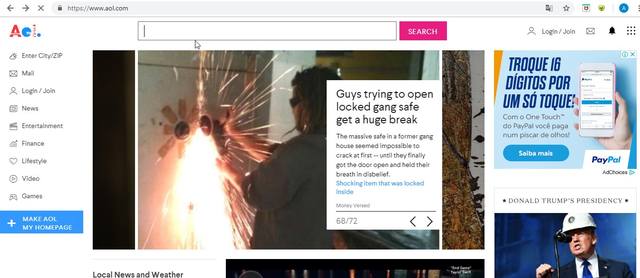
- In the upper right corner, click Login / Join
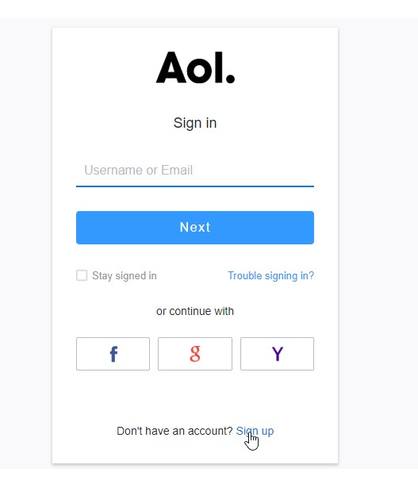
- At the bottom right, click Don't have an account? Sign up:
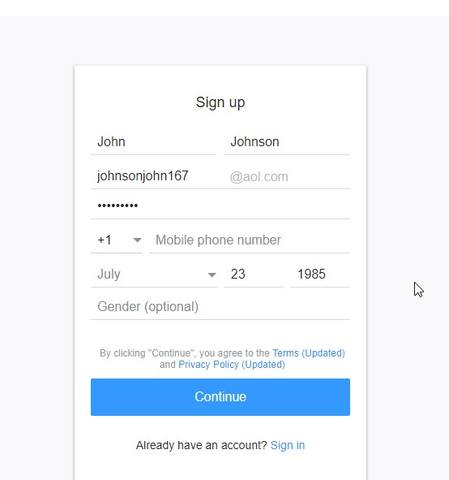
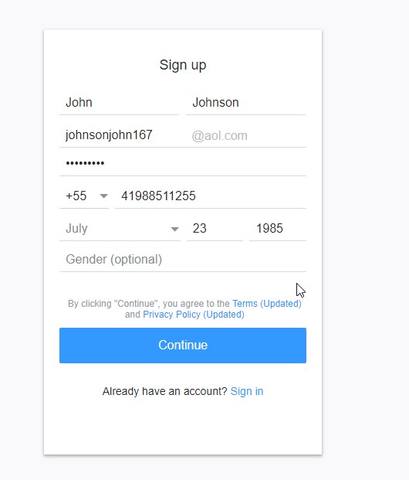
- We register mail to the desired name. Let's say John Johnson. We enter all the data, except for the phone number:
2. We change our IP address for the country whose phone number we will indicate. I chose Brazil. IP changed via vpn.
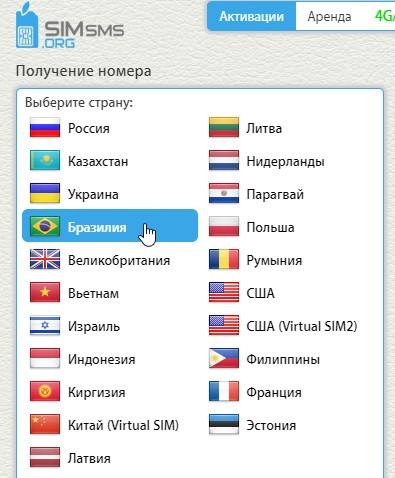
3. We go to simsms.ru and select the country on the left for which we have an IP (I choose Brazil, because I have this particular country)
- Select the service from which you want to receive SMS. In our case, this is aol
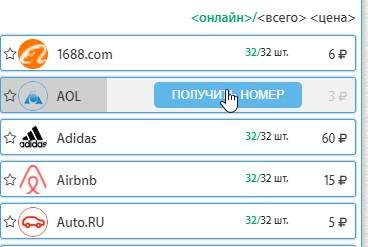
- We receive a number to which you need to send an SMS
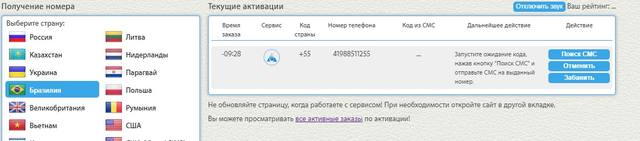
- Copy it and paste it into our registration data
- We ask the service to send us a confirmation code

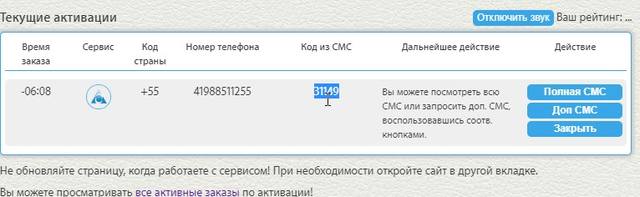
- On simsms, click "sms search"
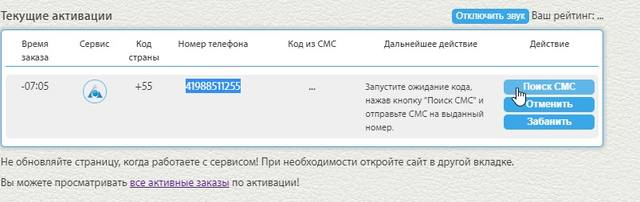
- Copy this code
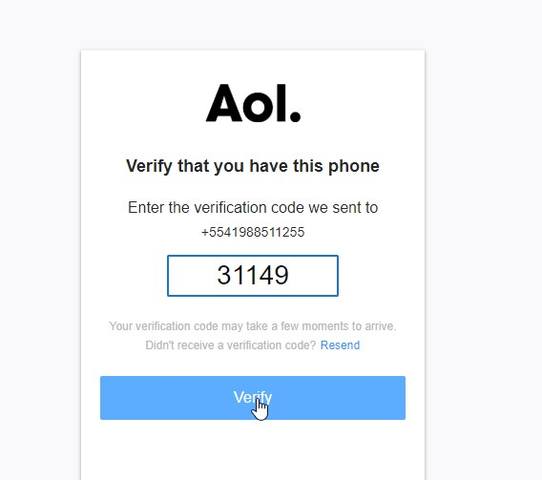
- Paste it into our form and click Verify
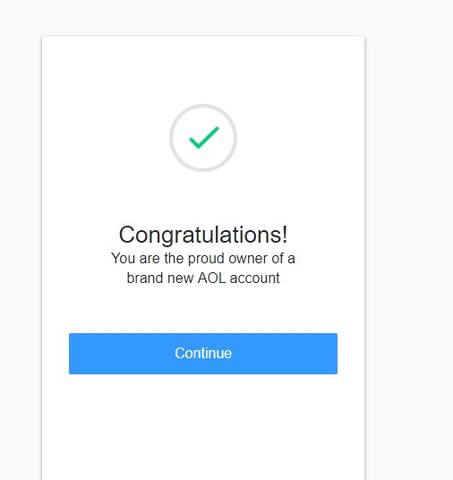
4. Congratulations, you now have mail at aol.com
Perhaps this is not the most interesting article that you have read on this forum, but I am sure many newbies face this problem. I had the same problem.
Good luck and patience to everyone in our difficult business.
Create a mailbox under the name of the cardholder:
When making purchases in online stores, an important point is the mailbox, which you indicate when registering on the site (or directly when paying for your order).
All changes related to your account or order status are sent to this mailbox, so it would be nice to have access to this mailbox.
Many indicate the mailbox kx, which is often present in the purchased CC. But in this case, kkh can see a message about your black deeds and begin to understand: "Why suddenly he receives messages about some purchases in his mail." Perhaps no one will see this message and will not deal with it, but I prefer to play it safe and register my mailbox and, accordingly, indicate it when making purchases.
How do I register a mailbox for a purchased CC.
1. Decide on the choice of mail service. Most often I use gmail, aol, yahoo. I strongly do not recommend using the services without confirmation of registration (such as mail.com)
- Go to aol.com:
- In the upper right corner, click Login / Join
- At the bottom right, click Don't have an account? Sign up:
- We register mail to the desired name. Let's say John Johnson. We enter all the data, except for the phone number:
2. We change our IP address for the country whose phone number we will indicate. I chose Brazil. IP changed via vpn.
3. We go to simsms.ru and select the country on the left for which we have an IP (I choose Brazil, because I have this particular country)
- Select the service from which you want to receive SMS. In our case, this is aol
- We receive a number to which you need to send an SMS
- Copy it and paste it into our registration data
- We ask the service to send us a confirmation code
- On simsms, click "sms search"
- Copy this code
- Paste it into our form and click Verify
4. Congratulations, you now have mail at aol.com
Perhaps this is not the most interesting article that you have read on this forum, but I am sure many newbies face this problem. I had the same problem.
Good luck and patience to everyone in our difficult business.


