

Father
Professional
- Messages
- 2,602
- Reaction score
- 831
- Points
- 113
To fully unlock iCloud (FMI: Off) or bypass / bypass (remove iCloud, operator or MDM lock) for iOS devices, you need a jailbreak. Follow the instructions on how to do this on a regular Windows PC, macOS or Linux.
FAQ:
Do everything at your own peril and risk. Only YOU are responsible for your devices!
Procedure for Windows users:
You need:
A step-by-step guide to jailbreak iOS.

Attention!
Use only USB to Lightning cable! USB Type-C-Lightning won't work!
To jailbreak a device with iOS higher than 13.5, go to [OPTIONS] -> check [Allow untested iOS / iPadOS / tvOS versions]!
or
Initially, put the phone in Recovery Mode and feel free to start the jailbreak process from the 3rd point.
So:
1. Connect your device to PC normally and press [START].
2. Checkra1n will notify you to put the device into Recovery Mode, click [Next]. The program will do everything automatically. (If you originally connected the device in recovery, then see the next paragraph)
3. After the device has been put into Recovery Mode, Checkra1n will ask you to put the device into DFU mode, do it following the instructions on the screen, then click [Start].
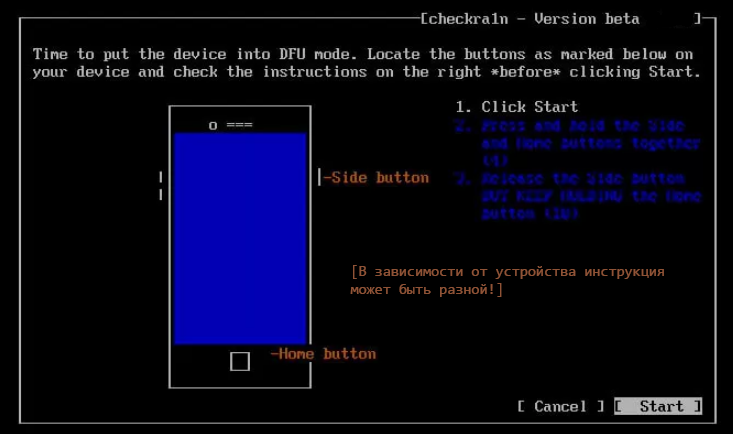
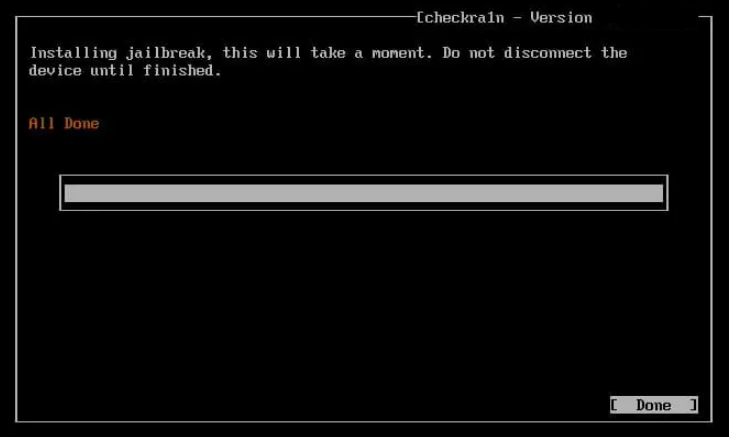
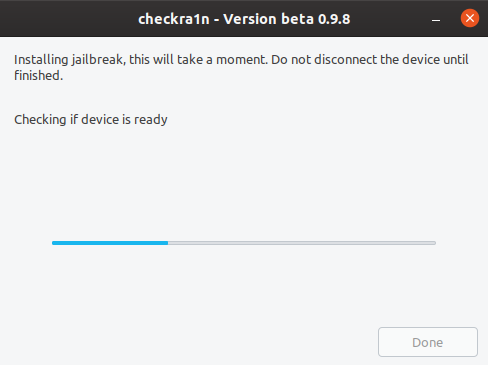
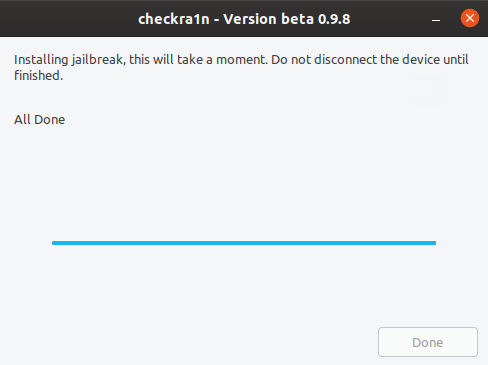
4. After exiting the device from DFU mode, do not turn it off and wait for the process to complete. If everything worked out, you will see the message All Done.
Possible problems and solutions:
Solution for error -78 / -79:
Change the USB port, if it doesn't help - restart your computer and try again.
Various USB related errors (-71, -63, etc.):
Try changing the USB port and / or try a different cable.
Error Solution checkra1n blocked for more than ... seconds:
To solve this problem, most likely impossible. In most cases, an error with this inscription indicates the incompatibility of your PC with this image. Try rebooting and trying again with your BIOS legacy boot. If it doesn't help, your path to jailbreak is through the classic method with Linux (see below).
Steps for macOS users
Download the file for macOS from the Checkra1n website
Open the downloaded * .dmg file and then drag the checkra1n icon to your Applications folder.
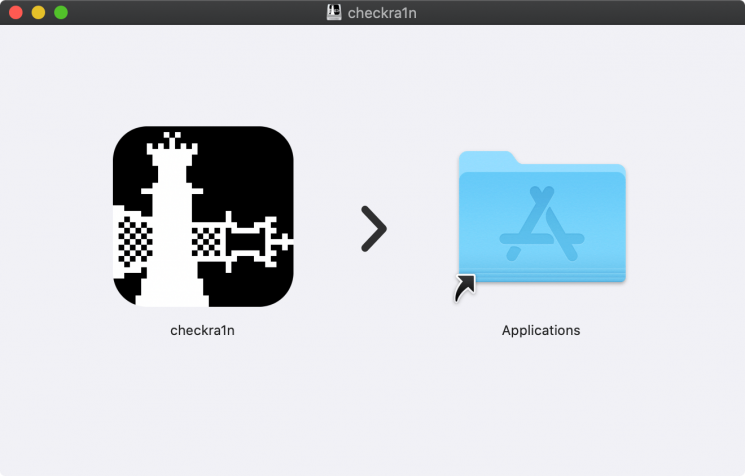
Open the folder with applications, right-click on the checkra1n icon and select the option "Show package contents".
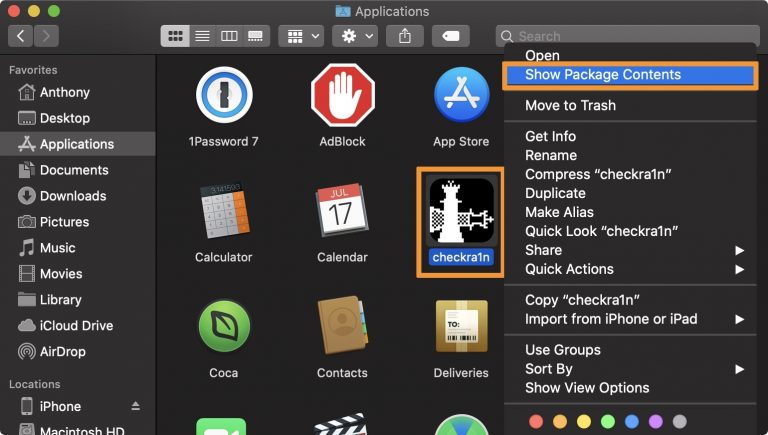
Now go to checkra1n > Contents > MacOS and double click on checkra1n_gui.
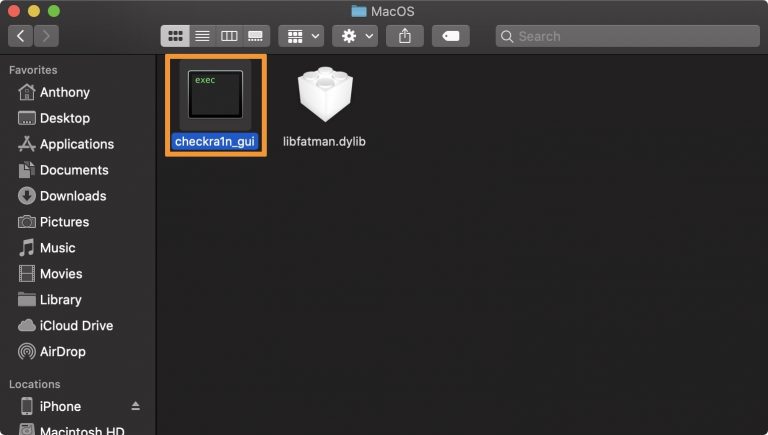
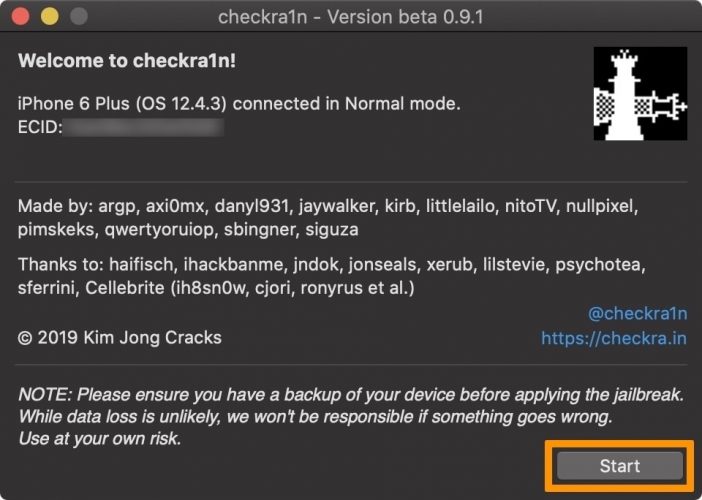
Immediately after that, you will be greeted by the start window of the jailbreak utility. Check that your device is connected and recognized. If everything is in order, click the Start button.
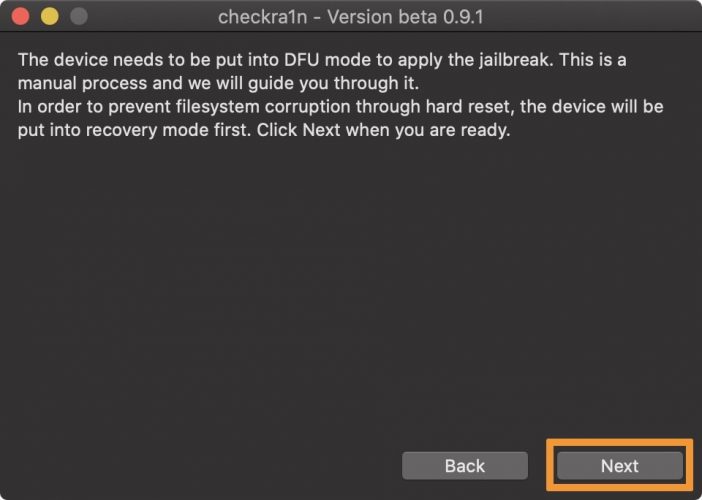
The checkra1n application will inform you about the need to switch to DFU mode. Click the Next button.
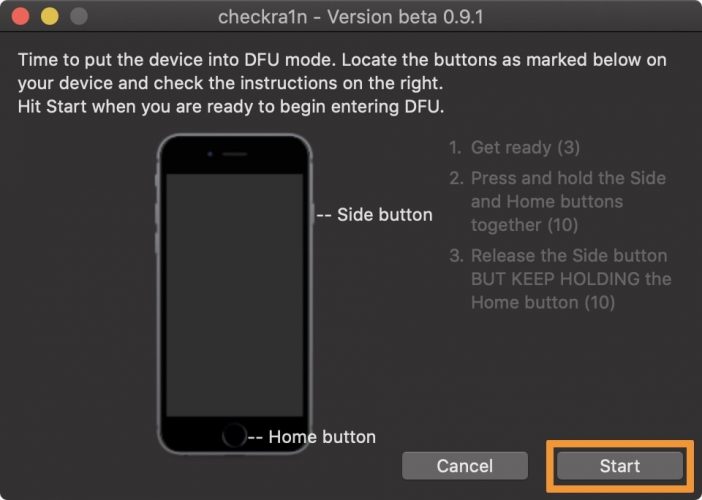
The utility will tell you how to put the device into DFU mode. Get ready, click the Start button and follow the instructions on the screen.
After successfully entering DFU mode, checkra1n will start jailbreak.
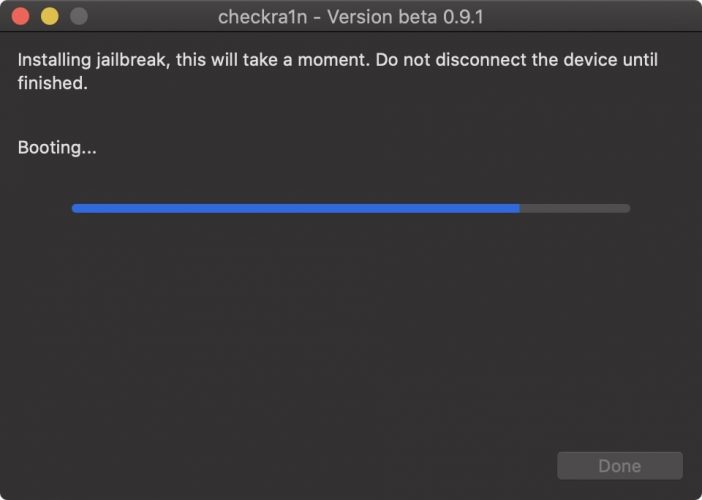
A boot screen with the checkra1n logo will appear on your device. Do not disconnect the device until the jailbreak is complete.
Alternative video instructions for MacOS -
Procedure for Linux Users
If you have sufficient knowledge, you can use any Debian-based distribution, Ubuntu is used as an example. =
1. Download -> ubuntu-19_10-desktop-amd64.iso
2. Create a bootable USB stick with ubuntu-19_10-desktop-amd64.iso, instructions are here.
3. Boot from a bootable USB flash drive.
4. You do not need to install the system, just start Ubuntu from a USB flash drive, select -> Start Ubuntu
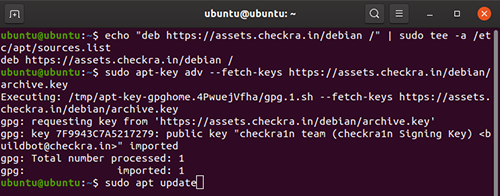
5. Open a terminal and enter the commands in turn:

Internet is required!


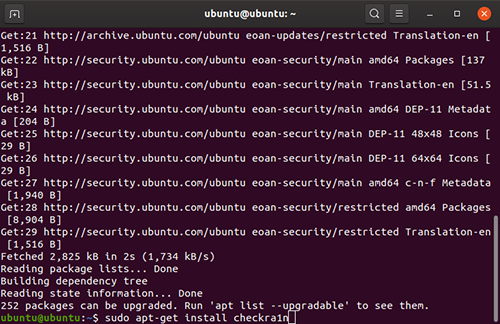
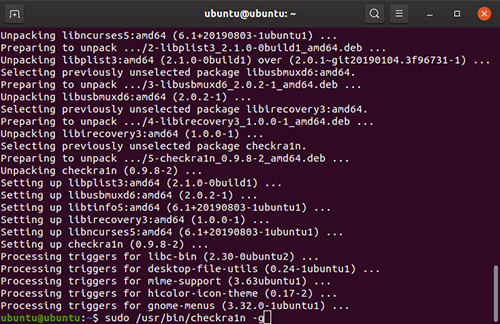
6. To run checkra1n, you can use the command:
OR
Find checkra1n in programs and run JB for implementation.

7. Connect your device to your computer, click "Start".
Use a cable -> USB - Lightning, USB Type-C - Lightning won't work!
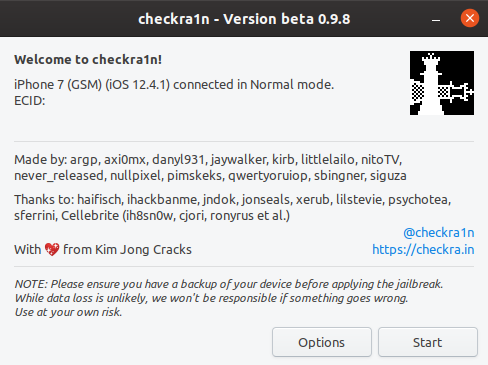
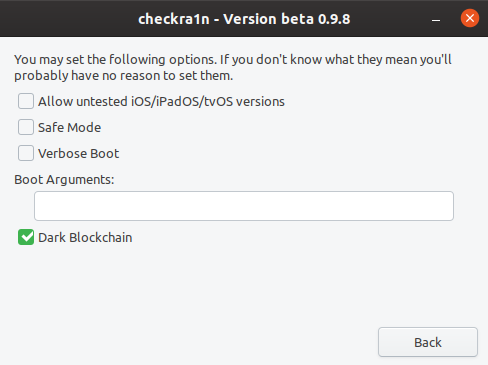
Options list:
Allow untested iOS / iPadOS / tvOS version - should be used if the iOS version on your device is newer than the one that supports checkra1n.
Safe Mode - should be used if you are experiencing problems with the operation of the device after installing this or that tweak, in this mode you can remove the conflicting tweak and jailbreak it normally.
Verbose Boot - this mode displays text information about all processes occurring on the device at startup.
8. Checkra1n will notify you about the need to enter the device into recovery mode, click "Next", the program will do everything automatically.
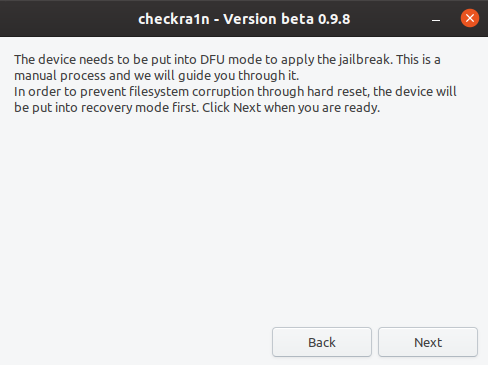
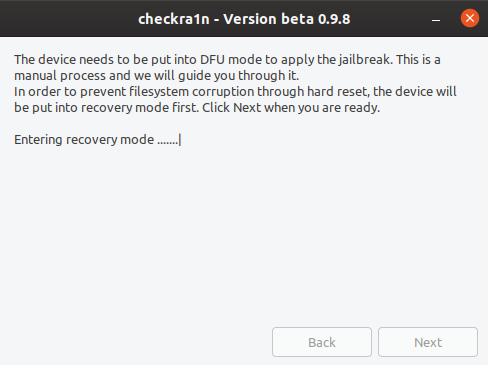
9. After detecting the device in recovery mode, checkra1n will offer to enter the device into DFU mode, do it according to the instructions -> "Start".
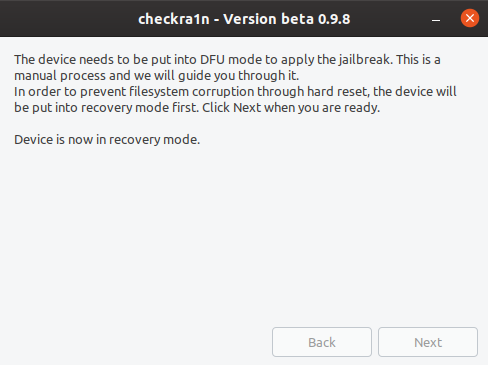
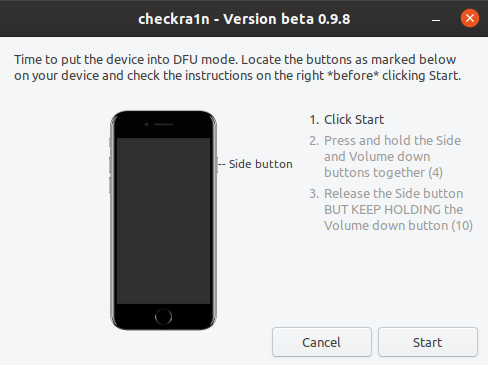
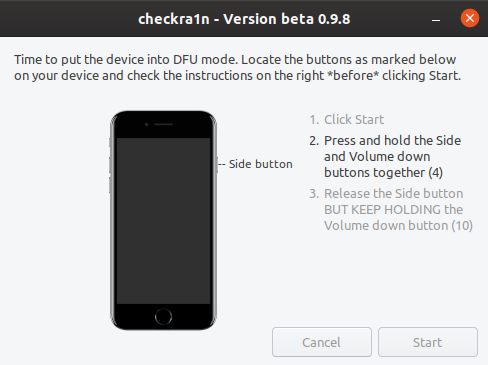
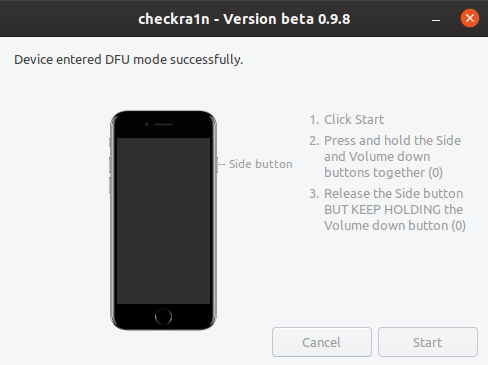
10. After detecting the device in DFU mode, checkra1n will automatically jailbreak and boot the device.
FAQ:
Do everything at your own peril and risk. Only YOU are responsible for your devices!
- Supported iOS / iPadOS / tvOS versions - 12.3, 12.3.1, 12.3.2, 12.4.1, 12.4.2, 12.4.3, 12.4.4, 12.4.5, 12.4.6, 12.4.7, 13.0, 13.0, 13.1, 13.1.1, 13.1.2, 13.1.3, 13.2, 13.2.2, 13.2.3, 13.3, 13.3.1, 13.4, 13.4.1, 13.5, 13.5.1, 13.6, 13.6.1, 13.7.
- Find out what processor you have on your PC, CPU-Z will help
Procedure for Windows users:
You need:
- PC or Laptop with Windows;
- USB storage device with a capacity of 256 MB or more;
- ISO image for owners of a PC based on a 64-bit processor;
- ISO image for owners of PCs based on a 32-bit processor;
- BalenaEtcher utility for burning ISO-image to USB-drive;
A step-by-step guide to jailbreak iOS.
- Start BalenaEtcher.
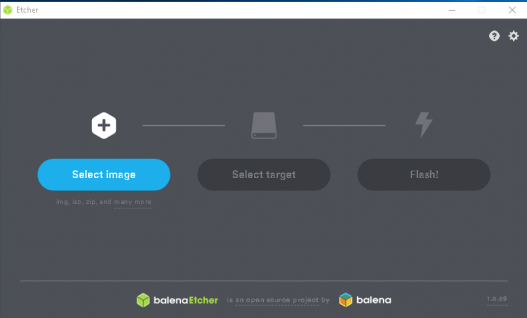
- Select the previously downloaded image "checkn1x.iso" (select image), insert and select the USB drive (select target) on which you want to deploy the image, and click FLASH.
- Restart your computer and enter the boot menu (usually invoked by pressing the F12 key). If you are unsure of how to enter the boot menu on a PC or laptop, try searching Google for the make and model of your device.
- Select boot from a USB stick, after booting you will be taken to the Checkra1n graphical interface.
Attention!
Use only USB to Lightning cable! USB Type-C-Lightning won't work!
To jailbreak a device with iOS higher than 13.5, go to [OPTIONS] -> check [Allow untested iOS / iPadOS / tvOS versions]!
or
Initially, put the phone in Recovery Mode and feel free to start the jailbreak process from the 3rd point.
So:
1. Connect your device to PC normally and press [START].
2. Checkra1n will notify you to put the device into Recovery Mode, click [Next]. The program will do everything automatically. (If you originally connected the device in recovery, then see the next paragraph)
3. After the device has been put into Recovery Mode, Checkra1n will ask you to put the device into DFU mode, do it following the instructions on the screen, then click [Start].
4. After exiting the device from DFU mode, do not turn it off and wait for the process to complete. If everything worked out, you will see the message All Done.
Possible problems and solutions:
Solution for error -78 / -79:
Change the USB port, if it doesn't help - restart your computer and try again.
Various USB related errors (-71, -63, etc.):
Try changing the USB port and / or try a different cable.
Error Solution checkra1n blocked for more than ... seconds:
To solve this problem, most likely impossible. In most cases, an error with this inscription indicates the incompatibility of your PC with this image. Try rebooting and trying again with your BIOS legacy boot. If it doesn't help, your path to jailbreak is through the classic method with Linux (see below).
Steps for macOS users
Download the file for macOS from the Checkra1n website
Open the downloaded * .dmg file and then drag the checkra1n icon to your Applications folder.
Open the folder with applications, right-click on the checkra1n icon and select the option "Show package contents".
Now go to checkra1n > Contents > MacOS and double click on checkra1n_gui.
Immediately after that, you will be greeted by the start window of the jailbreak utility. Check that your device is connected and recognized. If everything is in order, click the Start button.
The checkra1n application will inform you about the need to switch to DFU mode. Click the Next button.
The utility will tell you how to put the device into DFU mode. Get ready, click the Start button and follow the instructions on the screen.
After successfully entering DFU mode, checkra1n will start jailbreak.
A boot screen with the checkra1n logo will appear on your device. Do not disconnect the device until the jailbreak is complete.
Alternative video instructions for MacOS -
Procedure for Linux Users
If you have sufficient knowledge, you can use any Debian-based distribution, Ubuntu is used as an example. =
1. Download -> ubuntu-19_10-desktop-amd64.iso
2. Create a bootable USB stick with ubuntu-19_10-desktop-amd64.iso, instructions are here.
3. Boot from a bootable USB flash drive.
4. You do not need to install the system, just start Ubuntu from a USB flash drive, select -> Start Ubuntu
5. Open a terminal and enter the commands in turn:
Internet is required!
Code:
echo "deb https://assets.checkra.in/debian /" | sudo tee -a /etc/apt/sources.list
Code:
sudo apt-key adv --fetch-keys https://assets.checkra.in/debian/archive.key
Code:
sudo apt update
Code:
sudo apt-get install checkra1n6. To run checkra1n, you can use the command:
Code:
sudo / usr / bin / checkra1n -gOR
Find checkra1n in programs and run JB for implementation.
7. Connect your device to your computer, click "Start".
Use a cable -> USB - Lightning, USB Type-C - Lightning won't work!
Options list:
Allow untested iOS / iPadOS / tvOS version - should be used if the iOS version on your device is newer than the one that supports checkra1n.
Safe Mode - should be used if you are experiencing problems with the operation of the device after installing this or that tweak, in this mode you can remove the conflicting tweak and jailbreak it normally.
Verbose Boot - this mode displays text information about all processes occurring on the device at startup.
8. Checkra1n will notify you about the need to enter the device into recovery mode, click "Next", the program will do everything automatically.
9. After detecting the device in recovery mode, checkra1n will offer to enter the device into DFU mode, do it according to the instructions -> "Start".
10. After detecting the device in DFU mode, checkra1n will automatically jailbreak and boot the device.


