Spoofing geolocation on Android/iPhone and Service for spoofing phone numbers
Content
- Reverse FakeGPS
- Writing an application for changing the location of Android
- Testing an application for changing the location of Android
- Bug fixes
- Spoofing location on Android
- Enabling the "For Developers" mode
- Location spoofing apps
- Fake GPS Location
- Spoofing GPS coordinates in Mock Locations
- Change location in Fake GPS - Fake Location
- App rating Fake GPS Location
- How to change geolocation on Android and iOS
- SIP telephony of numbers with spoofing - what is it
- How to set up SIP telephony numbers
- Who needs calls with phone number spoofing
- Benefits of SIP telephony with number spoofing
- How to change the number
- Program and service for spoofing SIP numbers
In Android, there is a wonderful opportunity to assign any program by the provider of geocoordinates, and the whole system will use the latitude and longitude that it gives. In this article I will show you how to use it and how to write a program for spoofing GPS coordinates yourself.
The idea came to my mind while it was then that I discovered the ability to change the coordinate provider in the operating system, which opens up many interesting possibilities for users.
From the user's point of view, everything is very simple: you just need to install a special application, then enable developer mode in the settings and select the installed application as the provider of the fictitious location. There are a great variety of such programs - from simple to quite spreading, which can not only replace coordinates with given ones, but also change them according to a schedule or play pre-recorded tracks in order to imitate the movement of the phone along a certain route. In general, drive in the request "Fake GPS" and choose according to your taste.
I warn you right away: the reliability of this method is not very high. If you wish, you can programmatically track the presence of such a supplier program on your phone, and if the program is serious, then you just might not be able to fool it.
I wanted to figure out exactly how this mechanism works and create my own spoofing application. And I started by looking at how this algorithm is implemented in one of the free applications. Don't read the documentation, right?
Reverse FakeGPS
The
FakeGPS 5.0.0 application was taken as a guinea pig . Externally, the application is a map on which you can set a marker to an arbitrary point and, using the "Start" and "Stop" buttons, start or stop the translation of the coordinates of the selected point.
Armed with the JEB Decompiler, open up and watch. The first thing that catches your eye is the presence of the
android.permission.ACCESS_MOCK_LOCATION permission in the manifest.
Code:
<uses-permission android: name = "android.permission.INTERNET" />
<uses-permission android: name = "android.permission.ACCESS_NETWORK_STATE" />
<uses-permission android: name = "android.permission.WRITE_EXTERNAL_STORAGE" />
<uses-permission android: name = "android.permission.WAKE_LOCK" />
<uses-permission android: name = "android.permission.ACCESS_COARSE_LOCATION" />
<uses-permission android: name = "android.permission.ACCESS_FINE_LOCATION" />
<uses-permission android: name = "android.permission.ACCESS_MOCK_LOCATION" />
<uses-permission android: name = "android.permission.WRITE_SETTINGS" />
<uses-permission android: name = "com.android.vending.BILLING" />
In the main activity, nothing interesting was found, the usual initialization and configuration, but there is a service with the
self-explanatory name
FakeGPSService.
Let's try to break through the jungle of obfuscation and see what is interesting in it.
The
onCreate method has code like this:
Code:
this.f = "gps";
this.d = (LocationManager) this.getSystemService ("location");
try {
if (this.d == null) {
goto label_46;
}
this.d.removeTestProvider (this.f);
goto label_46;
} catch (IllegalArgumentException | NullPointerException unused_ex) {
goto label_46;
}

label_46:
if (this.d! = null) {
this.d.addTestProvider (this.f, false, false, false, false, true, false, false, 0, 5);
this.d.setTestProviderEnabled (this.f, true);
}
To
put it simply, we initialize the
LocationManager with the value
this.getSystemService ("location"), then remove the test provider
"gps" using the removeTestProvider function and add it again using the
addTestProvider function, remembering to enable it after that with the
setTestProviderEnabled ("gps", true) function. That's it, the test provider has been added and enabled. And then, when the user changes the coordinates, we create and set a new location in the
onEventMainThread function:
Code:
// Create
long v1 = System.currentTimeMillis ();
Location v3 = new Location ("");
v3.setProvider ("gps");
v3.setLatitude (arg10.latitude);
v3.setLongitude (arg10.longitude);
v3.setAltitude (((double) FakeGPSService.p));
v3.setBearing (((float) FakeGPSService.q));
v3.setTime (v1);
v3.setAccuracy (((float) FakeGPSService.o));
v3.setElapsedRealtimeNanos (SystemClock.elapsedRealtimeNanos ());

// And install
try {
this.d.setTestProviderLocation (this.f, v3);
Log.d ("GpsMockProvider", v3.toString ());
} catch (IllegalArgumentException unused_ex) {
}
It seems that everything is more or less clear, you can start writing your own provider of fictitious locations.
Writing an application for changing the location of Android
I must say right away that I do not set myself the task of creating a ready-to-use application. I will make a mockup with a minimal set of functions that will demonstrate the workability of the above method. So we will hardcode fictitious coordinates and set them once when creating a provider. Who cares, he himself will finish to the required level.
So, we launch Android Studio and create a project with an empty activity.
We add
android.permission.ACCESS_MOCK_LOCATION to the manifest, after which the "Studio" begins to swear that this permission is available only to system applications, and it can only be added to the test manifest. Here you don't have to bother, but simply press the Alt + Shift + Enter and Alt-Enter buttons, following the prompts, and Studio will do everything for us. Then we add two buttons to the start activity.
Code:
<LinearLayout
android: layout_width = "match_parent"
android: layout_height = "wrap_content"
android: orientation = "vertical">
<Button
android: id = "@ + id / btnDelGPS"
android: layout_width = "wrap_content"
android: layout_height = "wrap_content"
android: onClick = "DelGPS"
android: text = "Remove GPS provider" />
<Button
android: id = "@ + id / btnAddGPS"
android: layout_width = "wrap_content"
android: layout_height = "wrap_content"
android: onClick = "AddGPS"
android: text = "Add GPS provider" />
</LinearLayout>
And add the appropriate code.
public class MainActivity extends Activity {
LocationManager mLocationManager;
@Override
protected void onCreate (Bundle savedInstanceState) {
super.onCreate (savedInstanceState);
setContentView (R.layout.activity_main);
// Initialize LocationManager
mLocationManager = (LocationManager) getSystemService (Context.LOCATION_SERVICE);
}
public void AddGPS (View view) {
// Add a test provider
mLocationManager.addTestProvider (LocationManager.GPS_PROVIDER, false, false,
false, false, true, true,
true, android.location.Criteria.POWER_LOW, android.location.Criteria.ACCURACY_FINE);

// Turn on the test provider
mLocationManager.setTestProviderEnabled (LocationManager.GPS_PROVIDER, true);

// Set a dummy point
Location newLocation = new Location (LocationManager.GPS_PROVIDER);
newLocation.setLatitude (55.75578);
newLocation.setLongitude (37.61786);
newLocation.setTime (System.currentTimeMillis ());
newLocation.setAccuracy (25);
newLocation.setElapsedRealtimeNanos (System.nanoTime ());
mLocationManager.setTestProviderLocation (LocationManager.GPS_PROVIDER, newLocation);
}
public void DelGPS (View view) {
// Remove our test provider
mLocationManager.removeTestProvider (LocationManager.GPS_PROVIDER);
}
}
We compile and install. Then we go to the developer settings on the phone, select our application as the provider of fictitious locations, shaking with excitement (why, we just wrote our own location provider!), Launch our application with our hands and press the "Add GPS Provider" button.
Nothing happens. Actually, nothing should happen.
If the application is launched not for the first time, then it may crash due to the fact that a test provider with the same name has already been created. Then you need to re-launch the application and delete the provider with the "Remove GPS Provider" button, and then re-create it with the "Add GPS Provider" button.
I deliberately did not add handling of such errors so as not to clutter up the code, we are writing the layout, not the final version. However, you can send pull requests, the link to GitHub will be at the end of the article.
Testing an application for changing the location of Android
We minimize the application and proceed to the tests. We launch Yandex Maps and find ourselves exactly on Red Square, at zero kilometer, as planned. Hooray, it worked!
Well, it almost worked out. If we try to launch Google Maps, for some reason we find ourselves on the Komsomol square in the city of Uryupinsk. Rather, it is clear why we get there, it is not clear why our TestProvider does not work.
To be honest, I was looking for the answer to this question for several days, but everything turned out to be quite simple - you need to turn off Google geolocation in the phone settings. This setting allows you not to bother with the choice of the provider: the phone itself decides from which source to take coordinates. It starts with the most accurate ones, that is, GPS, then, if satellite positioning is not available, goes to base stations, then over Wi-Fi networks, and then supposedly even uses an accelerometer to find itself in space.
So, let's try - turn off Google geolocation and launch Maps.
It worked, we are back on Red Square.
So, this method allows you to replace real GPS coordinates with fictitious ones, but I would like to solve the problem completely - replace the location completely, without any discounts. Interestingly, our guinea pig FakeGPS works correctly regardless of Google geolocation settings. Well, let's dig further.
Error correction
Looking at the
FakeGPSService a little more closely, I noticed that a certain
GoogleApiClient is still used
there. I confess that during the initial analysis, I immediately decided that it was needed for advertising, and did not pay attention to it anymore. And there are also these two methods:
- LocationServices.FusedLocationApi.setMockMode (),
- LocationServices.FusedLocationApi.setMockLocation ().
It seems that this is what you need. Googling the documentation (you still can't get away from it!), We find out that
FusedLocationApi is a little outdated and it is recommended to use
FusedLocationProviderClient instead.
Well, let's try. Add the following line to the dependencies section of the build.gradle file:
Code:
implementation 'com.google.android.gms: play-services-location: 17.0.0'
Interestingly, after adding this line, the size of the application grows from 11 KB to 1 MB with a tail.
Add a couple of lines to the end of the
AddGPS function.
Code:
LocationServices.getFusedLocationProviderClient (this) .setMockMode (true);
LocationServices.getFusedLocationProviderClient (this) .setMockLocation (newLocation);
Compile and run - now it works fine in Google Maps with geolocation enabled. Victory!
Location spoofing on Android
Have you ever thought about the fact that when you take a picture, information about your location is recorded in its metadata? In addition, there are a huge number of programs that track our location using GPS data. Among them: social networks, various show service programs, instant messengers, navigators, etc.
Location spoofing on Android
Location change is needed:
- to ensure your privacy (in most cases);
- to hide GPS coordinate data from various applications and games such as WhatsApp, Viber, Tinder, etc.
What is needed to spoof the location?
- the corresponding application (more on this below)
- system resolution
In the standard settings of Android OS, the ability to spoof location is limited. However, this can be changed in the "For Developers" section.
After opening the "For Developers" mode and installing the application for spoofing GPS, you will need to indicate that you need to use this particular application. Confused? Not! Now you will understand everything.
Enabling the "For Developers" mode
First go to "Settings", then find the item "About phone". And click 7 times on the system shell version.
NOTE: The item "About phone" in different versions of Android and shells may differ in the name, for example: "About the device", etc.
You need to click 7 times on the version of the system shell. There may also be differences in the name, for example, v.1.1, etc.
Now go back to "Settings - Advanced". The "For Developers" item will appear.
Location spoofing apps
I will describe three of the most practical and convenient (in my opinion) applications:
- Fake GPS Location - the most optimal combination of simplicity / functionality parameters.
- Mock Locations - more aimed at creating conditional routes.
- Fake GPS - Fake Location is an even simpler alternative to the first.
Each application, as you can see, has its own specific functions, so the choice is yours. But at the end of the review, I will still talk about my personal choice.
Fake GPS Location
Fake GPS Location is a very handy and functional application. Among the main functions it should be noted:
- one-click swap
- power on function at system boot
- random change of location
When you enter the application, you will immediately be prompted to use this particular application by the system (you will go to the "For Developers" section). Which is very convenient.
Fake GPS Location
Now just adjust the point on the map to the indicator itself and press Play. The current location will be displayed in the tray. You can stop the simulation by simply pressing pause.
Also, if you go to the settings, you will see several useful functions, such as:
- Automatic power on when the device is rebooted.
- Application to various applications.
- Random change of location when you pass a certain path in meters.
As you can see, everything is very simple and convenient!
Spoofing GPS coordinates in Mock Locations
Mock Locations is a very functional application. It does not just change the location on the Android device, but also simulates the entire route.
At the same time, you can set the speed and time spent at the points, save the route and find the desired places on the map in the search.
The use of the application also starts with making changes to the item "For developers".
After that, you can set the location where you want to be conditionally located by a long tap on this place (or by entering the address in the search). Then click on the green checkmark for settings. Set up the stay time and forward.
In addition, you can set the conditional route itself, along which you will move with the speed you specified and the parking time at each of the points. Like you've been on an interesting journey.
So, hold down the starting and ending points of the route in order, click on the green checkmark and adjust the parameters - the movement has begun!
Also, the application has a function to find the place you need. Plus, you can download a ready-made route in GPX format.
There is also a paid version of this application, where there are no ads and it is possible to save routes.
Change location in Fake GPS - Fake Location
Fake Location. Among the pluses, it is worth noting the simplest interface and the ability to save points of stay to bookmarks. There is nothing difficult to use, so I see no point in the instructions.
In conclusion, I will say that, in my opinion, Fake GPS Location works best, and the simplicity of the interface is just impressive. And these are not just words, I tested about 10 location spoofing apps.
There are many more location change apps in the market. You can try them, but do not forget to pay attention to the list of permissions that this or that application requires, and if something arouses suspicion, do not install it. If you still decide to install, then here are two articles that will help you do it correctly and safely. In the article "Testing APK" you will learn how to check an application for viruses even before you download and install it on your device, and in the article " How to install an application" you will learn how to test new applications without putting your phone / tablet in danger.
How to change geolocation on Android and iOS
It's no secret that nowadays quite a few applications and Internet services track our coordinates and often make this information publicly available. Disgusting, isn't it? Therefore, today I would like to talk about how to change the parameters of your real location and transmit false information to such services regarding our geolocation.
How to change location on Android
There are quite a lot of all kinds of interesting applications that are designed to help in this topic. But I would recommend one of the best, time-tested. And this is Hola Fake GPS location. Thanks to it, you can easily disguise your real geolocation. After the first launch, you will have to spend a few minutes to make the necessary settings. But in the future, you can change coordinates almost instantly in a simple and convenient interface.
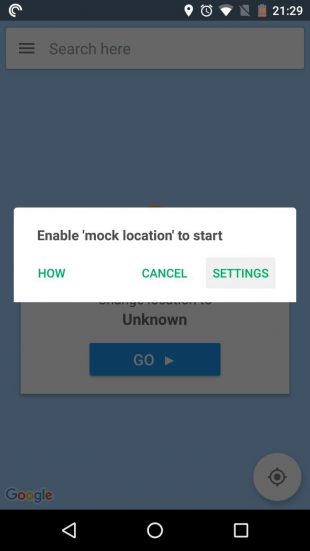
After installing Hola Fake GPS location, you must give the program permission to change the location. To do this, first click in the GO app.
Then click Settings and the "For Developers" section will open for you.
Then find the "Select Fake Location Apps" item and use it to select Hola Fake GPS location.
Next, go to the device settings and open the section responsible for the location parameters. Here, enable the geolocation mode by GPS satellites only.
When you make the above settings, the application will be ready to work. To change the coordinates for all other programs with it, just select a false location on the map and press the GO button.
You can choose any location around the world. To turn off the substitution of coordinates, you need to press STOP.
The false location transmission works in the background. By enabling Hola Fake GPS location, you can, as usual, share coordinates on social networks and take new pictures in other programs. But now other users will see not your actual location and not the places where you took the photo, but the selected coordinates. So you can take pictures from abroad.
You can also control the work of Hola Fake GPS location using a special widget that appears after installing the program on the notification panel. After shutting down Hola, other apps may still see fictitious coordinates. In such cases, simply restart the GPS module.
Hola Fake GPS location is available as a paid subscription or completely free. But in the second case, the program will use the processing power of your device during its idle time and a little traffic.
How to change location on iOS
Until recently, it was believed that in iOS it was impossible to spoof location using fake GPS data. The high degree of closedness of the system allegedly does not allow installing programs from sources other than the official App Store, which has no place for such tools. Apple moderators reviewed all applications and refused to publish to developers if there were features that violate the rules.
But there is always a way out) Now I propose to consider 2 good options for how to solve the issue of geolocation substitution in iOS today.
1 option
This method of sending “fake” geodata to the network is quite simple, but requires two devices running iOS 8 or higher. For example, you were asked to send the coordinates of your current location in the same iMessage app, but you don't want to send the real geolocation. The iPad, which is at home, will come to your aid (let's simulate the situation). The iPad must be connected to the same Apple ID account and geolocation must be activated on it.
On iPhone, go to Privacy> Location Services and select Share Location. You will see a list of gadgets active for this Apple ID account;
Section "Link to the map". Here we indicate just our iPad, which is at home;
That's it, now all coordinates from the iPhone will be subscribed to the iPad and, accordingly, you will hide your current location.
Now, in order to hide / change geolocation on iPhone, you just need to leave the second device in the right place
Option 2
The second method will be relevant only for devices that have a jailbreak installed. You will need the Location Faker 8 tweak. You can download it from the BigBoss stock repository for $ 2.99 or for free from the repo.xarold.com repository (you can also use the Location Handle tweak available in Cydia).
The tweak settings are minimal. To hide or change the geolocation on your iPhone, simply go to Location Faker 8, select the location you want on the map and press the ON button in the utility interface. Your coordinates have been successfully changed.
That's all! Nothing complicated)
SIP telephony with number spoofing
The phone number substitution system will allow you to hide your number when making calls to other subscribers. You can also not hide anything, but call via SIP telephony, substituting certain numbers. The purposes of use are very different - a simple flood from other people's phone numbers, anonymous acquaintances and anonymous calls to people who should not reveal their real phone. Let's try to figure out how to change the number.
SIP telephony is a technology for telephony over the Internet. It uses Internet channels to communicate with subscribers. It also provides outlets to the cellular network and city telephony. This type of communication is flexible and cheap - subscribers will find low tariffs for long-distance and long-distance calls, and corporate clients will have hundreds of functions for business needs. Such powerful software systems as Asterisk allow you to realize any whim, including the substitution of a number.
Number substitution in SIP telephony looks like this - we specify an arbitrary phone number in the PBX settings, call a subscriber and communicate with him without disclosing our real number (he will not be needed at all). The task of the SIP equipment is to transmit to the recipient of the call the numbers that will be displayed on the display of the mobile phone (or landline with caller ID). This is called number substitution.
There is another way to change the number - it is simpler and less effective. It consists in using call forwarding and outgoing messages from anonymous phone numbers. This is how many services work, providing automatic addressing. This mechanism is less flexible, but easier to implement. Companies providing such services buy out thousands of virtual phone numbers and set up banal call forwarding through applications.
How to set up SIP telephony numbers
Let's talk a little about the technical side of the issue. Number substitution in SIP telephony is implemented by changing the Caller ID parameter . It is registered directly in the SIP profile control panel. If necessary, any digital pile can be entered here - it will be displayed on the called subscriber. After adding your number, it will be displayed to those whom we call.
If the Caller ID parameter is left blank, then the call will not be anonymous at all. In this case, it is carried out on behalf of one of the city gateways of the IP telephony operator - their numbers are indicated on the websites. If the subscriber wants to add a mobile phone number here, this operation will have to be confirmed with an SMS confirmation. It becomes clear that it will not work at random to enter into the Caller ID field - none of the major providers will allow it.
Despite this, there are a large number of services on the network that offer SIP spoofing services. They run their own SIP telephony servers with the ability to enter whatever they want in the Caller ID field - even an arbitrary set of numbers. This set will be displayed for the called subscribers.
Please note that cellular operators and city telephony operators are actively fighting against the substitution of numbers. Because of this, they may be displayed incorrectly.
Who needs calls with phone number spoofing
There are many scenarios for using number spoofing:
For my company, IP telephony was required that would meet a number of requirements: the presence of a PBX, the ability to use numbers from different regions, adequate prices and the ability to quickly resolve issues. I chose from several providers on the market, in the end I settled on Zadarma , it meets all our requirements.
Fraudulent scenario - "crooks" are calling bank customers from swap phones, trying to find out bank card details or access codes to online banking. Since 2019, when the number of fake calls began to number in the thousands, banks and operators have declared war on such services. Therefore, it will no longer be possible to call someone from 900 number or from the phone of any other bank (in any case, the operators' equipment is aimed at suppressing such attempts);
Sneaking trade secrets - dishonest competitors from various business areas buy customer bases of commercial companies, change their number and start a massive call. Within the framework of this scenario, hundreds and thousands of smaller scenarios are possible - you can come up with anything you want, trying to outrun competitors;
Anonymous dating - it looks strange, but many people really prefer to meet anonymously, hiding their real contacts. Subsequently, you can call the person from the real number. Although anonymous dating also has its charms - at any time the dialogue can be interrupted by simply changing your number. True, you usually have to pay for the substitution - there are no free services on the network;
Flood by the numbers of competitors or ill-wishers. The opportunity is realized to literally "fill up" someone else's phone with calls, forcing to change the number or interfering with normal dialing. You can pay for this under the article on "telephone hooliganism", but usually there is no one to fine - all such services are strictly anonymous. Moreover, they declare that they do not store any logs and do not know who used the spoofing function. Within the framework of the same scenario, you can force someone to change their number - including ill-wishers, adding problems to them;
Commercial cold calling is a completely legitimate scenario for doing business for the sale of goods and services. Outgoing calls are made from spoofed numbers in order to avoid a flurry of callbacks - real contacts are transmitted only to interested customers;
Practical jokes - you can call from an anonymous number and prank your colleagues, friends or relatives. The first thing that comes to mind is to call a work colleague on behalf of the boss, yell and say about the dismissal. The joke is evil, but it has a right to exist on April Fools' Day - April 1.
There are many scenarios for using SIP telephony with number spoofing, but the abundance of scammers is gradually killing this opportunity. For example, operators check outgoing calls from bank numbers and telephones of commercial organizations.
Benefits of SIP telephony with number spoofing
The advantages of the technology are quite obvious:
- Hiding your own number for making anonymous calls - you can change it at least every 5 minutes without fear of being exposed;
- Suitable for business purposes without having to buy huge pools of virtual direct numbers. Typically, this functionality is used by call centers of trade companies (including those that "sell" all sorts of nonsense). Large companies use their own multichannel numbers for dialing;
- There is no need to pay for virtual numbers - they are purchased with real passport data.
The disadvantage is that many SIP telephony services with number spoofing are quite expensive.
How to change the number
Specialized services will help you to replace the phone number on outgoing calls. They run SIP telephony services on their equipment with the ability to freely change the Caller ID parameter. Further, anonymous accounts are leased to users. The cost of services can be high, depending on the availability of functions. Find a similar service, read the reviews and take action. Remember that there are many scammers in this area - beware of them.
There is an alternative way to change the number in SIP telephony. It is completely legal and cheap, anyone can use it. The instruction is simple:
- Find an IP telephony operator that allows you to specify mobile phone numbers in the Caller ID parameter;
- Add someone else's phone number to it through SMS receiving services;
- Select the added number in Caller ID and use it - it will be displayed for the called subscribers.
This method has a right to exist, but it is not entirely anonymous. SIP operators keep logs - when using services for illegal purposes, they have the right to transfer user data to law enforcement agencies.
Program and service for spoofing SIP numbers
The situation with the programs is ambiguous - they are regularly removed from the Google Play and App Store, as they are not considered safe. As for the applications found on the Internet, there is every chance of ruining your smartphone or infecting it with viruses. Another part of the applications is inoperative or has not been updated for a long time. Therefore, there is nothing to recommend - try the applications at your own peril and risk.
Sites for spoofing geolocation numbers
zadarma.com or app play.google.com/store/apps/details?id=com.zadarma.sip
black-voip.ru
sipcaller.com
fakenumbers.ru
xho.ru
fakenambers.net